
Announcements
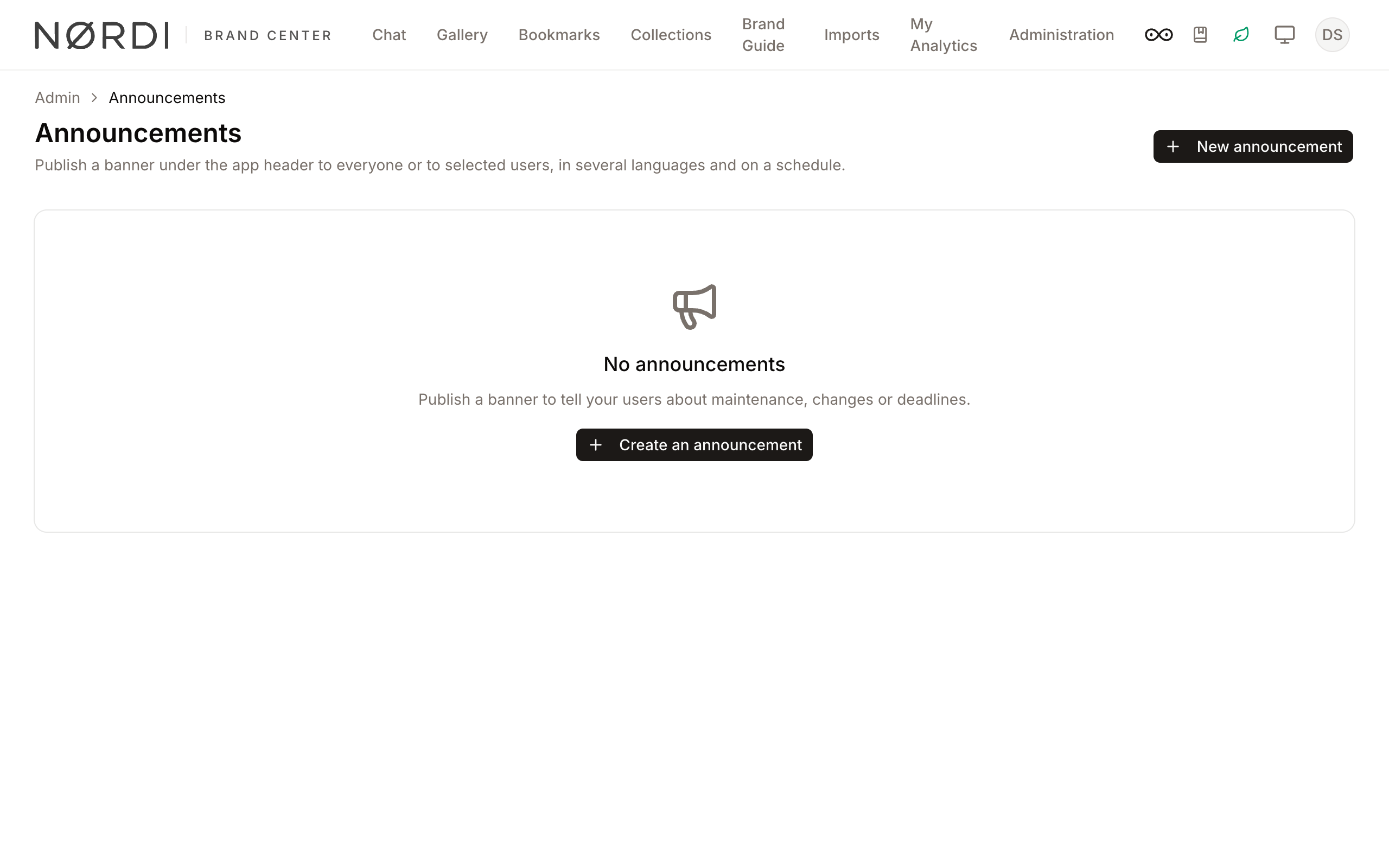
An announcement is a banner shown under the app header on every page. Use it to warn about a maintenance window, introduce a change or ask users to act. You choose the text, its language versions, the period when it shows and the users who see it.
Page Overview
- Purpose: To publish short messages to your users without sending an email.
- When to use it: Planned downtime, a new policy, a deadline, a welcome message for a partner group.
- What you can do here:
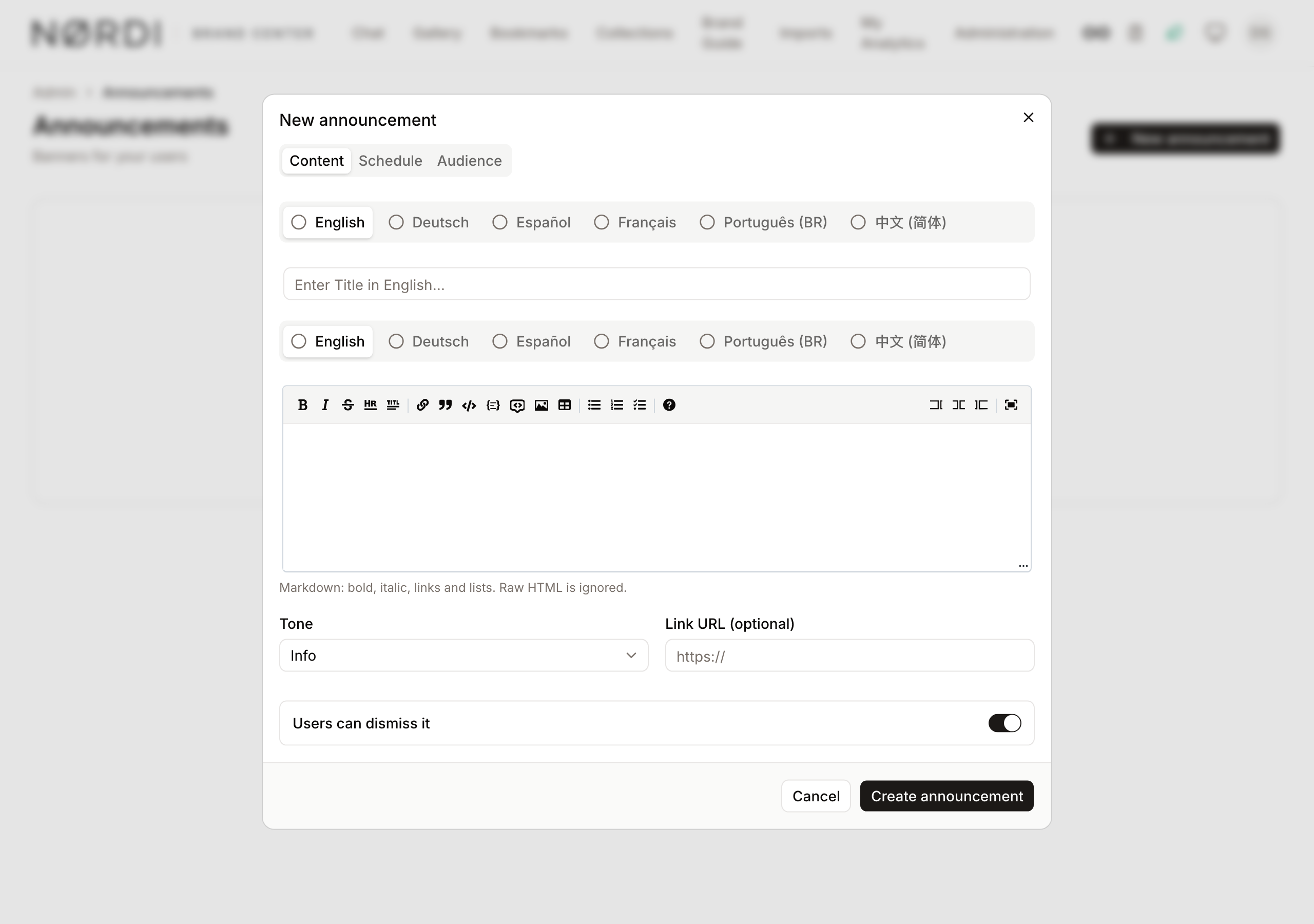
- Write the title and the text in each interface language. The text accepts Markdown (bold, italic, links, lists).
- Add one link with its own label per interface language.
- Schedule the start and the end.
- Show the banner to everyone or only to users who match rules.
- Turn an announcement off without deleting it.
Page Layout
- Top bar: The page title and the New announcement button.
- Table: One row per announcement with its status (Live, Scheduled, Ended, Inactive), its period and its audience.
- Row menu: Edit, activate or deactivate, and delete.
Main Features
Languages
- What it's for: Showing each user the message in their own language.
- How it works: The editor offers one tab per interface language: English, French, German, Spanish, Portuguese and Chinese. These are the languages of the app menus, chosen by each user in their settings. They are not the asset languages managed in Languages, which only describe the content of your assets. The title and text must exist in English, the master language. A user sees the version in their interface language when you wrote it, else the English version, else the first language that has text.
How an announcement looks
- What it's for: Checking the result before you publish.
- How it works: A live announcement is a coloured banner under the app header. It shows the title in bold, the text, the optional link button and, when users can dismiss it, a close button. The colour and icon follow the Tone you picked (information, warning, success or danger). The banner below is the French version, shown to a user whose interface is in French.

Schedule
- What it's for: Preparing a message ahead of time and removing it without further action.
- How it works: Leave Starts at empty to show the banner at once, and Ends at empty to show it until you turn it off. Times are picked in your browser's time zone and stored as exact moments, so every user sees the banner start and end at the same instant.
Audience
- What it's for: Reaching a group instead of everyone.
- How it works: With no rule, every signed-in user and every guest of the Public Portal sees the banner. Add rules on role, group membership, email, email domain or name to narrow it. Guests have no identity, so any rule on those fields hides the banner from them. Rules that cannot be evaluated hide the banner from everyone.
Dismissal
- What it's for: Letting users close a message they have read.
- How it works: When Users can dismiss it is on, a signed-in user closes the banner for good, and it does not return even if you edit it. A guest's choice is kept in their browser. At most three banners show at a time, newest first.
Permission
Managing announcements needs the Manage announcements permission, granted to the Administrator role by default.