
Microsoft 365 Copilot
The Microsoft 365 Copilot page connects your workspace to your organization's Microsoft 365 tenant. Freedam sends the images you choose to Microsoft 365 and keeps them up to date: new and edited images are sent within minutes, and images you remove are withdrawn. Copilot Chat and Microsoft Search can show them once a Microsoft 365 administrator has made the connection visible.
Your images stay managed in Freedam. Nothing is stored in SharePoint.
This page is a walkthrough. Follow the steps in order: steps 1 to 3 happen in Freedam, steps 4 to 6 in Microsoft 365, and step 7 is only needed for Copilot in PowerPoint. Every Microsoft step starts with a link that opens the right screen.
You find the Freedam page under Administration → Platform → Microsoft 365 Copilot.

Before you start
In Freedam:
- Your plan includes the Microsoft 365 Copilot feature.
- You have the Manage Microsoft 365 Copilot permission.
In Microsoft 365:
- A Microsoft 365 administrator (Global Administrator or Privileged Role Administrator) approves the Freedam app in step 1.
- A Microsoft 365 administrator who can manage Copilot connectors (Global Administrator or AI Administrator) does steps 4 and 5. Step 7 needs an administrator who can create groups and manage policies in the Microsoft 365 Apps admin center. A Global Administrator can do both.
- Your organization has the Microsoft licenses for the places where you want the images to appear:
| Where people find the images | What Microsoft requires |
|---|---|
| Microsoft Search | Any Microsoft 365 plan. |
| Copilot Chat | A Microsoft 365 Copilot license for each person, on top of their Microsoft 365 plan. |
| Brand Kit and Copilot in PowerPoint | A Microsoft 365 Copilot license, and access to Policy Management in the Microsoft 365 Apps admin center to name the brand managers. Microsoft 365 Business Standard does not include Policy Management. See step 7. |
Walkthrough
Step 1 - Connect Freedam to Microsoft 365
- In Freedam, open Administration → Platform → Microsoft 365 Copilot and click Connect to Microsoft 365. You are sent to Microsoft.
- Sign in as a Microsoft 365 administrator and accept the permissions Freedam asks for. Freedam only asks to create its own connection and publish items to it. It cannot read your email, files or other Microsoft 365 data.
- Microsoft sends you back to the Freedam page. Microsoft 365 then takes a few minutes to set up the connection. The status shows Provisioning and the page updates on its own until it shows Ready.
If the administrator cancels, nothing is connected and you can start again. If the consent request expired or was already used, the page says so: click Connect to Microsoft 365 again.
Once connected, the Connection card shows the Microsoft 365 tenant ID and the date of the connection. If the connection has a problem, the card shows the reason and a Connect again button.
A connection that shows Ready is not yet visible in Copilot: that is step 5.
Step 2 - Choose the images to share
The Images to share section decides which images leave Freedam.
- Add one or more conditions, for example a vocabulary field such as Brand status equal to Approved, or membership of a collection.
- The number of matching images updates as you edit.
- Under Who can see the images in Microsoft 365, choose Everyone in the organization or One Entra group. For a group, paste its object ID into Entra group object ID. You find it in the Microsoft Entra admin center, on the overview of the group.
- Click Save. Microsoft 365 is updated in the background.
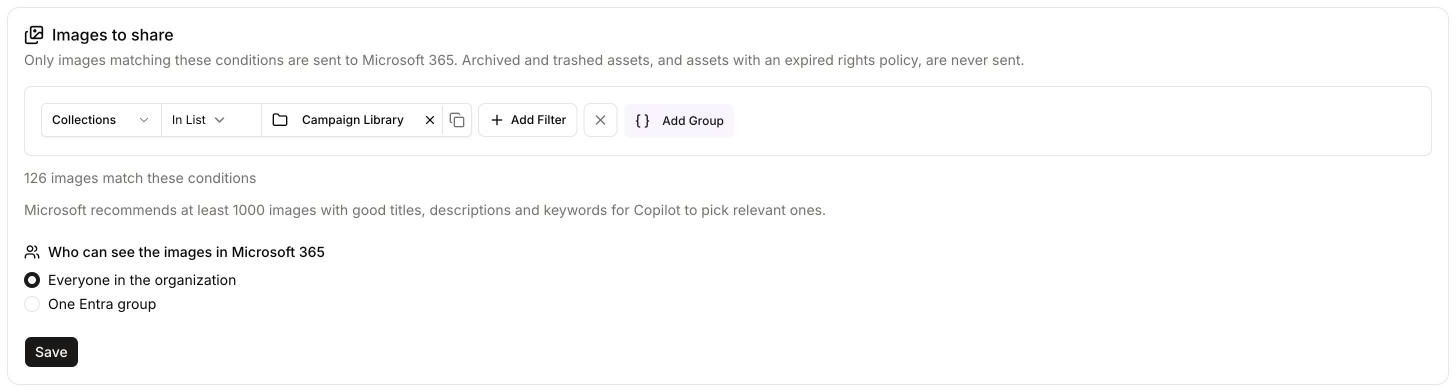
Without conditions, no images are shared. Use a field that only brand managers can edit to mark images as approved, so an image cannot reach Copilot by mistake. Microsoft recommends sharing at least 1,000 images with good titles, descriptions and keywords, so Copilot has enough to choose from.
Step 3 - Check that the images were sent
The Sync status section shows the date of the last full sync and three counts: Matching (images that match your conditions), In Microsoft 365 and Failed. Wait until In Microsoft 365 equals Matching. Failed images are listed with the reason.

Once the connection is ready, the Next steps in Microsoft 365 card on the page names your connection and lists what is left to do in Microsoft 365. Steps 4 to 7 below describe those steps in detail.

Step 4 - Find the connection in Microsoft 365
This step and the next ones are done in Microsoft 365, by a Microsoft 365 administrator. The names below are those of the English admin center.
- Open Copilot → Connectors in the Microsoft 365 admin center and select the Your Connections tab.
- Find the connection named "Freedam" followed by the name of your workspace. Its State is Ready. Its Display name column reads "External". The other rows are connectors that Microsoft provides.
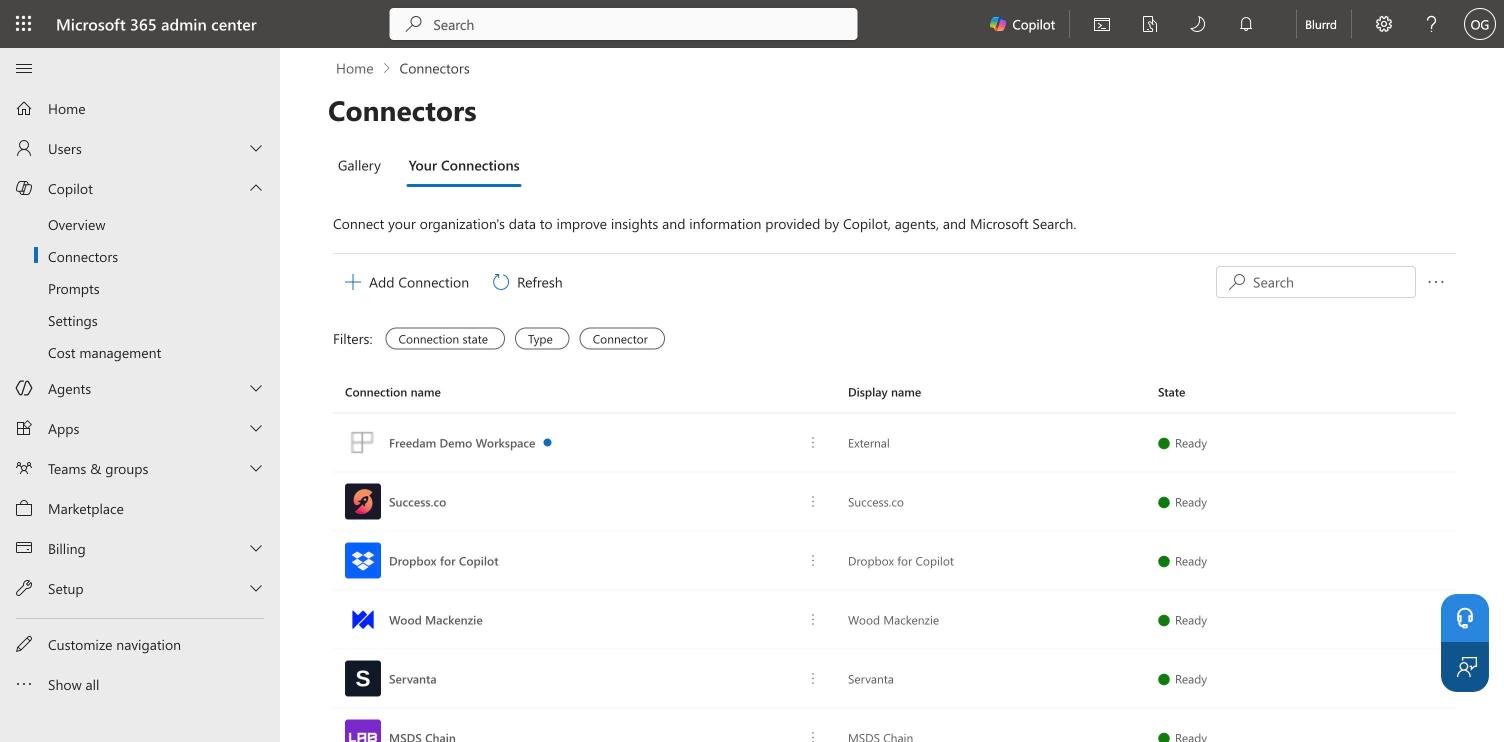
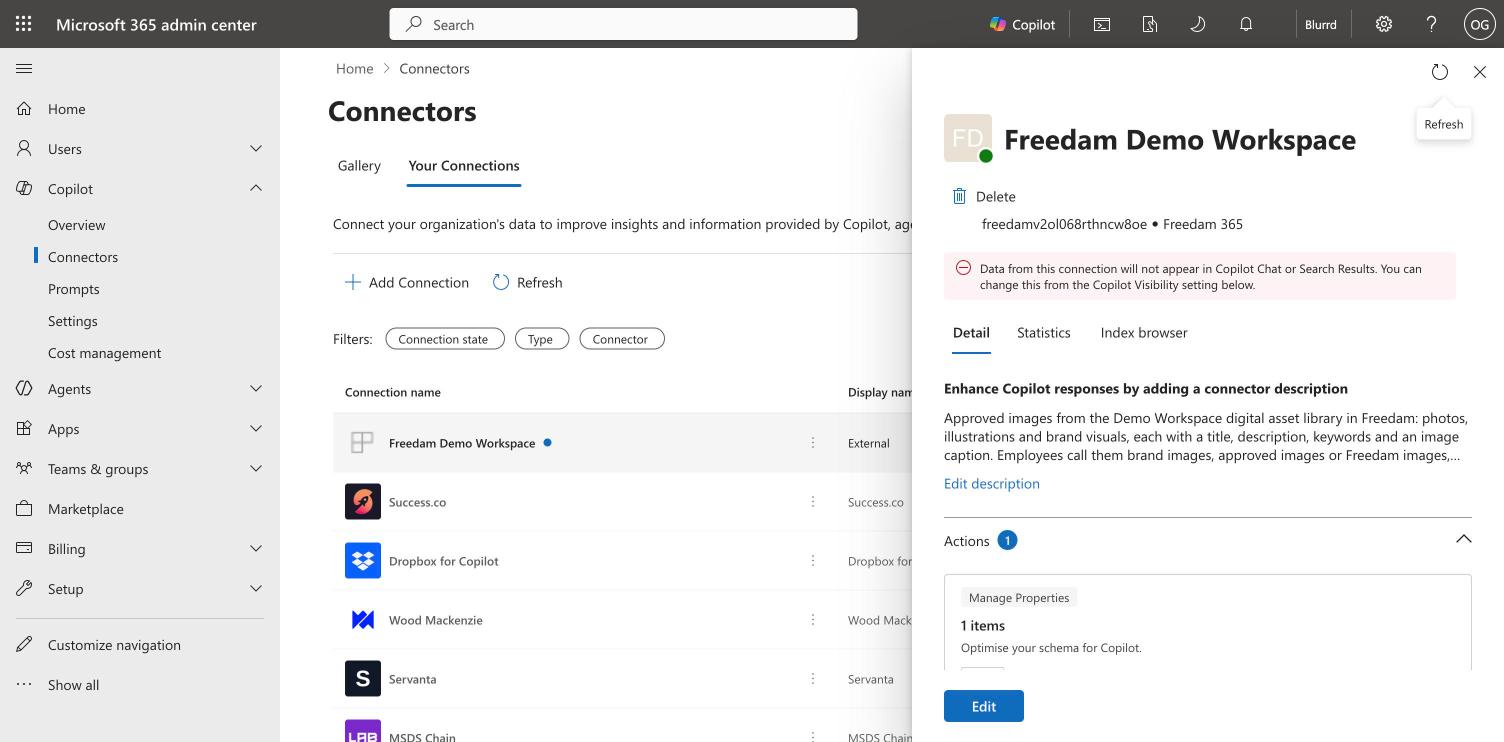
- Click the name of the connection to open its panel. A new connection shows a warning that its data will not appear in Copilot Chat or search results. Step 5 removes it.
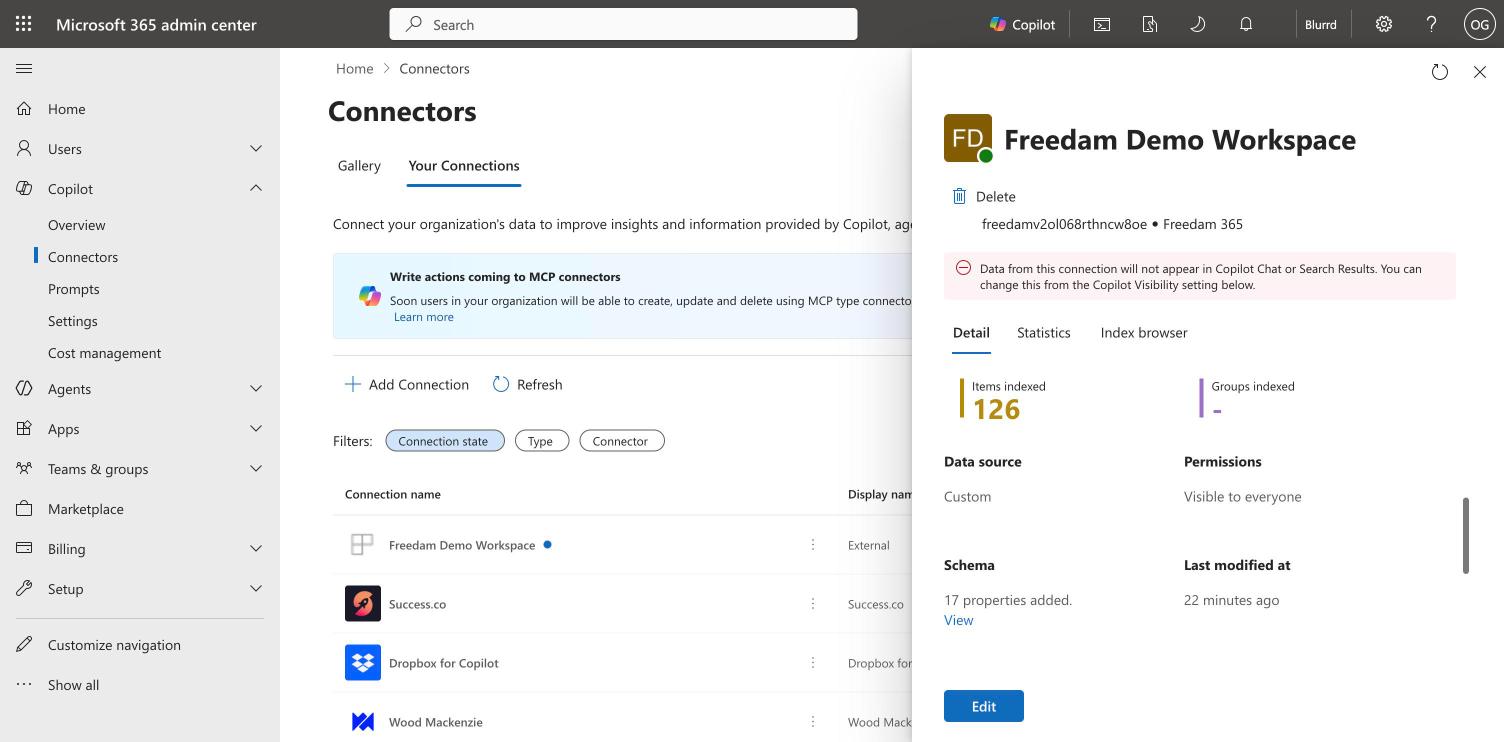
- Scroll down to Connection stats. Items indexed equals the In Microsoft 365 count from step 3.
Step 5 - Make the images visible to Copilot
Microsoft hides a new connection from Copilot Chat and from search results until an administrator allows it.
- In the panel of the connection, stay on the Detail tab, scroll to the bottom and expand Copilot Visibility. The switch is Off.
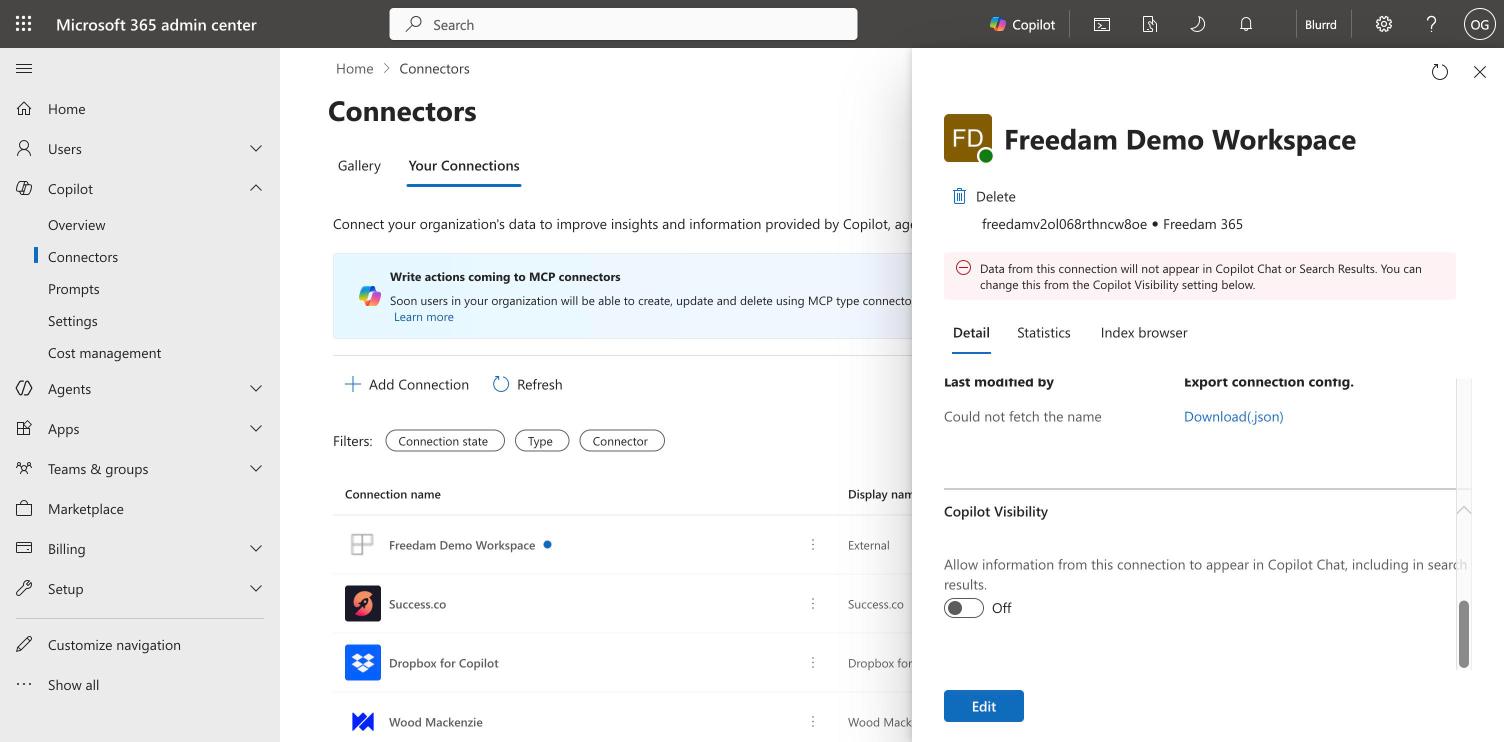
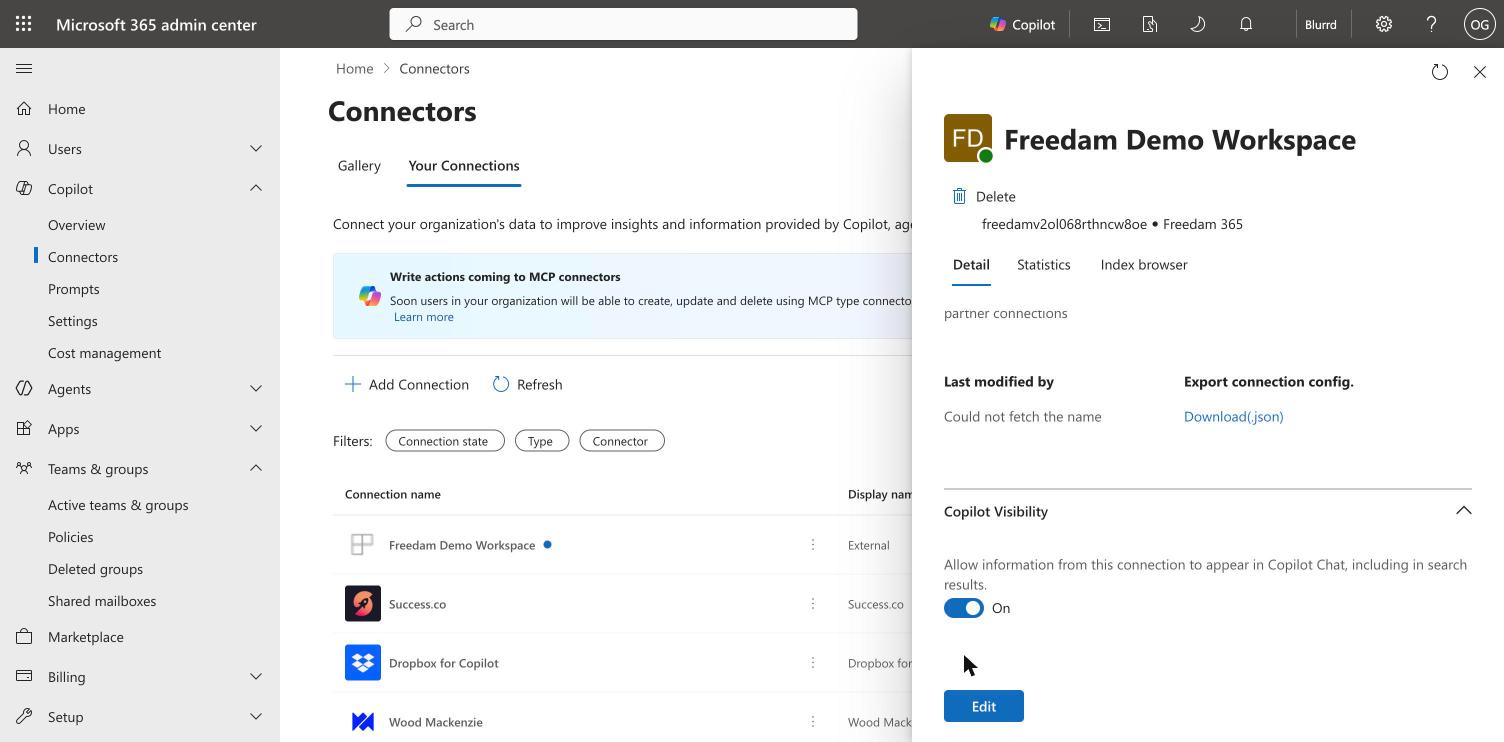
- Turn on Allow information from this connection to appear in Copilot Chat, including in search results.
- Wait until the switch reads On, which takes under a minute. The warning at the top of the panel disappears.
Step 6 - Find the images in Copilot Chat and Microsoft Search
- Open Copilot Chat and ask for an image by its subject, for example "Find our approved images of a sofa in a living room".
- Open Search and search for a word from the title of a shared image.
The images are listed under All, each with its title linking to the asset page in Freedam and an extract of its description and keywords. Search in SharePoint also shows the thumbnail of each image; Search in the Microsoft 365 Copilot app shows the title without the thumbnail. The Images tab does not list them: it only covers images stored in SharePoint and OneDrive.
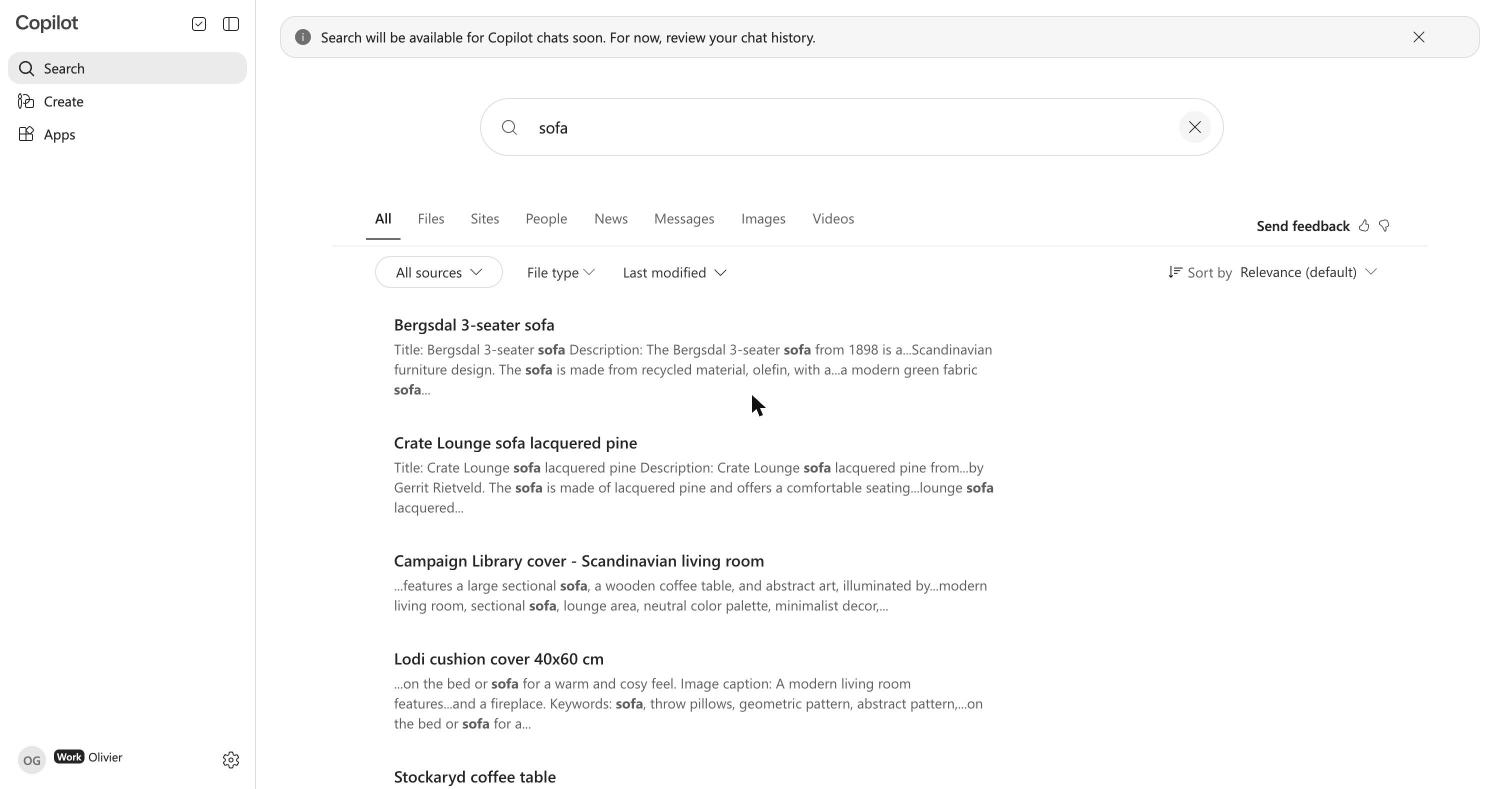
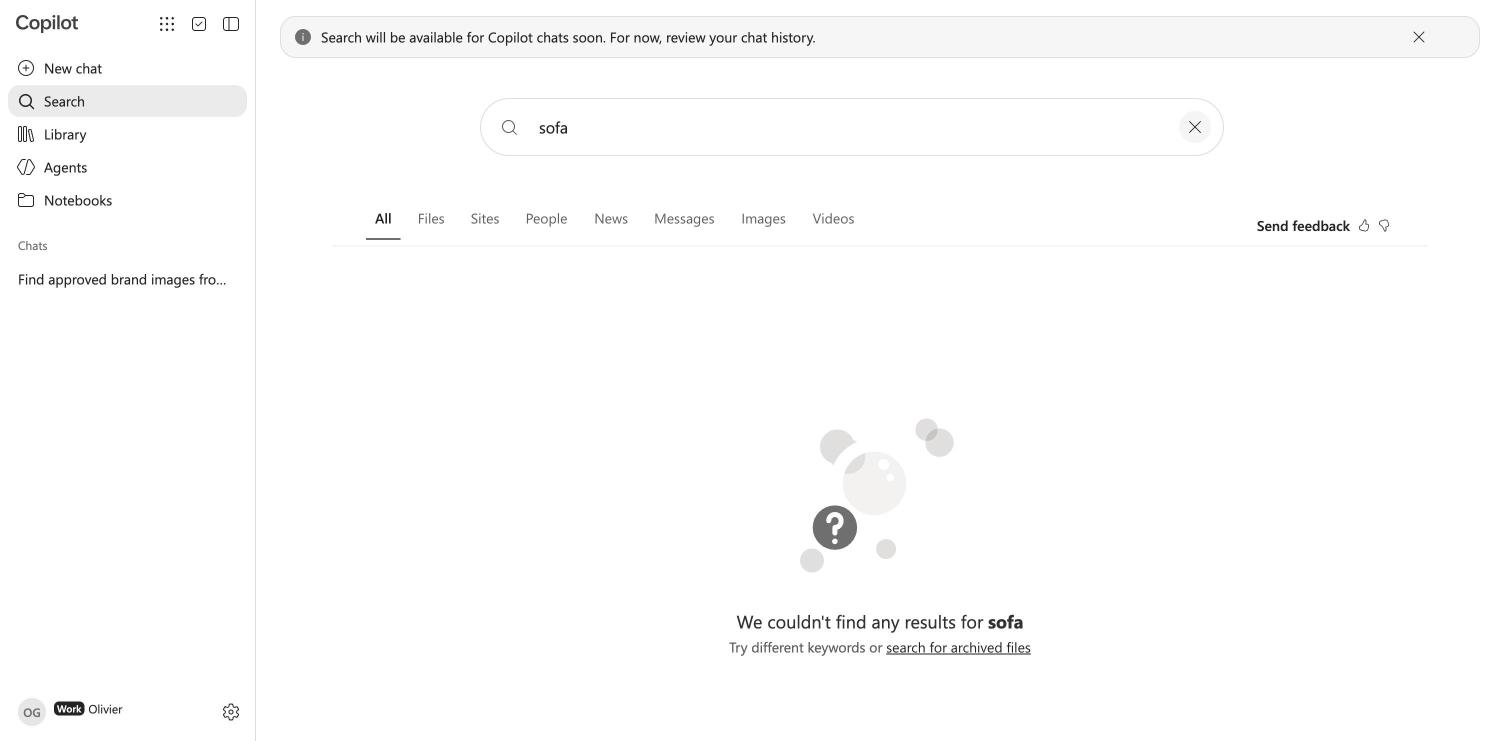
Results do not appear right after step 5. Microsoft says to allow up to 30 minutes for the change to reach Copilot. In Freedam's own test, Search showed the images the next day, and the thumbnails in SharePoint appeared within an hour of Freedam updating the connection. Until then, Search returns nothing:
Copilot Chat answers that it cannot reach the connector, or that it has no access to a source of brand images:
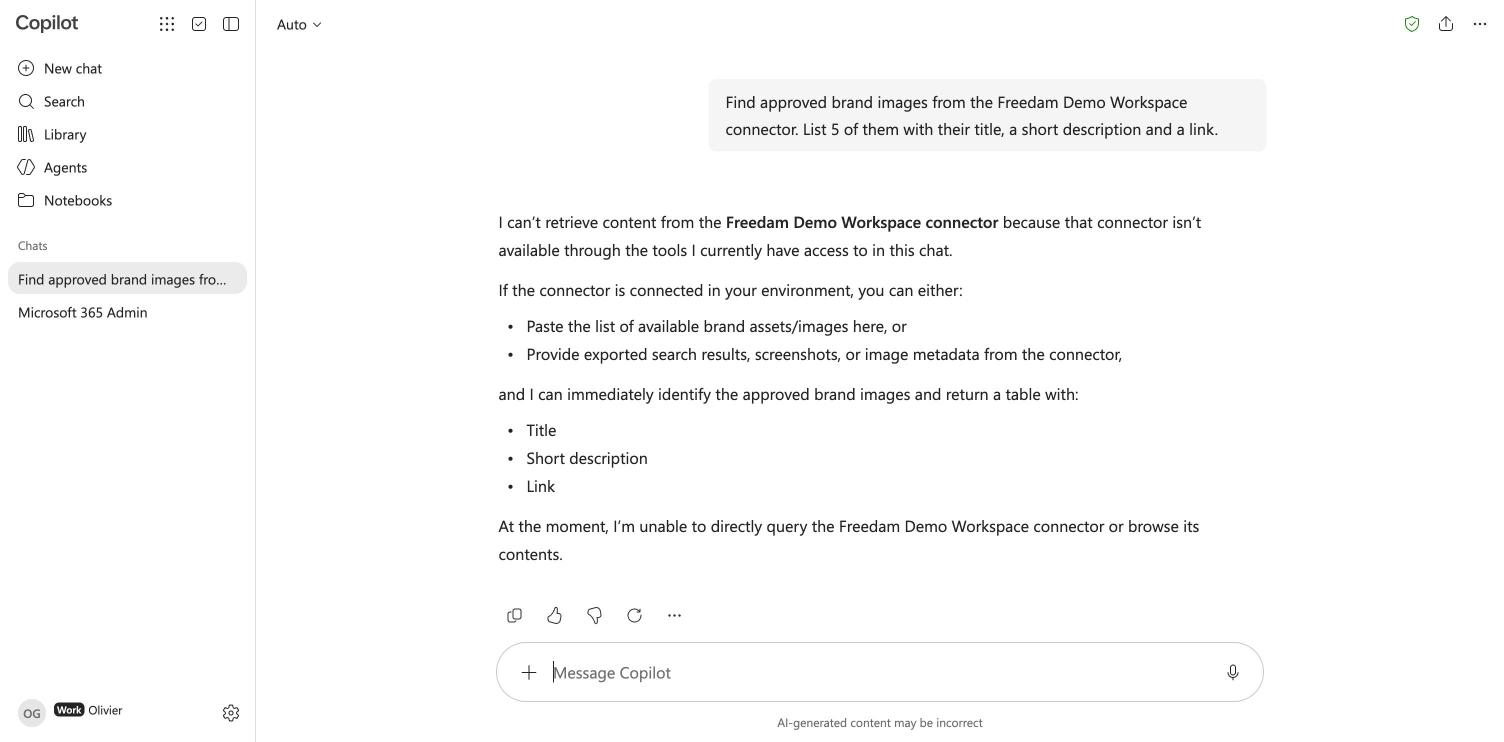
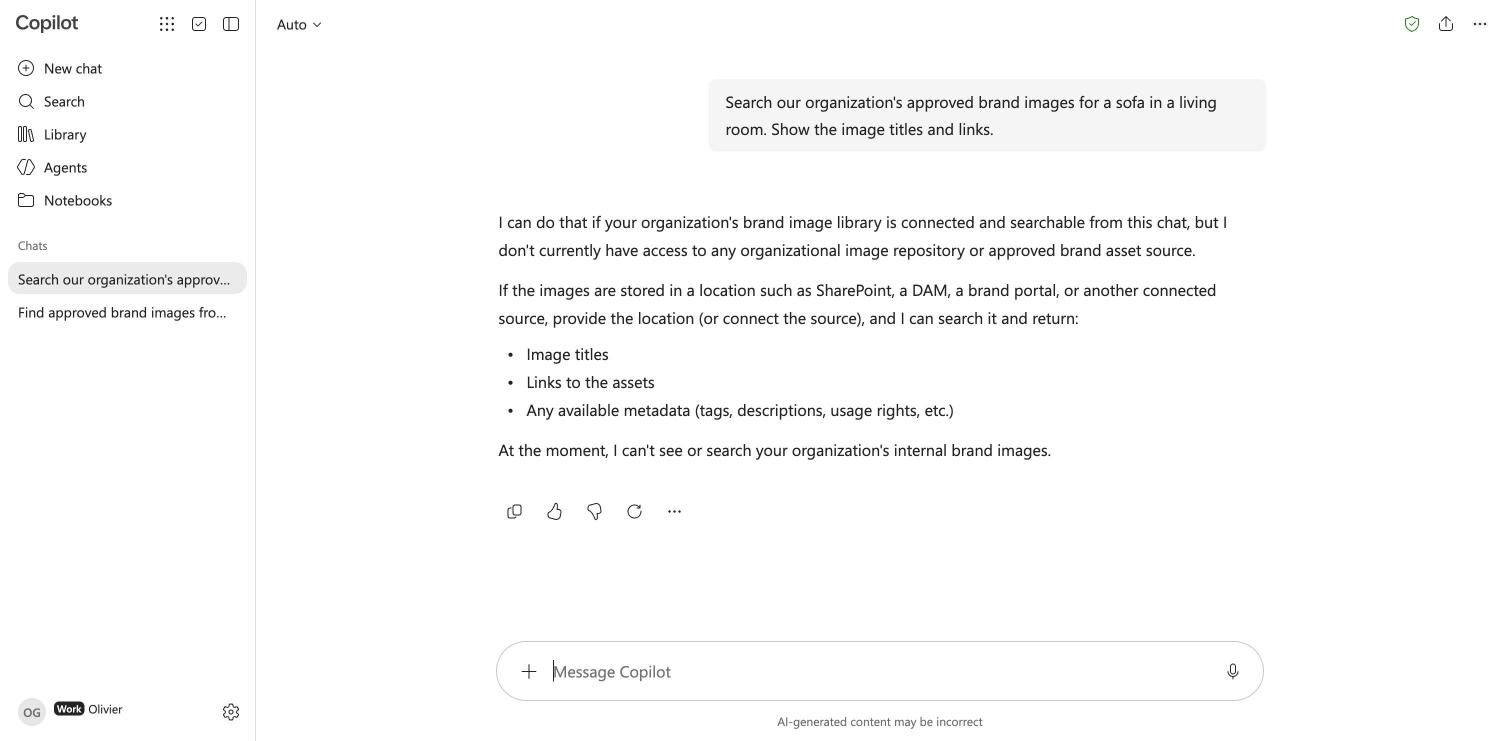
If you still get these answers after 30 minutes:
- Check steps 3 to 5 again.
- Check that the person asking has a Microsoft 365 Copilot license.
- Open Search & intelligence → Customizations → Verticals in the Microsoft 365 admin center, select the All vertical and click Manage connector results. Check that Show results inline is selected and that the Freedam connection is checked. Microsoft asks for this setting before a connection appears in Microsoft Search and Copilot.
Step 7 - Optional: set up a Brand Kit for Copilot in PowerPoint
A Brand Kit holds the logos, colors, fonts and images that Copilot uses when it creates a presentation. Microsoft only lets designated brand managers create and publish one, and designating them takes a group and a policy.
Note: Microsoft documents SharePoint, OneDrive, organizational asset libraries and connected digital asset management systems as image sources of a Brand Kit. The Freedam connection is offered as an image source in step 7.3, and Copilot in PowerPoint then uses its images. Steps 7.1 and 7.2 follow Microsoft's instructions: brand manager policy, official Brand Kits and brand images in Copilot in PowerPoint.
7.1 Create the group of brand managers
- Open Active teams & groups in the Microsoft 365 admin center and select the Security groups tab.
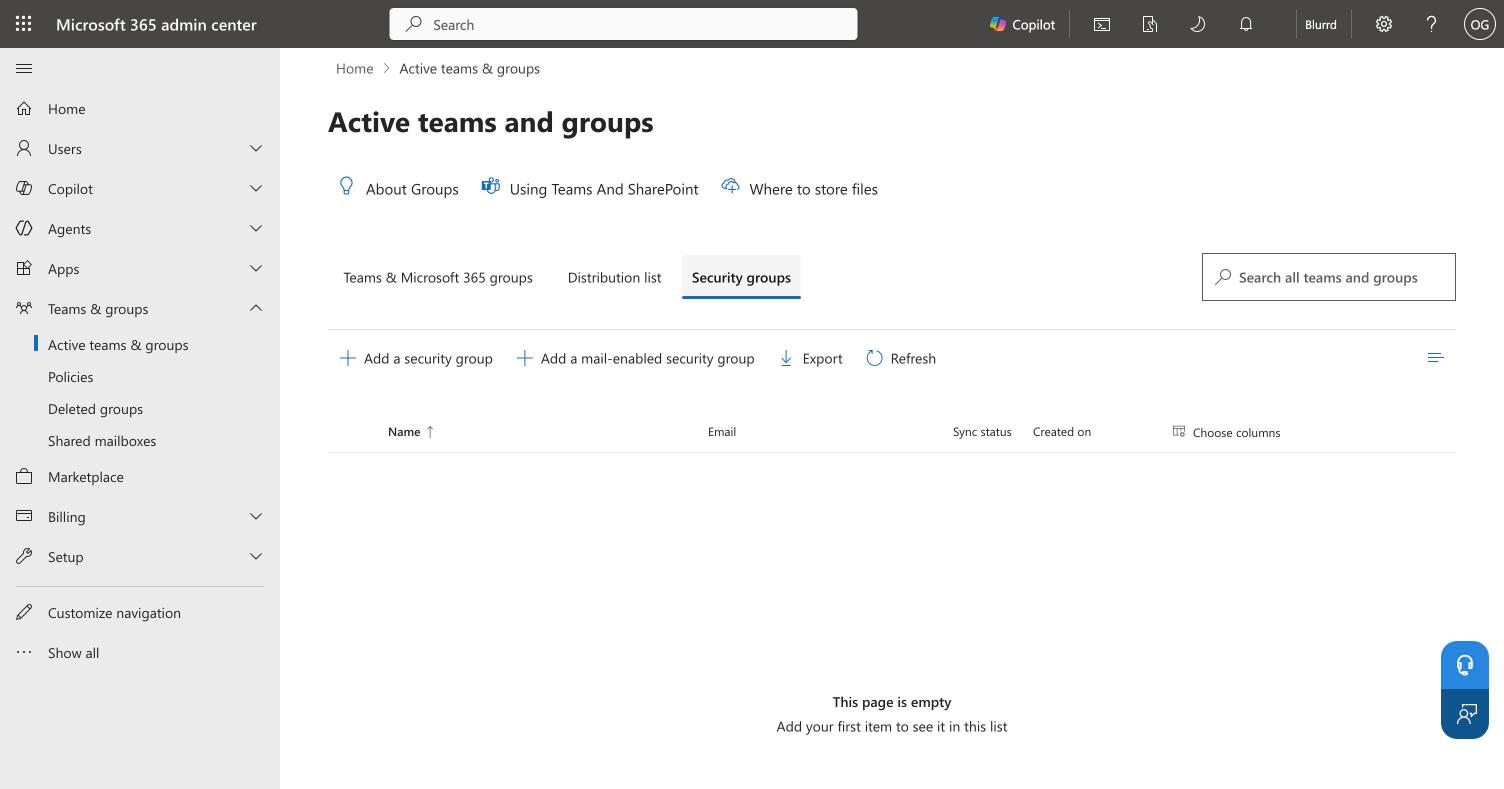
- Click Add a mail-enabled security group. The wizard has five steps: Basics, Owners, Members, Settings, Finish.
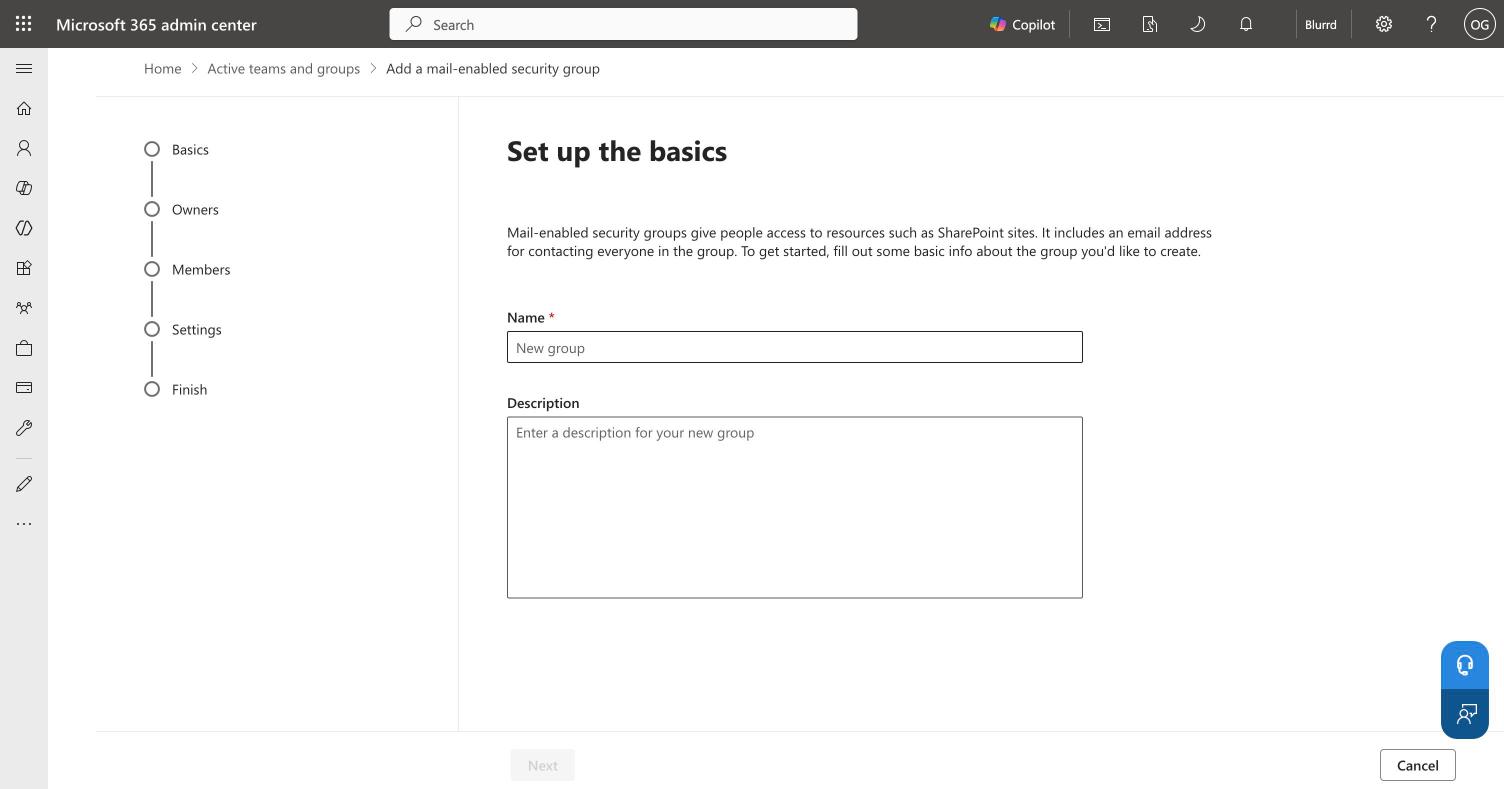
- Give the group a name, for example "Brand managers".
- Under Members, add every person who will manage the Brand Kit. Owners of the group can manage the group but cannot publish a Brand Kit, so add brand managers as members.
- Under Settings, choose the email address of the group and note it. You need it in step 7.2.
- Click Create group.
7.2 Name the group in the brand manager policy
- Open Policy Management in the Microsoft 365 Apps admin center.
- Select your tenant policy whose scope is Apply to all users, or create one with that scope.
- On the Policies tab, search for "Brand Manager" and select Elevated role for Brand Managers.
- Set the policy to Enabled, enter the email address of the group in Security group email address and click Apply.
- On the Review and Publish tab, check the details and click Done.
- Back on the list of policies, select the policy, click Reorder priority and set the priority to 0. Check that its scope reads Tenant.
It can take up to 24 hours before the members of the group can create a Brand Kit.
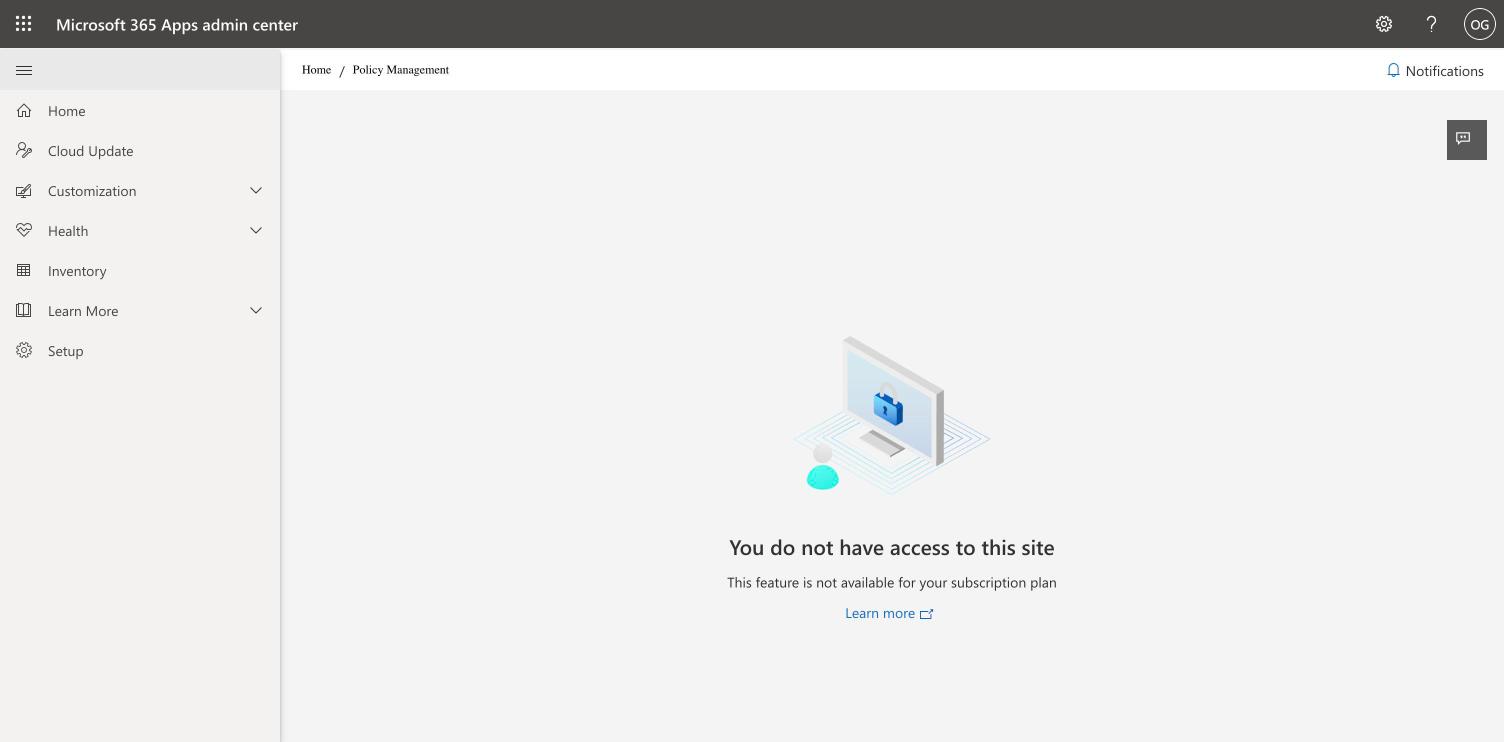
Warning: If Policy Management answers "You do not have access to this site. This feature is not available for your subscription plan", as below, your Microsoft subscription does not include it. This is the case with Microsoft 365 Business Standard. Microsoft documents full policy management for Microsoft 365 Apps for enterprise, which is part of Microsoft 365 E3 and E5 and is also sold on its own in the Marketplace of the admin center. Ask your Microsoft reseller which option fits your organization.
7.3 Create and publish the Brand Kit
A brand manager does this step.
- Open Create in the Microsoft 365 Copilot app.
- Click More… and select Brand kits.
- Click Add Brand Kit, name it, and add your logos, colors and fonts.
- Under Images, select the Freedam connection as the image source. If it is not listed, check that Copilot Visibility is on for the connection (step 5) and allow 30 minutes.
- Click Publish.
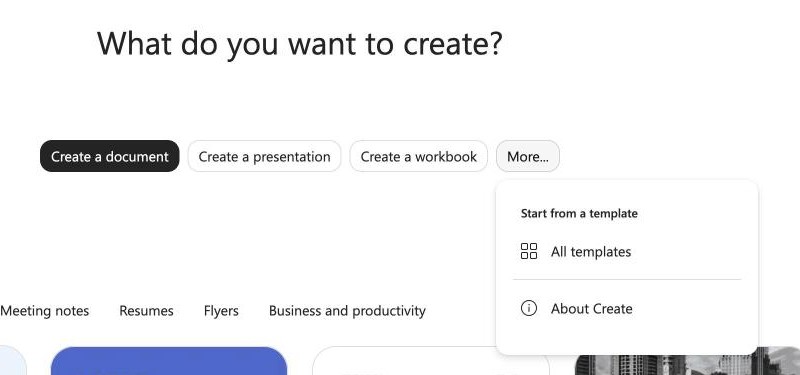
If More… only lists All templates and About Create, as below, the brand manager policy has not reached your account yet, or your license does not include Brand Kits.
7.4 Use the Brand Kit in PowerPoint
In PowerPoint, people open Copilot, click + in the prompt box, choose Select brand and pick the Brand Kit. Copilot then uses its images when it creates a presentation.
What Microsoft 365 receives
For each image, Freedam sends its title, description, AI caption, keywords and AI tags, file name, dimensions, creator, copyright and dates, plus the text of your custom metadata in every language it has. It also sends three links: the asset page in Freedam, a thumbnail and the image itself.
The image links point to Freedam and work without signing in, so that Microsoft can fetch them. They only serve preview images, never the original file, and stop working as soon as an image stops being shared.
Whatever the conditions of step 2 say, Freedam never sends:
- files that are not images, or images still being processed,
- archived assets and assets in the trash,
- assets whose rights policy has expired,
- custom metadata fields marked as sensitive.
Keep the images in sync
Freedam sends new, edited and removed images on its own, and checks every image again every night, which catches rights policies that expire. The Sync status section has two buttons for the cases where that is not enough:
- Sync everything now checks every image again. Use it if an image is missing or out of date in Microsoft 365.
- Replace image links makes every image link Microsoft 365 holds stop working and sends new ones, after a confirmation. Use it if the links were exposed outside your organization.
Inspect the connection in Microsoft 365
The panel of the connection, opened in step 4, shows more than the item count.
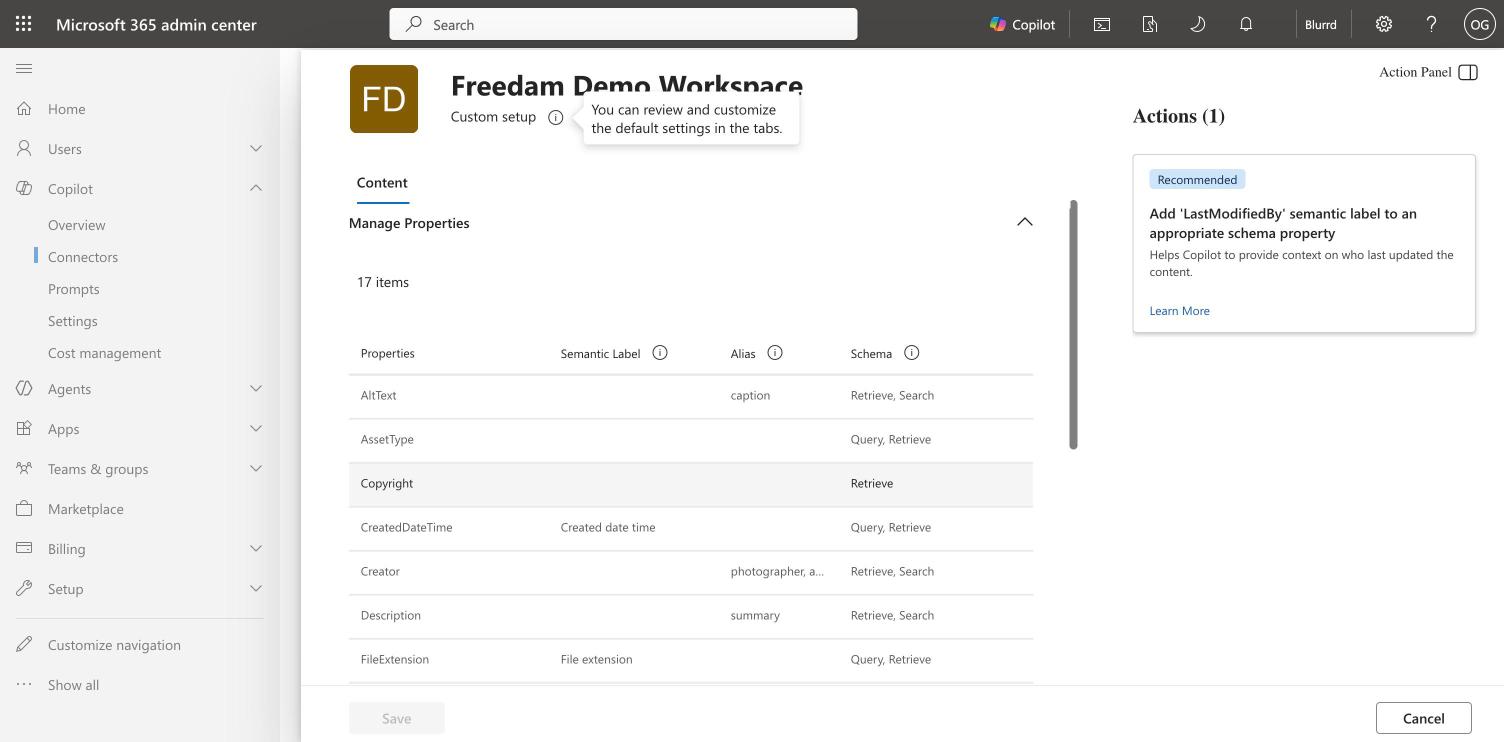
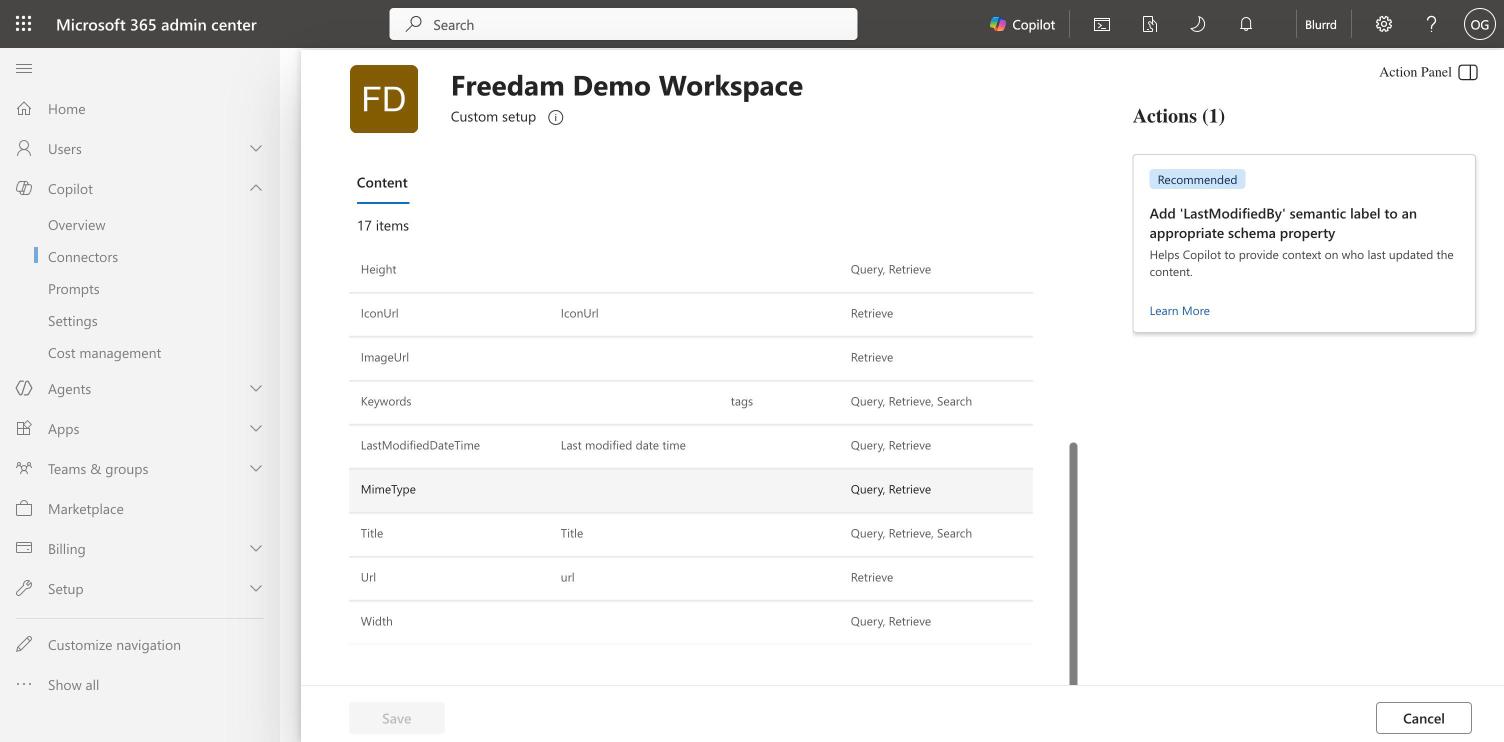
- Actions → Manage Properties → View lists the properties Freedam sends for each image. Microsoft may show a recommendation next to the list. Do not change the properties here: Freedam registers and updates them.
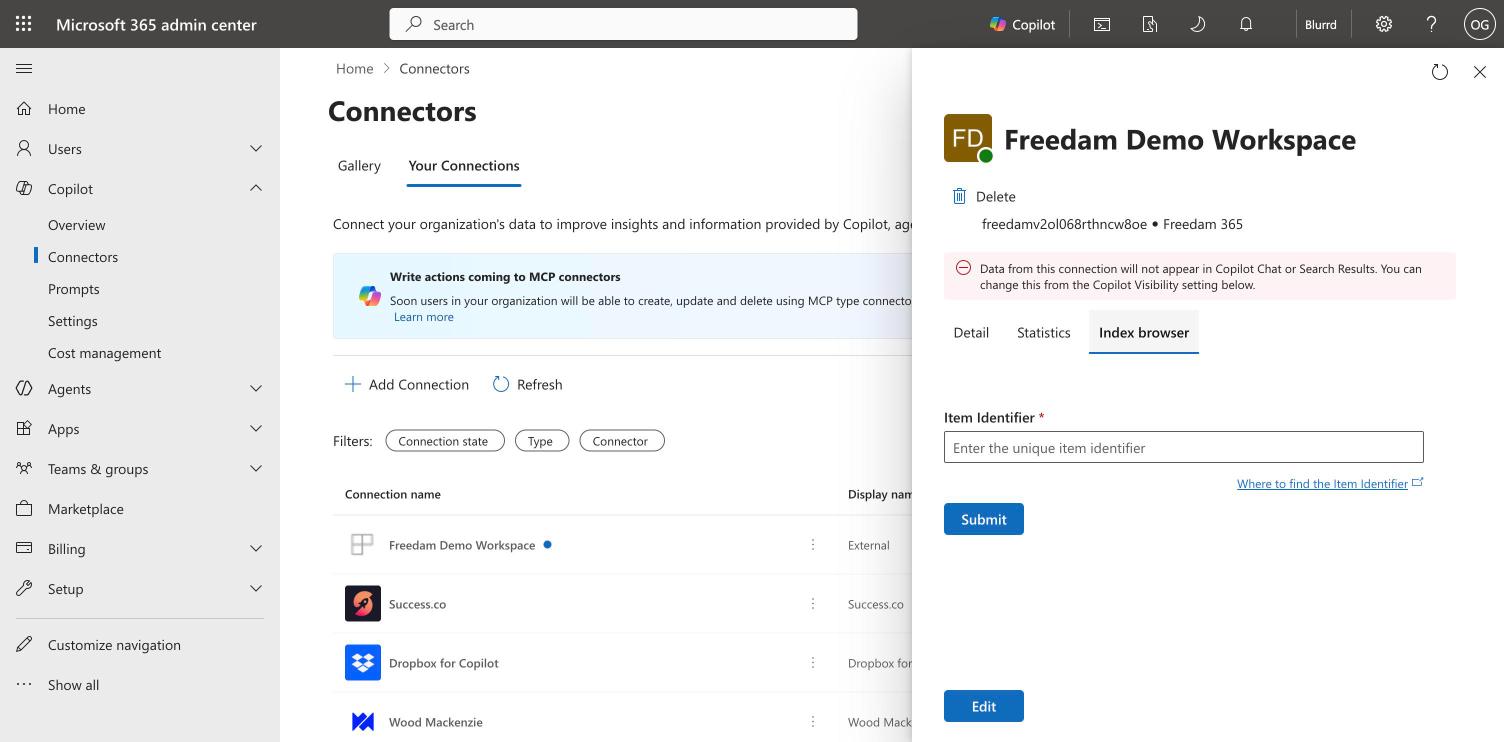
- The Index browser tab looks up a single image by its item identifier.
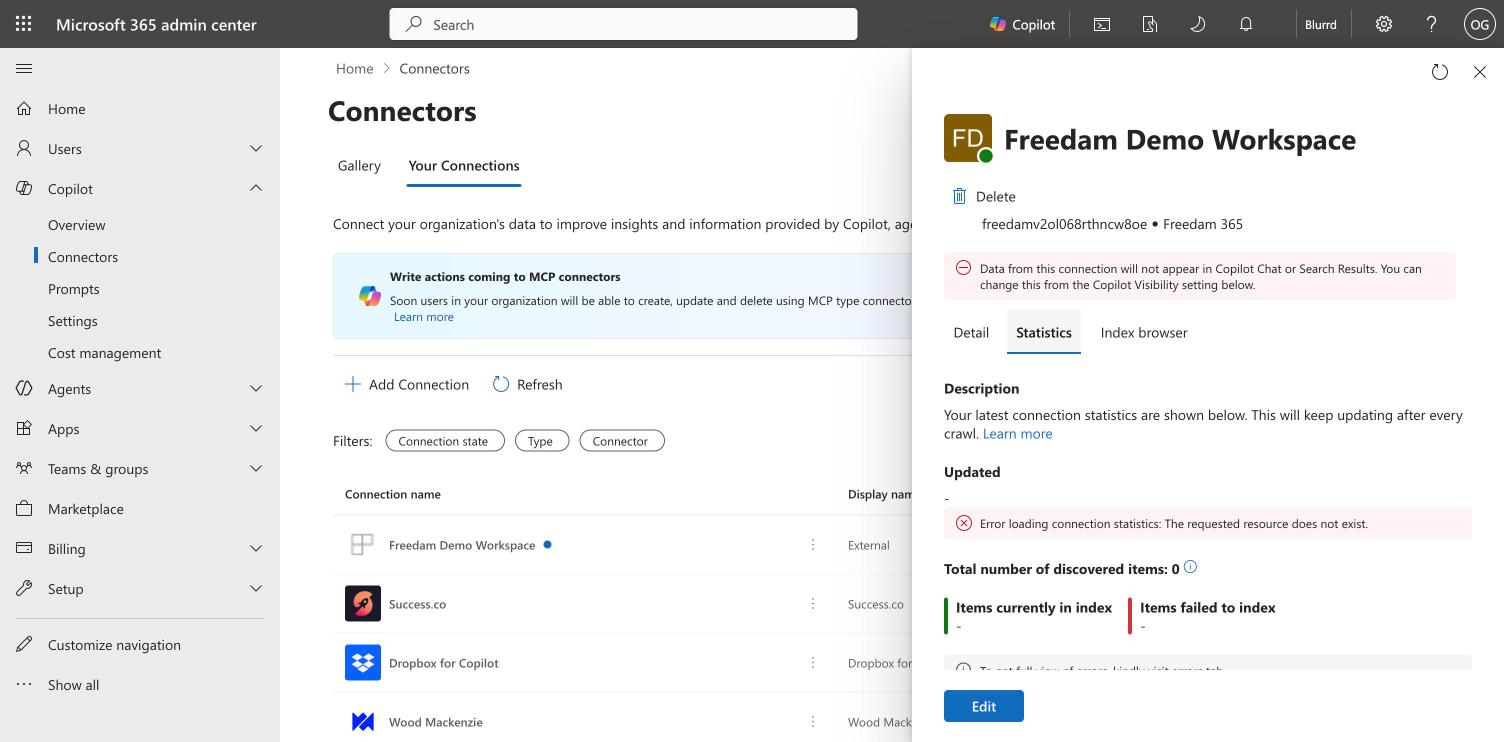
- The Statistics tab shows "Error loading connection statistics" for the Freedam connection. That tab reports on crawls run by Microsoft 365, and Freedam sends the images itself. The error does not mean the sync failed: read the item count on the Detail tab.
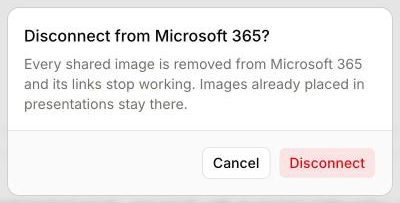
Disconnect
Click Disconnect to remove every shared image from Microsoft 365. Their links stop working at once. Images already placed in presentations stay in those presentations.
If a Microsoft 365 administrator removes the Freedam app from your organization, Freedam shows the connection as disconnected. Connect again to resume sharing.
If a Microsoft 365 administrator deletes the Freedam connection in the Microsoft 365 admin center, Freedam shows the connection as failed at the next sync. Connect again to share your images.
If your workspace no longer has the Microsoft 365 Copilot feature, Freedam stops sending changes and the image links stop working.