
Search Analytics
The Search tab of the Analytics Dashboard shows what people look for in your library, what they fail to find, and how quickly they find the rest. This page explains what each figure counts and gives a monthly routine that turns those figures into fixes.
You need the Open the analytics dashboard permission and the Analytics feature of your plan.
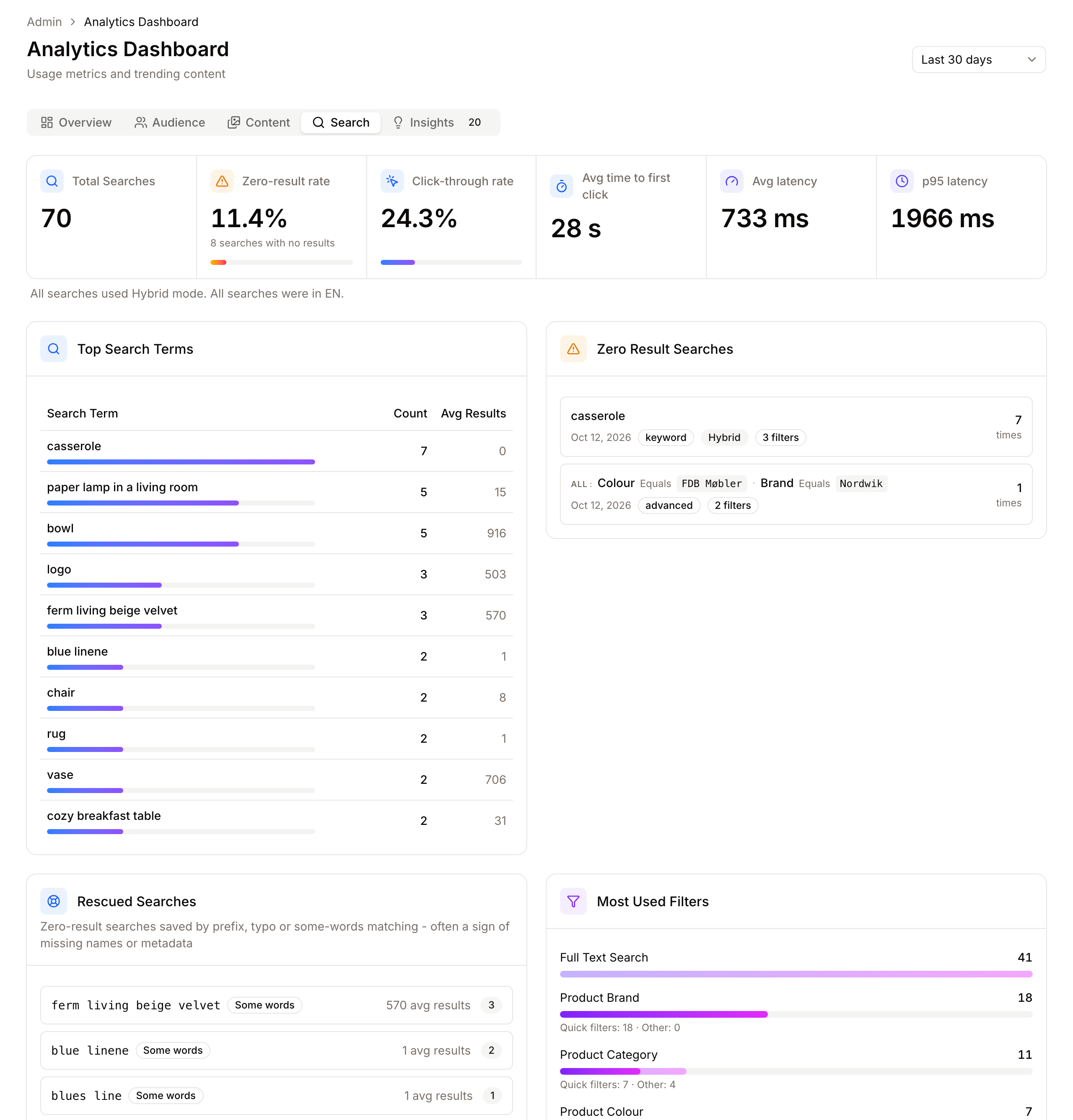
What counts as a search
- A search is recorded each time someone runs a search in the Gallery with a term, filters or both. An empty search is not recorded.
- Repeating the same search is counted once: the same term and filters within 10 seconds, or exactly the same search within 5 minutes, update the earlier record instead of adding a new one. Paging through results or reloading the page does not inflate the figures.
- Searches by Freedam's support staff are never recorded.
- The period selector at the top of the dashboard applies to every card on the tab.
The figures
Search health
| Figure | What it counts |
|---|---|
| Total Searches | Every recorded search in the period. |
| Zero-result rate | The share of searches that returned nothing, with their number. |
| Click-through rate | The share of searches after which the person clicked at least one result. |
| Avg time to first click | The average time between the results appearing and the first click, for searches with a click. |
| Avg latency and p95 latency | How long the search took on the server, on average and for the slowest 5% of searches. |
A low click-through rate with a low zero-result rate means people get results but not the right ones. A rising p95 latency with a stable average means a few searches are slow, usually very broad terms combined with many filters.
Top Search Terms
The 10 most frequent typed terms, with how often each was searched and the average number of results. Searches made only with filters are not listed here; they appear under Most Used Filters.
Zero Result Searches
Up to 20 searches that found nothing, the most frequent first. Each shows how many times it was run, when it last happened, and the filters it used. A search built only from filters is written out in words, for example "Asset class is Packshot and Created after 1 March". The card shows 10 at first; Show all shows the rest.
Rescued Searches
Searches that found nothing at first and returned results only because Freedam tried again in a looser way: matching the beginning of a word (Prefix), correcting a spelling mistake (Typo), or matching only some of the words (Some words). They do not appear under Zero Result Searches, because people did get results. They are the best list of names and spellings your metadata is missing.
Most Used Filters
The 10 filter fields used most often in searches, counting every field in nested filter groups. The line under it splits them between quick filters (the filter buttons in the search bar) and other filters (Advanced search). A field used often from Advanced search is a good candidate for a quick filter.
Search Suggestions
How often people used each kind of suggestion: the dropdown under the search bar, Did you mean, and the filter chips under the results. Use rate is clicks divided by the times the suggestion was shown (chips), or by the times people either clicked or ignored it (dropdown and Did you mean). Below, Most clicked filter chips lists the 10 chips clicked most.
Search Mode Distribution and Language Usage
Shown only when there is more than one value. Otherwise a sentence says, for example, "All searches were in EN". In a multilingual workspace, the language list shows which languages people search in, which tells you which languages your metadata must cover.
A monthly routine to fix search
Once a month, select Last 30 days and work through the tab in this order.
- Zero Result Searches. For each of the top terms, search for it yourself.
- If the right assets exist under another word, add the term to their keywords, or add it as a term or synonym in the relevant vocabulary. Use bulk metadata editing for many assets.
- If the assets do not exist, the term is a request for content. Pass it on to whoever commissions photos or design.
- If the term is a product code, check that the field holding product codes is searchable on the Search Configuration page.
- Rescued Searches. Each Typo term is a spelling people use that your metadata does not. Add the common spelling as a keyword or synonym. Each Prefix term shows people type short forms; check that the full names are in titles or keywords.
- Top Search Terms with few results. A frequent term with an average of 1 or 2 results deserves a check: are those the right assets, and are others missing the term?
- Click-through rate. If it is below about half, search for the top terms and look at the first row of results. If the right assets are further down, give their key fields more weight on the Search Configuration page, or complete their titles and descriptions.
- Most Used Filters. Turn the most used Advanced search fields into quick filters.
- Check again next month. The zero-result rate and the click-through rate are the two figures to compare from month to month.
The Analytics Insights do part of this automatically: content gaps, search issues, search optimisation and typo tolerance insights point to the same terms with their thresholds.
Good to know
- The dashboard is cached for 15 minutes per period, so a search you just made appears after that.
- Searches are kept for one year.
- Each person's own searches appear on their personal Analytics page under Recent Searches.
- There is no export or API for search analytics.