
Languages and names: what you see and why
Freedam can speak to you in one language while you work on content in another. This page explains how that works, using examples, so you know why you see a name or a text in a given language and what to do when it is not the one you want.
The short version
- You choose two things, and they do different jobs.
- Your interface language is the language of menus and buttons.
- Your content language is the language you work in when you describe assets.
- Field names, tags and filter names (we call them names on this page) come from your organization. Someone on your team wrote them, often in several languages.
- For every name, Freedam looks in your content language first, then in your interface language, then in your organization's main language. It shows the first one it finds.
- If none of those has a name, Freedam shows the plain internal name of the item, so you are never left with a blank.
- Texts that your organization writes in several languages, such as a product name, follow the same order. See Values in several languages.
That is the whole rule. The rest of this page shows it in action.
Two languages, two jobs
Think of Freedam as a shop with a sign above the door and a catalogue on the shelf.
- The sign is the interface: Search, Download, Settings. You pick its language in your profile. Freedam is available in English, French, German, Spanish, Chinese (simplified) and Portuguese (Brazil).
- The catalogue is your organization's content: the names of fields such as Photographer or Campaign, and the tags you pick from, such as Landscape or Summer. Your organization can translate these into as many languages as it wants, including languages the interface does not have yet, such as Danish.
Because the two are separate, you can read the sign in English and the catalogue in Danish.
How Freedam picks the language of a name
When Freedam shows a name, it goes down this list and stops at the first language where the name exists:
- Your content language, if you chose one in your settings.
- Your interface language.
- Your organization's main language.
- If none of these has the name, Freedam shows the item's internal name.
A few details:
- A name that is empty or only spaces counts as "not there", so Freedam moves on to the next language.
- Languages your administrator has switched off are skipped.
- The same language is never tried twice. If your content language and your interface language are both French, Freedam looks in French once.
Examples
All examples use the same two items:
- The tag Landscape has been translated into English and French.
- The field Photographer has been translated into English and Danish.
Example 1: Anna works in Danish with an English interface
Anna is a Danish marketer. Freedam has no Danish interface, so she uses it in English. In her settings she chose Danish as her content language.
- Photographer shows as Fotograf, because Danish comes first and the name exists in Danish.
- Landscape shows as Landscape, because nobody translated it into Danish yet, so Freedam tries English next and finds it.
- Menus and buttons stay in English.
If a colleague adds a Danish name for Landscape tomorrow, Anna sees it the next time the page loads, with nothing to change on her side.
Example 2: Marc uses Freedam in French and never touched his content language
Marc signed up with his browser set to French. His interface is French. He never chose a content language.
- Landscape shows as Paysage: with no content language chosen, Freedam starts with his interface language, French.
- Photographer shows as Photographer: it has no French name, so Freedam falls back to the main language of the organization, English.
If Marc later chooses Danish as his content language, Photographer shows as Fotograf and Landscape as Paysage, because Danish is tried first, then French.
Example 3: Lea works in French and has French chosen everywhere
Lea chose French for both her interface and her content.
- Landscape shows as Paysage.
- Photographer shows as Photographer (the organization's main language, English, since there is no French name).
Example 4: A visitor opens a share link
Visitors who are not signed in have no content language. Freedam uses the language of their browser if it is one of the interface languages, otherwise the interface language set when your workspace was created.
- A visitor with a French browser sees Landscape as Paysage.
- A visitor with a Danish browser sees the English names, because Danish is not an interface language. They do not get Danish names, even if the names exist, because Freedam only uses a visitor's browser language when it is one of the interface languages.
Where this applies
You will see the rule at work in:
- the names of fields on an asset, and the section headings of its form
- tags in pickers, filters and search suggestions
- the names of filters and sort options in the gallery
- rights options such as usage types and territories
- the field and value names in the rule builder
- names in the vocabulary and metadata administration screens
- texts written in several languages, on cards, in lists and on the asset page (see below)
Where this does not apply
These keep their own rules on purpose, so they do not change when you change a language setting:
- Exports and file names. File names and the names of collections created from a template use your organization's main language, so everyone who exports gets the same names. A spreadsheet export has one column per language for a text written in several languages.
- The Freedam API, connected apps and tools such as Microsoft 365. They use your organization's main language for names, so what an integration receives does not depend on who connected it.
- Announcements, terms of use and similar notices. They follow your interface language. Administrators can write them in the languages Freedam has an interface for.
- Emails. They are sent in the recipient's interface language.
Search follows your languages too: Freedam looks for your words in your content language, your interface language and your organization's main language, among the languages your organization has text in.
Values in several languages
Some fields hold a text in several languages, for example a product name in English and in French. Your administrator decides which fields work this way.
Which text you see
On a card, in a list and on the asset page, Freedam shows the text in the same order as names: your content language, then your interface language, then your organization's main language. If none of these has a text, it shows the text in another language rather than nothing.
When the text you see is not in your first language, a small language marker sits next to it, such as FR. It tells you that the text is French because there is none in your language yet. The marker never appears when the text is in your first language.
Example: Sofia works in German. The product name of an asset exists in English and French only.
- Her card shows the English text with the marker EN.
- After a colleague adds the German name, her card shows it without a marker.
Adding a language to a text
- Open the asset and click Edit.
- In the field, open the tab of the language you want to add. The tabs are the languages you work in: your content language and the additional languages in your settings.
- Type the text, or let Freedam translate it (see Editing text in several languages).
- Click Save.
Saving changes only the languages you edited. A colleague who added another language to the same field in the meantime keeps their text.
Languages you do not work in, and switched-off languages
Texts in languages that are not among your languages, or that an administrator switched off, are kept. You see them under the field, read-only, so you know they exist. To edit one, add that language to your settings, or ask an administrator to switch it back on.
Editing text in several languages
Wherever Freedam lets you write a text in several languages (a multilingual field on an asset, a field or tag name, a form section title, a download or request message), it uses the same editor: one tab per language.
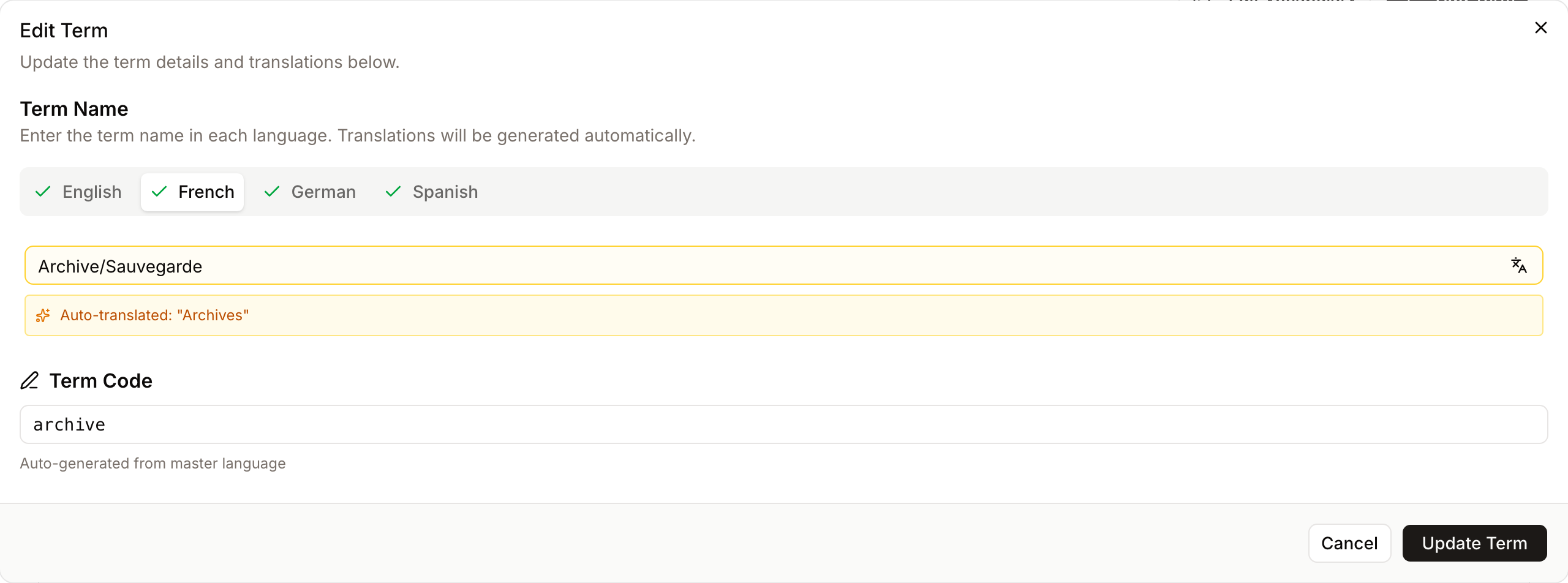
- Tabs. The first tab is the main language of the text. A check mark shows a language that has a text. A red mark shows a language with a problem, such as a missing text, so you see it even when that tab is not open.
- Automatic translation. When you leave the main field, Freedam translates it into the other languages. An empty language is filled straight away. A language that already has a text keeps it: the translation appears under the field as a suggestion, and when you click into that field Freedam asks whether to keep your text or replace it.
- Enter. Pressing Enter in the main field (Ctrl or Cmd + Enter in a field with several lines) translates it: into every other language when you changed the main text, otherwise into the empty languages only. When you create a tag, Enter also saves it, once the translations are in and none waits for your decision. Enter does nothing while a translation is running, while you are still composing a character (for example in Chinese or Japanese), or in a field you cannot edit.
- Translate buttons. Translate empty languages, next to the tabs, fills every empty language. The button inside a language's field translates that language only. Neither appears in a field you cannot edit.
- Saving a tag. A tag cannot be saved while a translation is running or while a suggested translation waits: open each language marked in red, keep or replace its suggestion, then save.
- Languages you do not see. Names in languages that are not among your tabs are kept when you save a field, a tag or a form section.
- On the asset page. The main language is your content language when it is one of the tabs, otherwise the language you had selected when you clicked Edit. Switching tabs does not change it.
- A slow translation. If you save, cancel or close the form before a translation arrives, the late translation is ignored.
Announcements, terms of use and rights policies use the same tabs without automatic translation.
Automatic translation needs a translation service set up for your organization. Without one, you type each language yourself.
Set it up
- Open your user menu in the top right corner and choose Profile & Settings.
- Open the Languages tab.
- Pick your Interface language. The page switches straight away.
- Under Language preferences, choose your Default Content Language, then tick any Additional Languages you also work in.
- Click Save Language Preferences.
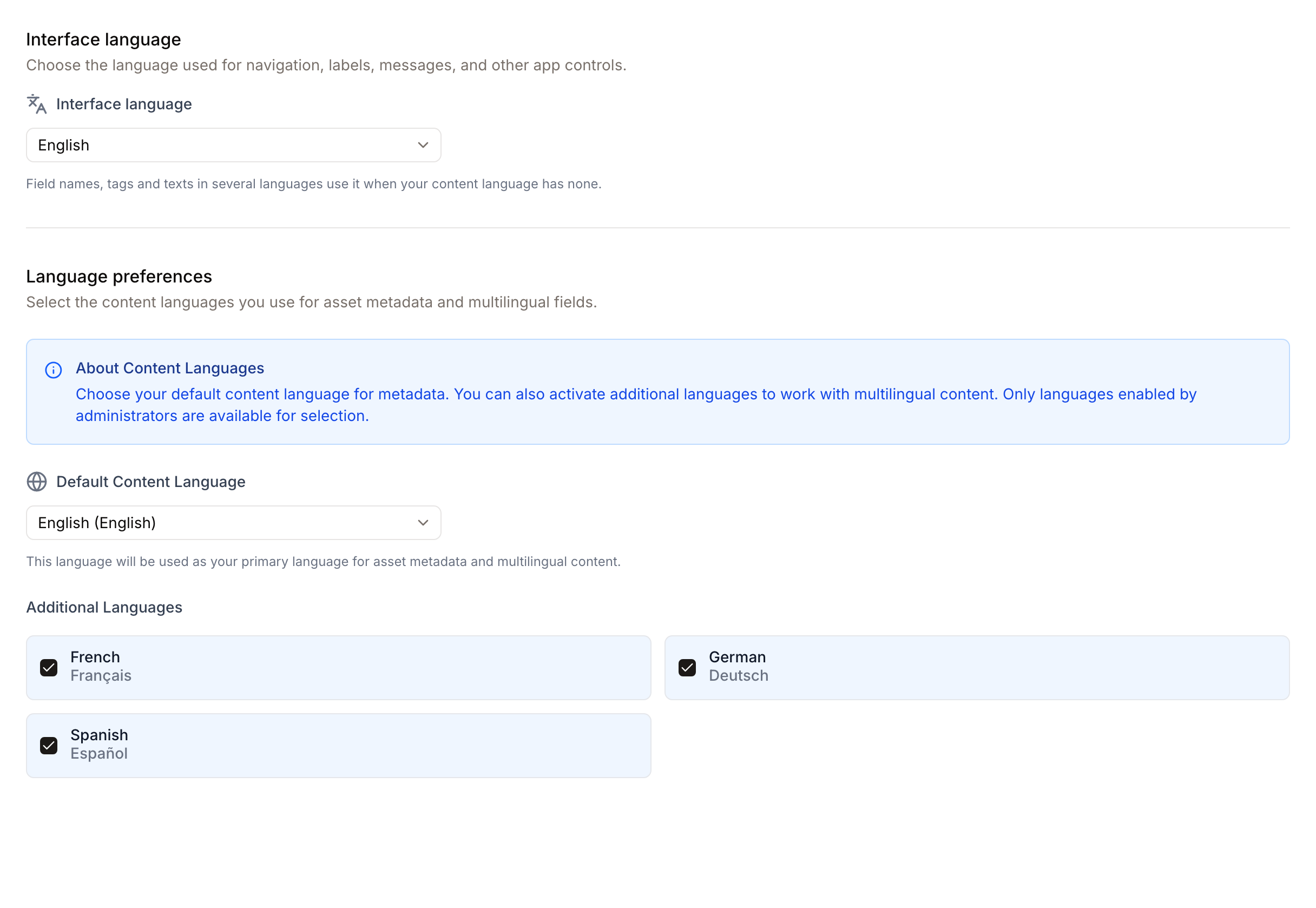
You can also change both from your user menu without opening the settings.
Only languages your administrator has switched on appear in the list. If the one you need is missing, ask an administrator to enable it in Languages.
If you never choose a content language, Freedam simply starts from your interface language, as in Marc's example.
Common questions
I work in Danish, but I still see English names. Why?
Freedam shows English when the name has not been translated into Danish yet. Check that Danish is your Default Content Language. If it is, the Danish name does not exist yet: ask someone who manages fields or tags to add it, or add it yourself if you have the permission (see below).
I changed my interface language. Why did only the buttons change?
The interface language only changes menus and buttons. Names come from your organization and follow your content language first. If you never chose a content language, they follow your interface language.
I changed my content language and nothing happened.
Reload the page. Names you already had open keep their language until the page is refreshed. If a name still does not change, it has no translation in that language yet.
Can I make Freedam show Danish menus?
Not yet. Freedam currently offers menus and buttons in English, French, German, Spanish, Chinese (simplified) and Portuguese (Brazil). You can still work fully in Danish content with an English interface, as in Anna's example.
Why do two colleagues see different names for the same field?
They have different language settings. Anna's Danish content language puts Danish first, and Marc's French interface puts French first. The field and its data are the same for both of them.
Why does a name sometimes show as a short internal word?
None of the languages Freedam tried has a name for that item. That includes your content language, your interface language and your organization's main language. Ask an administrator to add a name in at least the main language.
What does the small FR or EN next to a text mean?
The text is in that language because there is none in your language yet. Add your language to the text to make the marker go away (see Adding a language to a text).
Does my choice change what my colleagues see?
No. Your language settings only affect what you see.
Adding the missing translations
If you have the permission to manage fields or tags, you can fill the gaps yourself.
- For fields, open Admin, then Asset Classes, open the asset class and its fields, edit the field and add the name in the missing language.
- For tags, open Admin, then Vocabularies, open the vocabulary and edit the term. Freedam can suggest translations if a translation service is set up.
See Metadata Definitions and Vocabularies for the full steps.
For administrators
- Switching a language on or off in Languages changes which languages Freedam tries. A switched-off language is skipped, even if names exist in it. Texts in that language are kept and shown read-only.
- The main language of your organization is the safety net: give every field and tag a name in it, and nobody ever has to see an internal name.
- Exports, the API and connected apps always use the main language for names. Changing it changes what they send.