
Automatic Tagging
When you upload an image, Freedam analyses it with AI and fills in the metadata that would otherwise take the longest to type: a list of tags, a short caption, the text that appears in the image, and the asset class. You do not need to switch anything on. The results are searchable a few seconds after the upload finishes, and you can correct them like any other metadata.
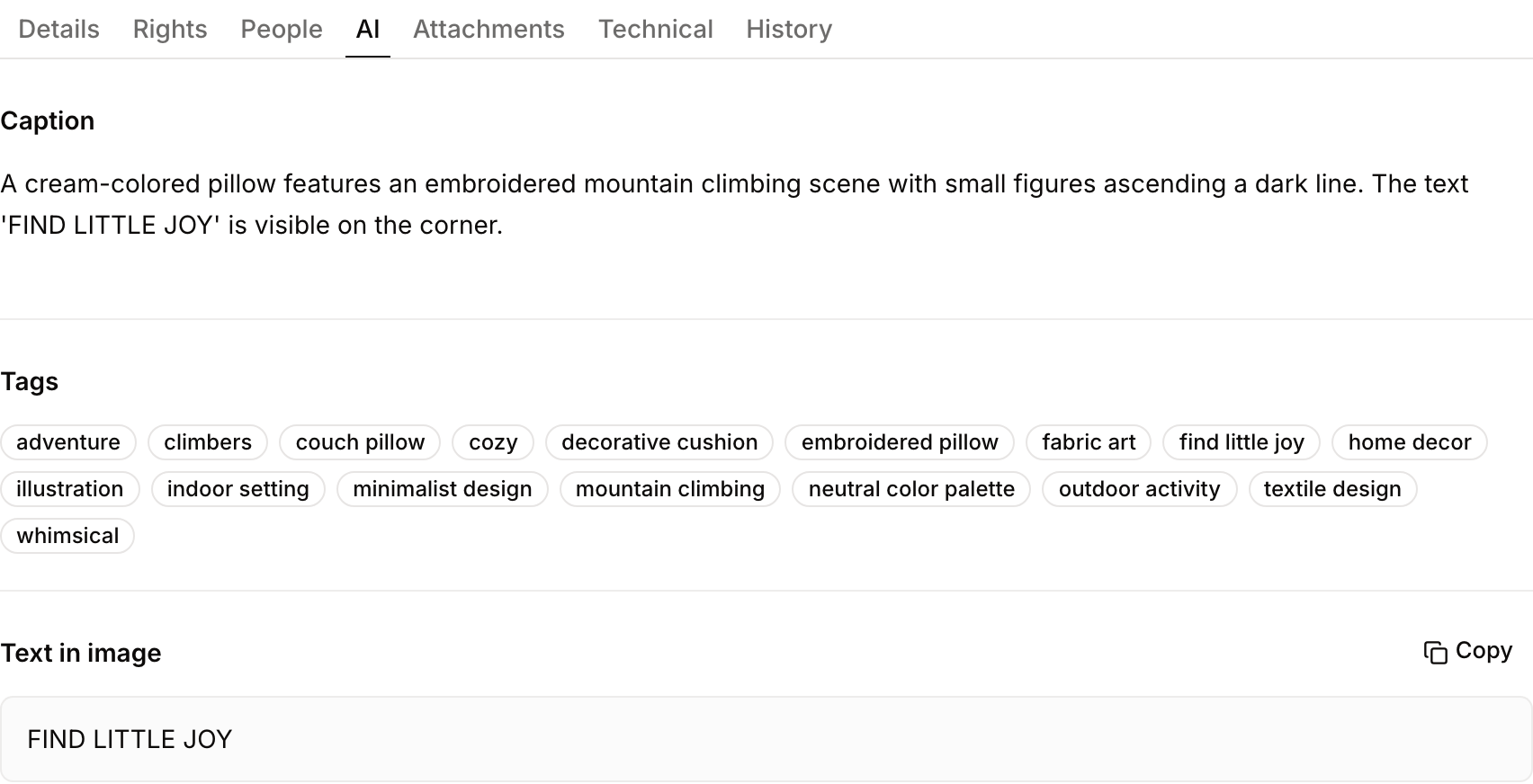
What Freedam generates
One AI analysis produces four results:
| Result | What it contains | Where you see it |
|---|---|---|
| Tags | 15 to 20 specific tags, in lowercase, of one to four words each: subjects, objects, setting, activity, style. Generic tags such as "image" or "photo" are left out. | AI tab, Tags |
| Caption | One to three sentences describing the image, written for a media library. | AI tab, Caption |
| Text in image | The text visible in the image, in its original language: headlines, labels, signs, packaging. See Searching Text Inside Images. | AI tab, Text in image |
| Asset class | The asset class that best matches the image, chosen from your workspace's active classes. | Details tab, Asset class |
The AI does not write the asset's title, description or keywords, and it does not fill your own metadata fields. When the description is empty, Use AI caption on the Details tab copies the caption into it.
The tags and the caption are stored once per asset. They are not kept in a separate version for each workspace language.
When it runs
Automatic tagging is one of the steps every upload goes through. While a file is processed, its tile in the upload list shows AI analysis during this step (see Uploads). The same analysis runs for files imported from a connected source and for files uploaded through the API.
These files are analysed:
- Images, including layered files such as PSD once their preview exists
- EPS files
- PDFs with a single page that were not converted from another format
These files are not analysed:
- Videos and audio files. Their content is searchable through transcripts instead.
- PDFs with more than one page, and documents converted to PDF, such as Word or PowerPoint files. Their text layer is extracted and searchable.
- Animated GIF, WebP, AVIF and HEIC files.
The analysis looks at the asset's preview, not at the full-resolution original, so very small text in a large image can be missed.
If the AI service is unavailable, Freedam retries the analysis a few times. A failure never blocks the upload: the asset is stored and visible, and the AI tab says "No AI analysis for this asset".
Correcting the results
You need the Edit asset metadata permission to change AI results.
- Caption: click the caption on the AI tab and edit it. The change is saved straight away, without the Save bar.
- Tags: click Edit in the top bar (or press E), open the AI tab, then add or remove tags. Click Save in the Save bar at the bottom.
- Text in image: in edit mode, correct the text on the AI tab. The change is saved straight away, without the Save bar.
- Asset class: change it with the Asset class selector on the Details tab.
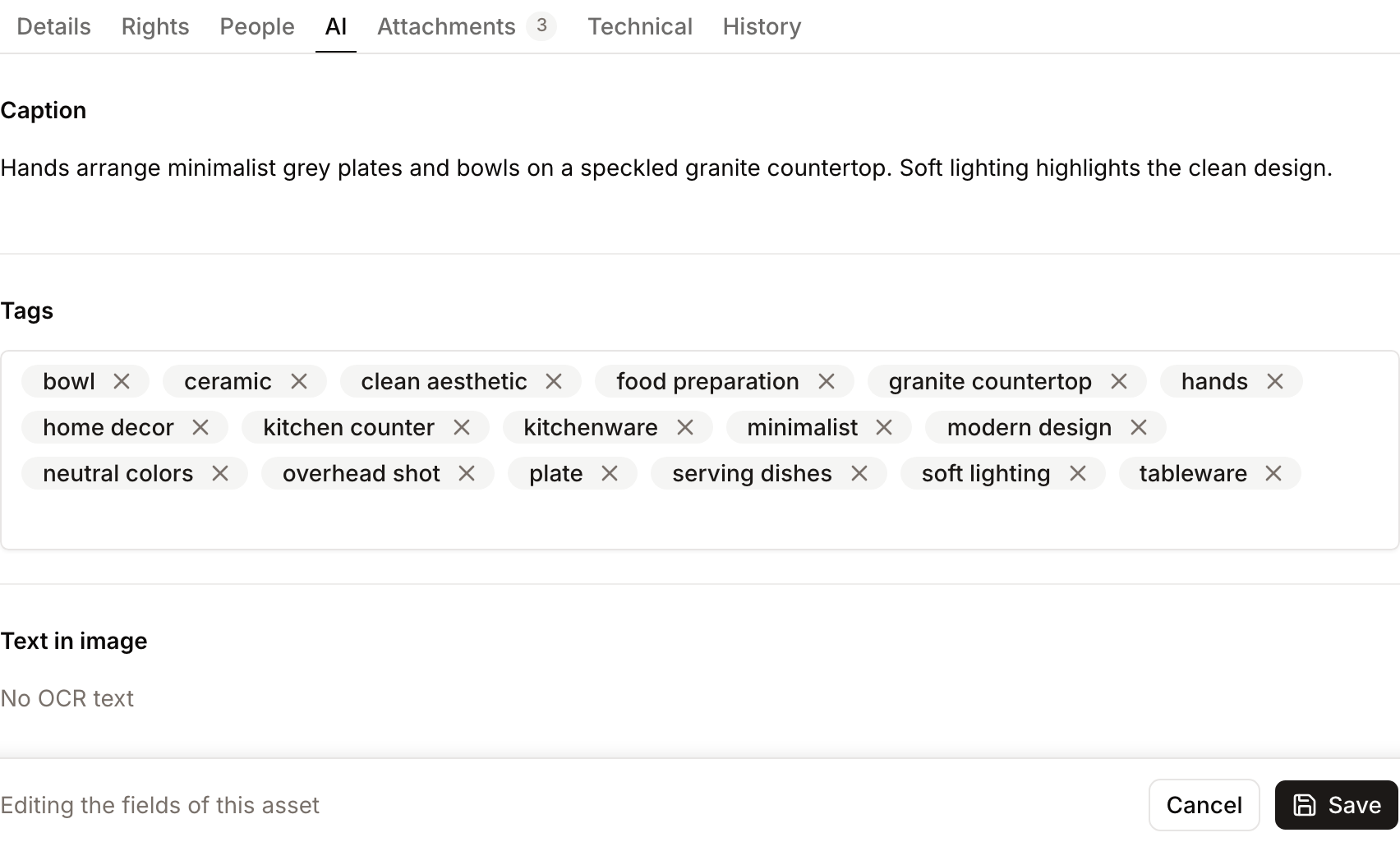
To correct the text in images on many assets at once, use bulk metadata editing, which offers OCR Text as a field. AI tags and captions can be changed in bulk through the MCP server and the API.
When the analysis runs again
There is no button to re-run the analysis. It runs again when the file changes:
- When you upload a new version of the asset, the previous AI results are cleared and the new file is analysed.
- When you duplicate an asset, the copy is analysed.
- When you replace a file while resolving a duplicate, the new file is analysed.
A new analysis replaces the tags, caption and text in image, including corrections you made by hand. If you corrected an asset's AI results and then upload a new version, check them again.
Finding assets by their tags
- Search: the tags, the caption and the text in image are part of keyword search, and they also feed search by meaning.
- Click a tag: on the AI tab, clicking a tag opens the Gallery with every asset that carries it.
- Filters: in Advanced Filters, the AI Analysis group has AI Tags, AI Caption and OCR Text.
- Visually similar: the Visually similar list on the asset page is found from the asset's AI tags (see Linked Assets).
- Gallery cards: you can show the AI caption and tags on gallery cards and list columns from the Display menu of the Gallery. They are hidden by default.
For administrators
- Model: the AI model used for this analysis is the one assigned to the Image Enrichment operation on the AI Settings page. The same page shows what the analysis costs.
- Asset classes: the AI picks from your active asset classes using each class's code, name and description. A clear description ("Product shot on a plain background, one product, no people") gives more accurate classification. An asset class chosen at import time always takes precedence over the AI's choice.
- Search weight: on the Search Configuration page, AI Tags, AI Caption and OCR Text can each be included in or excluded from keyword search, with their own boost.
- Read-only workspaces: while a workspace is read-only, no new AI analysis runs (see Workspace Setup).
Troubleshooting
Issue: The AI tab says "No AI analysis for this asset"
- Cause: The file type is not analysed (video, audio, multi-page PDF, converted document, animated image), the upload is still being processed, or the analysis failed.
- Fix: 1. Check the file type against the list above. 2. If the asset is still processing, wait for its tile to finish. 3. If the type is supported and processing has finished, ask your administrator to check the AI Enrichment queue on the System Health page.
Issue: The tags are too generic or wrong
- Cause: The analysis works from the image alone. It does not know your product names, campaign names or internal terms.
- Fix: Correct the tags on the asset. Put names the AI cannot know, such as product references and campaigns, in your own metadata fields or keywords, which the analysis never changes.
Issue: The asset class chosen by the AI is wrong
- Cause: Two classes have similar descriptions, or a class has no description.
- Fix: Change the class on the asset, then ask your administrator to make the class descriptions more distinct so that later uploads are classified correctly.