
Searching by Color
Freedam measures the colors of every image when it is uploaded. You can use them to find images in a given color, for example photos that match a campaign palette, product shots on a white background, or visuals that use your brand color.
There are two ways to search by color: start from an asset and find others with a similar color, or build a color filter in the Gallery.
Finding images with a similar color
- Open an image and select the Technical tab.
- In Colors, click a color in the color wheel or in the list next to it. The center of the wheel shows the share of the image that color covers.
- Click Find similar colors.
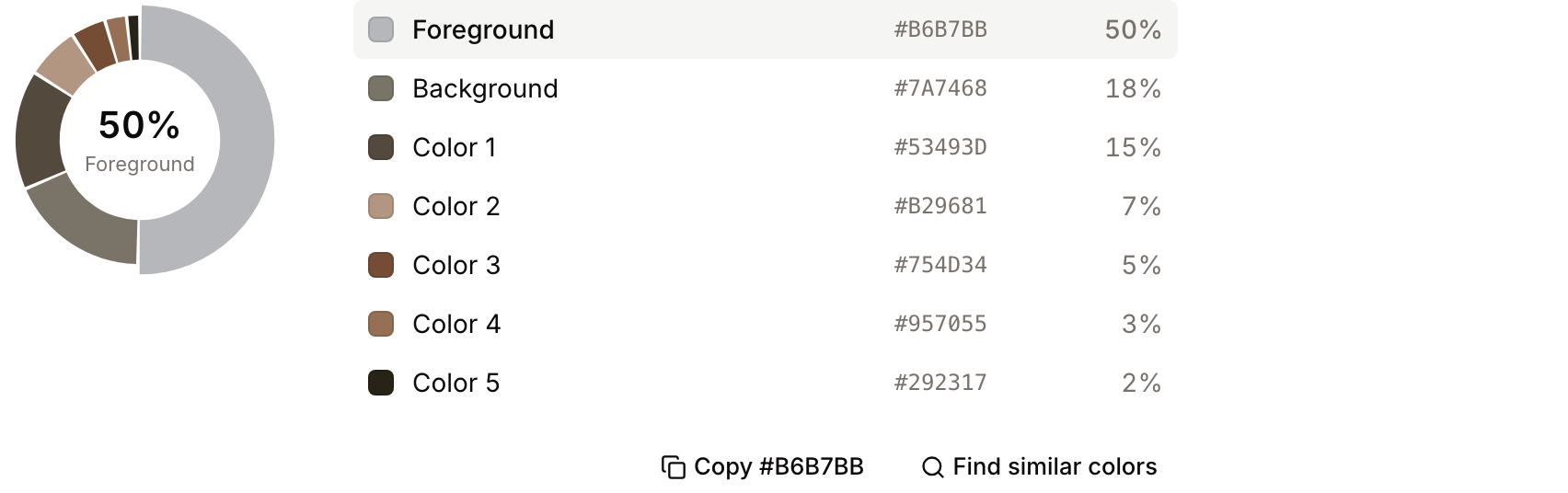
The Gallery opens with a color filter: it lists the images whose palette contains a color close to the one you picked. Copy next to the color copies its hex value, for example to paste into a design tool.
Filtering the Gallery by color
- Click Advanced search in the controls row of the Gallery (see Advanced Filters).
- Add a rule and pick a field from the Colors group:
- Dominant Color: the main color of the image's subject.
- Colors: any of the image's palette colors, not only the main one.
- Choose Color Near, pick the color with the color picker or type its hex value, and set the Tolerance.
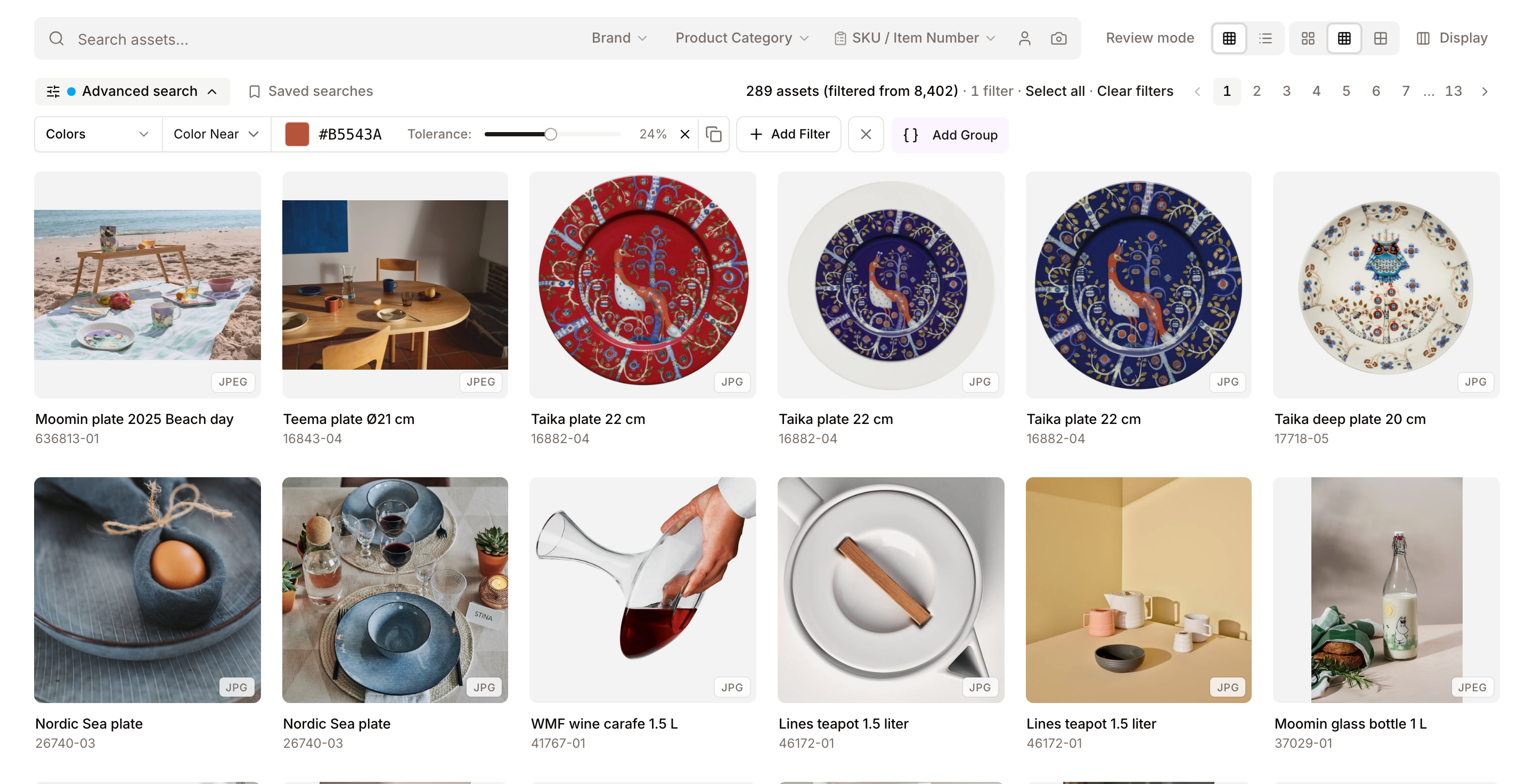
The tolerance decides how far a color can be from the one you picked and still match. A low value finds nearly the same shade, a higher value also finds lighter, darker and neighbouring tones. Find similar colors uses a tolerance of 24. Lower it when you need an exact brand color, raise it when the results are too few.
Equals and Not Equals on Dominant Color compare one exact hex value. Because photos rarely have exactly the same color, they are mainly useful for flat artwork such as logos and icons. For photos, use Color Near.
Color rules combine with all other rules. For example, Colors near your brand blue and Asset class is Lifestyle finds lifestyle photos that use your brand blue.
How colors are measured
- When an image is analysed after upload, Freedam reduces it to its eight main colors and records the share of the image each one covers. It also records a foreground color (the Dominant Color) and a background color.
- The colors are measured from the image's pixels, not by the AI that writes tags and captions.
- They are measured for the same files as automatic tagging: images, EPS files and single-page PDFs. Videos, audio, multi-page documents and animated images have no color data, and their Technical tab says "Color data could not be extracted for this asset".
- Transparent areas of PNG and WebP files are not counted.
Tips
- Search for your brand colors. Save a color rule with your brand color as a saved search so the whole team can reuse it.
- Start from an image. Picking a color in an image you like is faster than guessing a hex value.
- Use Colors rather than Dominant Color for accents. A red logo on a grey wall is not the dominant color of the photo, but it is in its palette.
- Combine with meaning-based search. Type
beachin the search bar and add a Colors rule near a turquoise to find beach photos with turquoise water.
Troubleshooting
Issue: Find similar colors returns images that look different
- Cause: The color you picked covers only a small part of the image, so other images match on a detail rather than on their overall look.
- Fix: Pick a color with a larger share in the wheel, or change the field to Dominant Color in the filter panel.
Issue: A color filter returns no images
- Cause: The tolerance is too low for the color, or no image has that color in its palette.
- Fix: Raise the Tolerance step by step, or try a neighbouring shade.