
Searching Text Inside Images
Many images carry their most useful words as pixels: the product name on a package, the headline on a poster, the claim on a label, the text on a slide exported as a picture. Freedam reads that text when the image is uploaded and adds it to the asset, so a search for those words finds the image even when nobody typed them into the title or keywords.
This text recognition (OCR, optical character recognition) runs on its own. You do not need to switch it on or start it.

How to search for text in images
Type the words in the Gallery search bar, as for any keyword search. The text read from images is searched together with titles, descriptions, tags and the other metadata, and matching images appear in the same result list.
To search only in the text found in images:
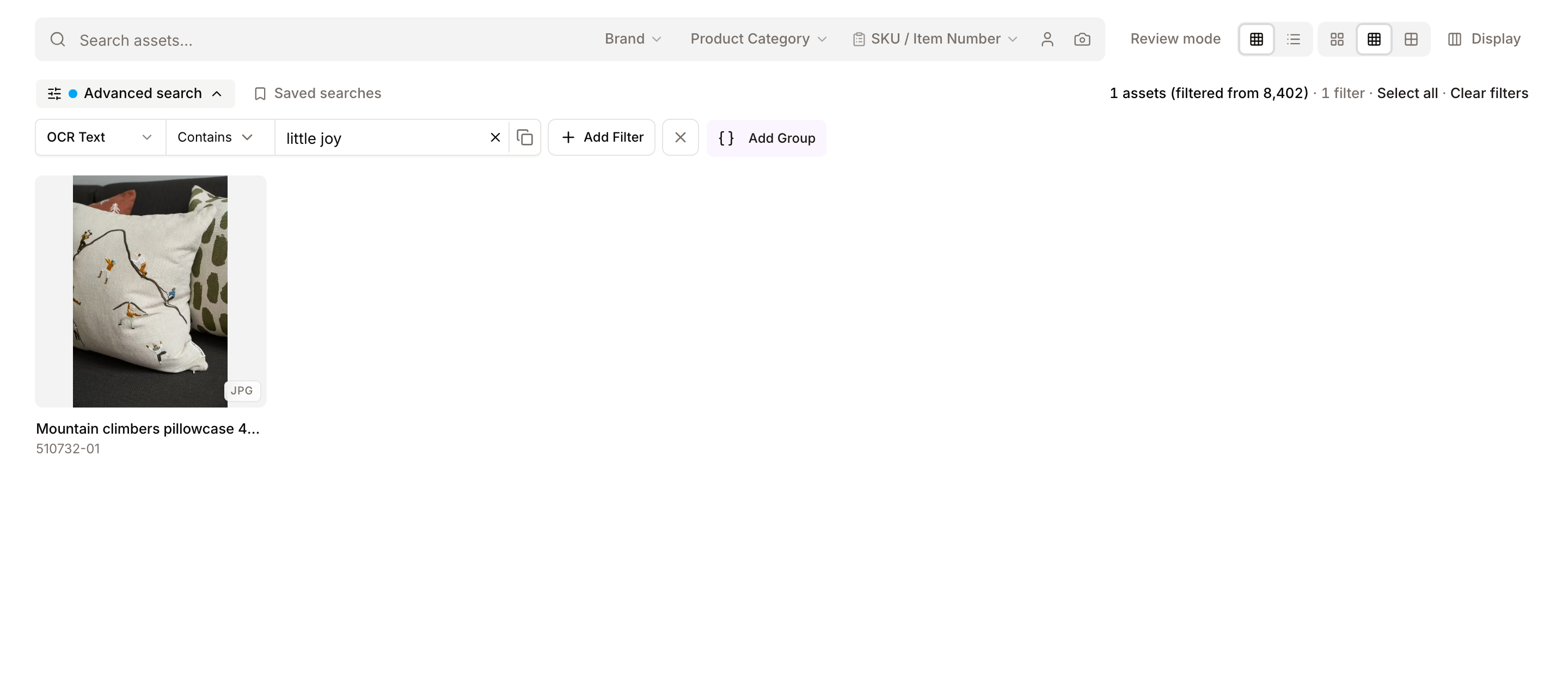
- Click Advanced search in the controls row of the Gallery (see Advanced Filters).
- Add a rule and pick AI Analysis → OCR Text.
- Choose contains and type the words, for example
little joy. Upper and lower case are ignored.
The Gallery then lists only the images whose text contains those words, whatever their title or tags say.
The OCR Text field offers equals, is not, contains and does not contain. Use does not contain to exclude images that show a word, for example an old brand name.
Where the text comes from
The text is read by the same AI analysis that generates tags and a caption at upload (see Automatic Tagging). It is kept in its original language, so text on a German package is stored in German. Separate blocks of text, such as a headline and a label, are joined with |.
The text is read on:
- Images, including layered design files once their preview exists
- EPS files
- Single-page PDFs that were not converted from another format
For multi-page PDFs and for documents such as Word or PowerPoint files, Freedam extracts the document's own text layer instead. That text is searchable too, but it does not appear on the AI tab. Videos and audio files are searchable through their transcripts. Animated images are not read.
The analysis works from the asset's preview, not from the full-resolution original. Large, clear text is read reliably. Very small print in a large image, stylised display type and text over a busy photo can be missed or read partly.
Seeing and correcting the text
Open an asset and select the AI tab. The Text in image section shows the text that was read, with Copy to copy it. When no text was found, the section is not shown.
To correct the text, you need the Edit asset metadata permission:
- Click Edit in the top bar, or press E.
- Open the AI tab and correct the text in Text in image. The change is saved straight away.
To correct or fill in the text on many assets at once, use bulk metadata editing and pick the OCR Text field.
The text is read again when you upload a new version of the asset. That replaces corrections made by hand.
For administrators
- Including it in keyword search: on the Search Configuration page, Indexed Properties lists OCR Text and Extracted Text (the text layer of documents), each with Include and a Boost. Both are included by default with a boost of 2. A change applies to existing assets after the search index is rebuilt.
- Search by meaning: the text read from images also feeds search by meaning. Excluding OCR Text from keyword search does not remove it from search by meaning.
- Model: the AI model that reads the text is the one assigned to the Image Enrichment operation on the AI Settings page.
Tips
- Search the exact words for product codes. For a reference such as
ATL-150, use the OCR Text filter with contains, so meaning-based results do not dilute the list. - Check your hardest files after a large import. Search for words you know appear only inside images (a product name on packaging, a slogan on a poster) and check that the right assets come back. See the OCR check.
- Replace low-resolution originals. When text is missed on an old scan, upload a sharper file as a new version. The text is read again from the new file.
- Do not rely on it for approved copy. The text read from an image is a search aid. Keep the approved wording of a legal line or claim in a metadata field or an attached document.
Troubleshooting
Issue: An image with visible text does not come up in search
- Cause: The text is too small in the preview, the type is hard to read, or the file type is not read (animated image, multi-page PDF read through its text layer only).
- Fix: 1. Open the asset's AI tab and check what was read. 2. If the text is wrong or missing, correct it in edit mode. 3. If many assets of the same kind are affected, upload sharper originals.
Issue: The words appear on the AI tab but keyword search does not find them
- Cause: OCR Text has been excluded from keyword search on the Search Configuration page, or the index has not been rebuilt since it was included again.
- Fix: Ask your administrator to check OCR Text in Indexed Properties, then rebuild the index. The OCR Text filter works in either case.