
Brand Compliance on Assets
When your workspace has brand rule sets (see Brand Rules), Freedam checks assets against them and proposes a compliance status for each one. The Brand compliance tab of the asset page shows the result, rule by rule, and lets a reviewer approve the proposed status or set another one. The approved status is what the gallery shows and filters on.
Compliance statuses
| Status | Meaning |
|---|---|
| Compliant | Every rule that applies passes. |
| Partially compliant | Some rules fail, and all of them are Should rules. |
| Non-compliant | At least one Must rule fails. |
| Not applicable | None of the rules concerns this asset. |
An asset can be in the scope of several rule sets. Its compliance status is then the least compliant of the statuses approved for each set: an asset that is compliant for "Brand identity" and non-compliant for "Social media EU" is non-compliant.
Until a reviewer approves a status, the asset has none, even when a check has proposed one.
The Brand compliance tab
Open an asset and select the Brand compliance tab. On a narrow screen it is in the More menu. Open asset in Review > Brand checks opens this tab directly.
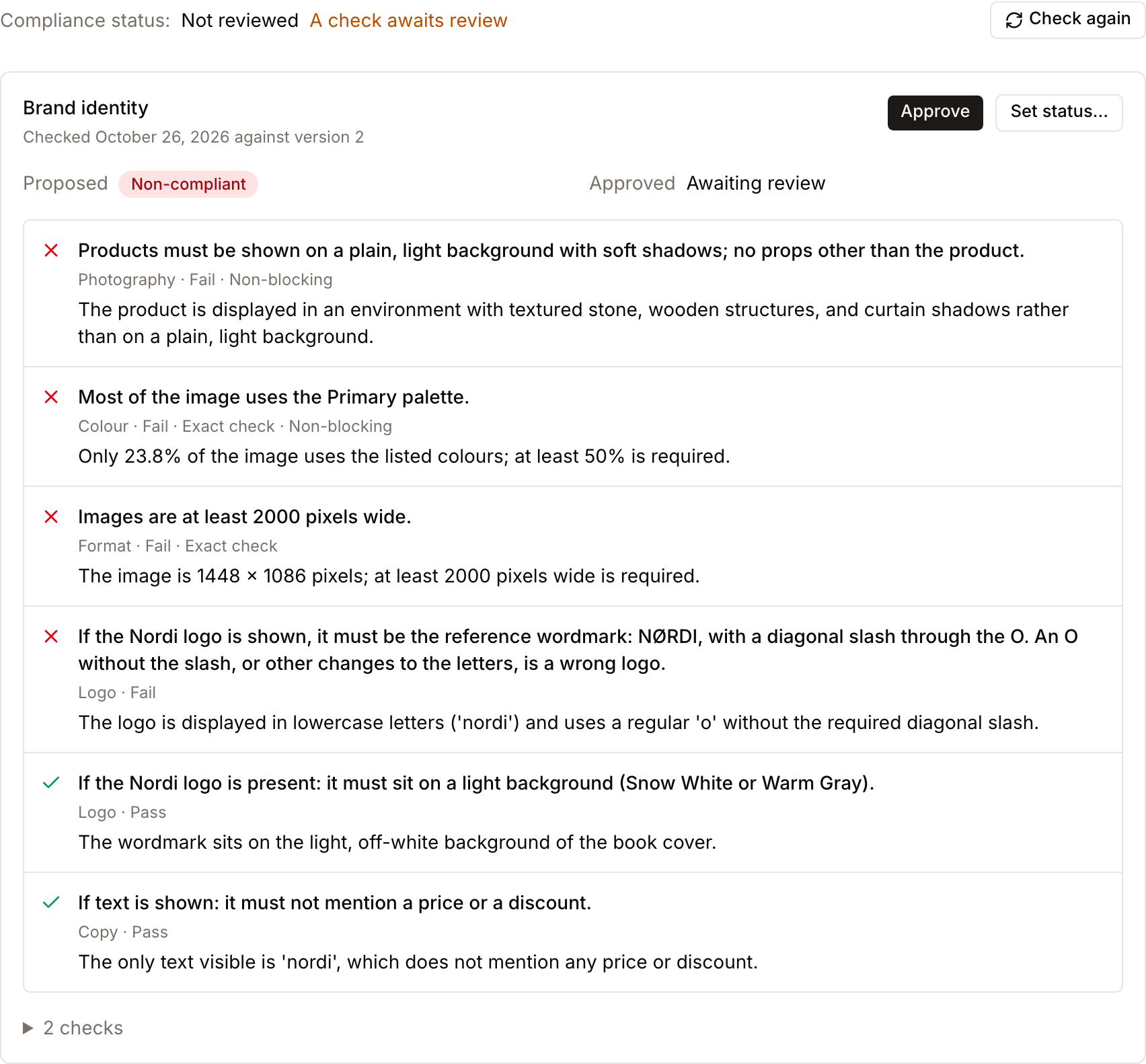
At the top: the asset's approved compliance status and, when a check awaits review, a note saying so.
Then one section per rule set that applies to the asset, with:
- Proposed: the status the latest check proposes from its findings.
- Approved: the status a reviewer set, who set it, and their note when they changed the proposal.
- The findings: each rule with its result (Pass, Fail, Not applicable, or Could not be checked) and an explanation of what was seen. For example, for a rule that shows the approved wordmark as its reference image, a cover printed with an older logo fails with "The logo is displayed in lowercase letters and uses a regular o without the required diagonal slash." Failed rules come first. Exact checks (colours, dimensions, format, file size, metadata) are marked as such.
- The checks: earlier checks of this rule set and the decisions taken on them.
"Could not be checked" means the data a rule needs was missing, or the AI did not answer that rule. Such rules do not count in the proposed status.
A check can also be skipped, with its reason: the file type cannot be checked yet (only images, EPS files and single-page PDFs with a preview can), or the rule set no longer applies to the asset.
When the workspace's daily allowance of checks is used up, a new check shows Waiting for allowance. It runs on its own when allowance is available again, usually the next day.
Approving or changing the status
With the Review quality results permission, each rule set's section has two buttons:
- Approve: the proposed status becomes the approved status.
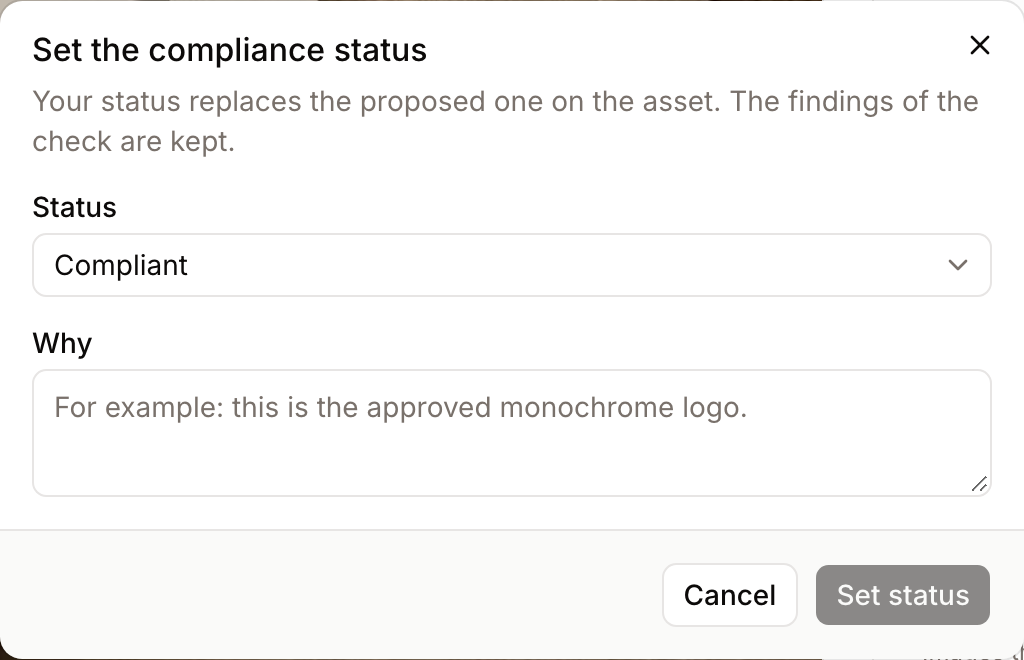
- Set status…: choose another status and explain why. Your status wins over the proposal; the findings of the check stay visible next to it, with your note.
The AI can be wrong. Review the findings before approving, above all for legal and regulatory rules.
Checking again
Assets are checked when their upload finishes and when they get a new file. With the Run quality checks permission, select Check again to check the asset against every rule set that applies to it now, for example after the rules changed. Each check takes a few seconds and appears in the tab when it is done.
A new file clears the approved status: the asset is checked again and needs a new review. A check made before the file changed is marked as outdated and can no longer be approved.
In the gallery
Gallery cards show a red Non-compliant pill or an amber Partly compliant pill on assets with that approved status, and a Review compliance pill while a check awaits review. Compliant and not applicable assets show nothing.
In the gallery filters, under Asset properties > Brand compliance:
- Brand compliance status: Compliant, Partially compliant, Non-compliant or Not applicable, or empty for assets without an approved status.
- Brand compliance review pending: assets with a check awaiting review. Save this filter as a search to keep a review list.
- Brand compliance reviewed: when the status was last approved or changed.
The same fields work in access rules (for example, hide non-compliant assets from partners), collection rules, automation rules and saved searches.
What to do with a non-compliant asset
- Read the failed rules and their explanations in the Brand compliance tab.
- Fix the file (the designer or the agency usually does this) and upload the corrected file as a new version of the asset. It is checked again automatically.
- If the asset is fine as it is, for example an approved exception, set its status with a note explaining why.