
Brand Rules
Brand rules check assets against your brand. You write the rules in plain language ("If the full-colour logo is present: it must sit on a light background") and group them in rule sets. Freedam checks the assets a rule set applies to when they are uploaded and whenever someone asks, answers each rule with Pass, Fail or Not applicable with a short explanation, and proposes a compliance status for the asset. A reviewer then approves that status or sets another one on the asset page. Only the approved status is stored on the asset, where it can be filtered, shown on gallery cards and used in access rules.
Brand rules are part of Quality, under Administration > Content Quality > Quality: brand rule sets are in the Rule sets tab beside the metadata rule sets, their checks wait in Review > Brand checks, their history is in Activity, and their instructions and daily allowance are in Settings. It needs the Manage quality rules permission and a plan that includes Quality (Business and Tailored). Brand rule sets count in the Quality grade.
Rule sets
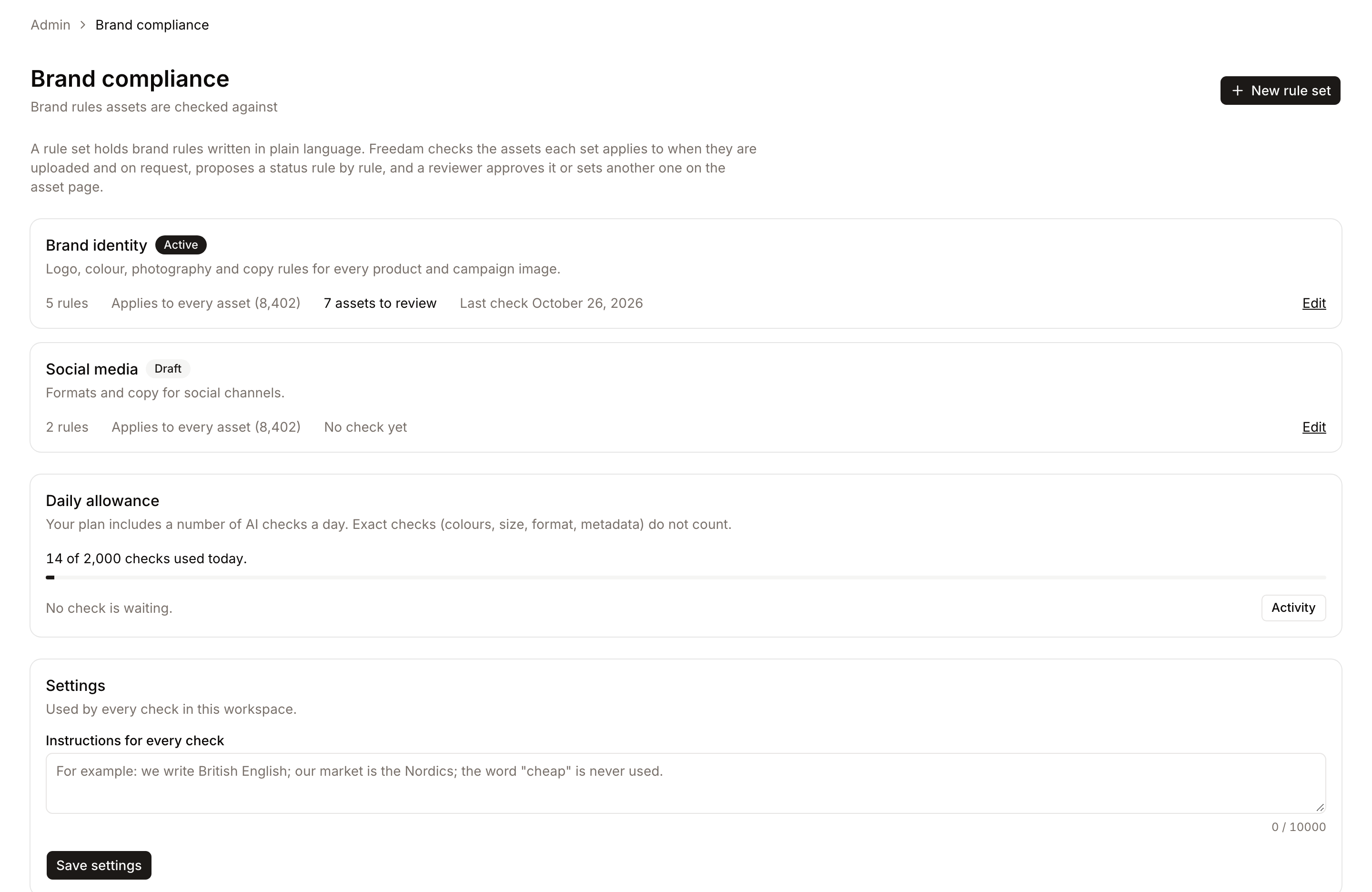
A rule set is a named group of rules with its own scope. Most workspaces start with one set for their brand identity and add sets for a market, a sub-brand or a channel (for example "Social media EU"). Each set is checked on its own, and the asset page shows the result of each set separately.
The Rule sets tab of Quality lists brand sets with the metadata sets: each with its grade, status and how many assets it applies to.
A rule set has one of three statuses:
| Status | What it does |
|---|---|
| Draft | Never runs. Use it while you write the rules. |
| Active | Checks new uploads when Check new uploads and new files automatically is on, and checks assets when someone selects Check again on the asset page. |
| Disabled | Kept with its history, but never runs and no longer counts in an asset's status. |
Creating and editing a rule set
In Quality > Rule sets, select New rule set then Brand rules, or the name of a brand set to edit it.
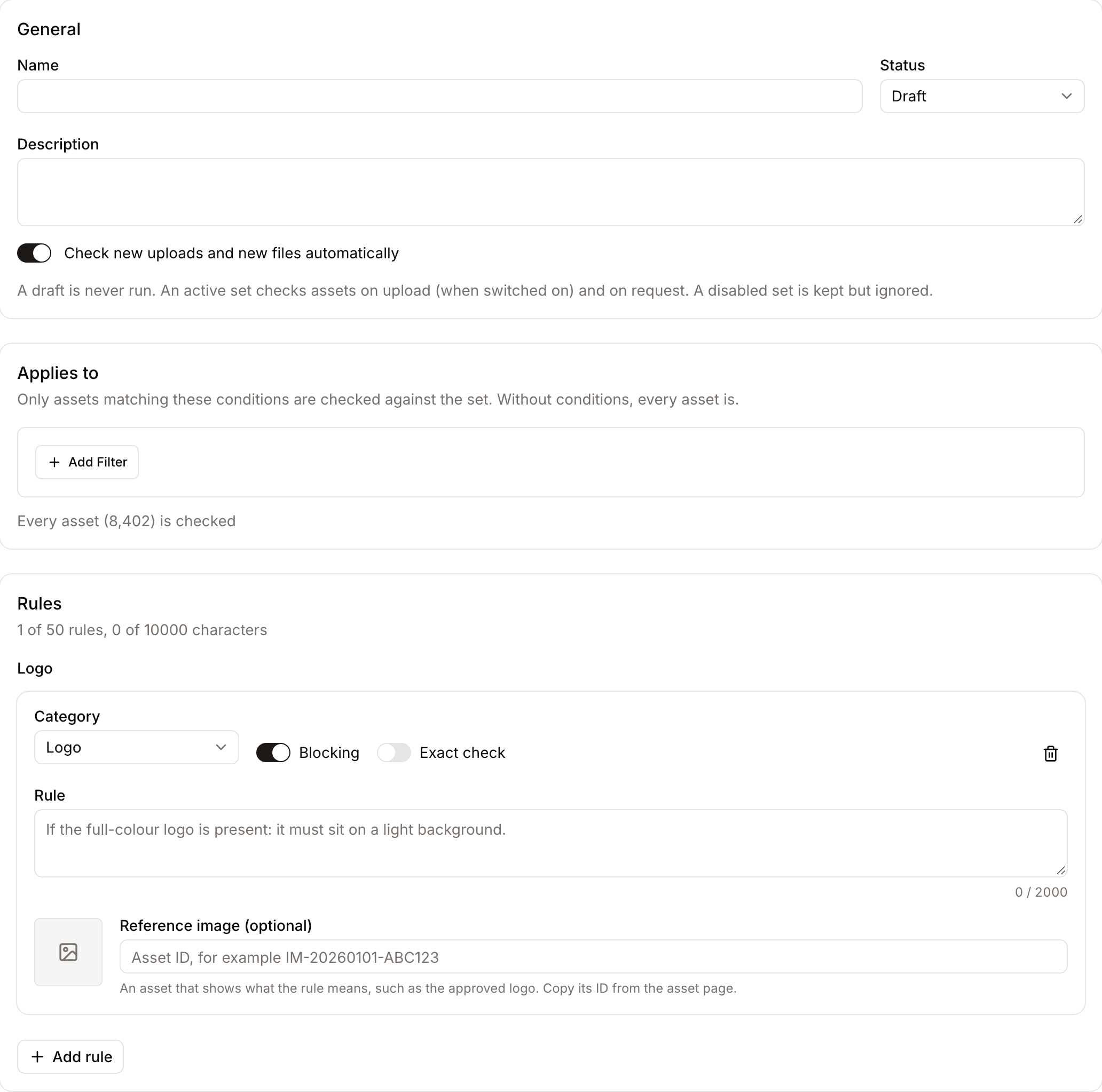
- Name and Description: how the set appears in the list and on the asset page.
- Status: Draft, Active or Disabled (see above).
- Check new uploads and new files automatically: checks each asset of the set's scope when its upload finishes, and again when the asset gets a new file.
- Applies to: the conditions that select the assets the set checks, with the same editor as gallery filters (asset class, file type, collection, metadata fields). The count under the editor shows how many assets match now. Without conditions, the set applies to every asset.
- Rules: one line per rule, with Must or Should, the rule, its category and how it is checked. Select a rule, or Add rule, to edit it in a side panel. A set holds at most 50 rules and 10,000 characters of rule text.
Saving a set with changed rules creates a new version. The Versions list on the right shows each version with its date and author. Every check records the version it used, so a change to the rules never changes the result of an earlier check. Saving a new version does not check assets again: select Check again on an asset to check it against the new rules.
A rule
The side panel reads in three steps:
- What the rule asks: the Category (Logo, Colour, Typography, Photography, Copy, Legal or Format; it groups the findings and is sent to the AI with the rule, but does not change how the rule is checked) and the Rule, one requirement in plain language.
- How it is checked: AI reads the image (it uses the daily allowance), with an optional Reference image: the ID of an asset that shows what the rule means, such as the approved logo or an example to avoid, copied from the asset page and sent with the rule. Or Exact measurement (see below).
- How much it matters: Must: an asset that fails it is Non-compliant. Should: an asset that fails only Should rules is Partially compliant. Use Should rules for preferences.
Each choice has a ? that explains it.
Exact checks
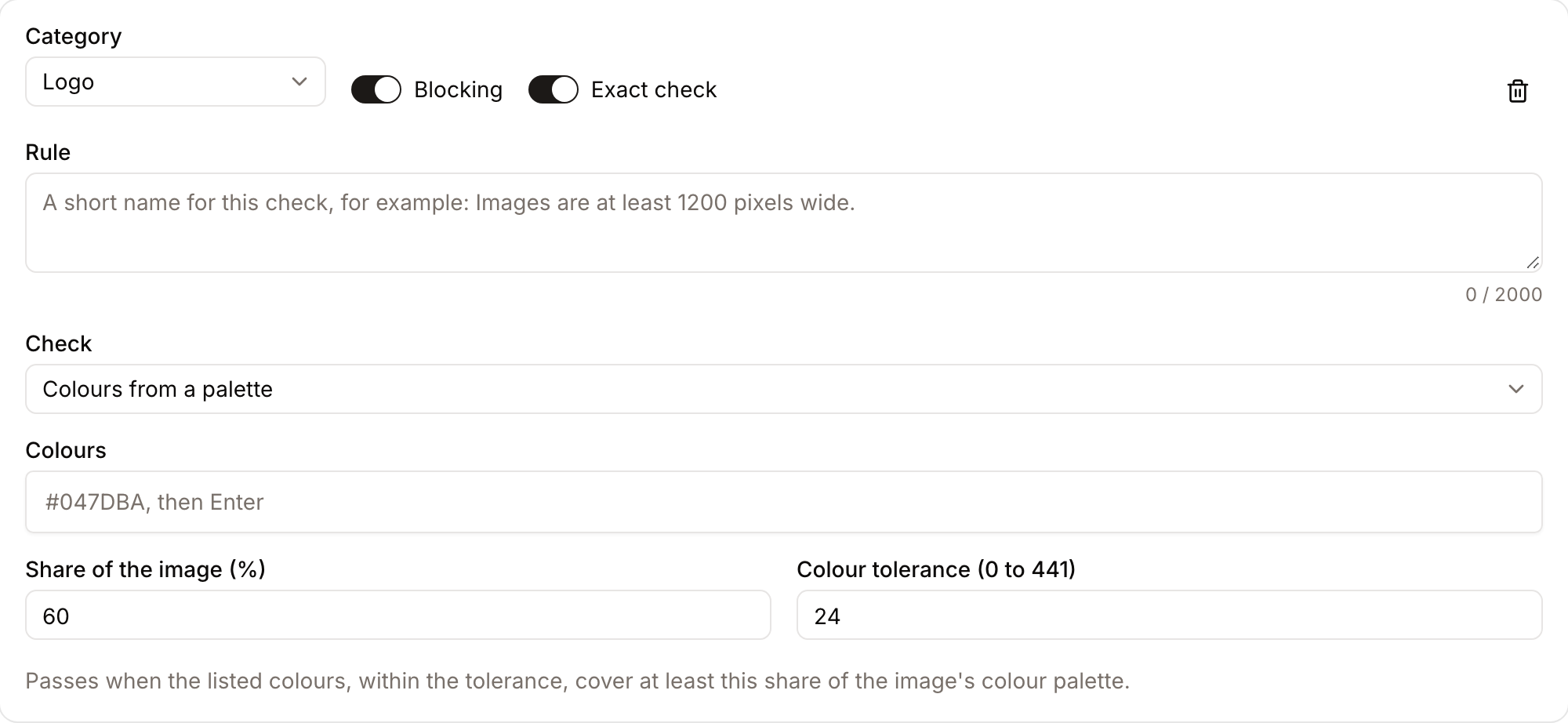
Some rules can be measured exactly from data Freedam already holds. Choose Exact measurement and the check; the AI is then not asked about this rule, and the check costs nothing.
| Check | Passes when |
|---|---|
| Colours from a palette | The listed colours, within the colour tolerance, cover at least the given share of the image's colour palette. The palette is the eight dominant colours Freedam extracts from every image. |
| Minimum dimensions | The image is at least the given width and height in pixels. |
| Aspect ratio | The image matches one of the listed ratios (for example 1:1, 4:5, 9:16), within the tolerance. |
| File format | The file has one of the listed extensions (jpg and jpeg count as the same). |
| Maximum file size | The file is no larger than the given size in MB. |
| Metadata field filled in | The chosen metadata field has a value. |
When the data a check needs is missing (an image without an extracted palette, a metadata field that was deleted), the rule shows "Could not be checked". It never counts as a pass.
How to write a good rule
The AI answers each rule on its own, looking at one asset at a time. Rules that follow these principles get consistent answers:
- One requirement per rule, written with "must" or "must not". "The logo must sit on a light background" is one rule; "The logo must sit on a light background and be at least 10% of the width" is two.
- Start with "If …:" when the rule only applies sometimes. "If the full-colour logo is present: it must sit on a light background." Assets without that logo then get Not applicable instead of a failure.
- Give exact values. Name colours by hex value, or by the names in your Brand Guide's colour palettes (Freedam sends those names and values with every check). Prefer an exact check when the value can be measured.
- Describe what can be seen in the asset. The AI sees the image, the text read from it, its colours and its size. It cannot know where the asset will be published or who approved it.
- Avoid vague words such as "on-brand", "premium" or "modern". Say what they look like: "Photos must use natural light; no studio flash on white backgrounds."
- Add a reference image when the rule is about a specific logo, layout or example.
Examples:
| Instead of | Write |
|---|---|
| The logo must look right. | The logo must not be stretched, rotated, recoloured or outlined. |
| Use our colours. | Exact check: Colours from a palette, #047DBA, #004656 and #FFFFFF, at least 60%. |
| Text must be legal. | If the image shows a price: it must be followed by "incl. VAT". |
| Images must be good quality. | Exact check: Minimum dimensions, 1200 × 628 pixels. |
| Use the right logo. | If the logo is shown: it must be the reference wordmark, with a diagonal slash through the O. An O without the slash is a wrong logo. Reference image: the approved logo file. |
The last rule shows why a reference image matters. Checked against a catalogue cover printed with an older logo, it fails with "The logo is displayed in lowercase letters and uses a regular o without the required diagonal slash." Without the reference image, the AI does not know which logo is the approved one.
Daily allowance
Your plan includes a number of AI checks a day: 500 on Business and 2,000 on Tailored, and 50 during a trial. One check is one asset checked against one rule set. Rule sets made only of exact checks do not use the allowance, and checking an asset again later uses one more check.
The Daily allowance card in Quality > Settings shows how many checks were used today and how many are waiting.
When the allowance is used up:
- Uploads continue as usual.
- New checks wait, with the state Waiting for allowance on the asset page.
- Waiting checks run automatically, oldest first, when allowance is available again, usually the next day. Nothing needs to be done.
- If the asset gets a new file, or another check of the same asset and rule set starts in the meantime, the waiting check is dropped. A waiting check uses the rule set's current rules when it runs.
To change the allowance of your workspace, contact Freedam.

Reviewing and following checks
People with the Review quality results permission work through checks in two places of Quality:
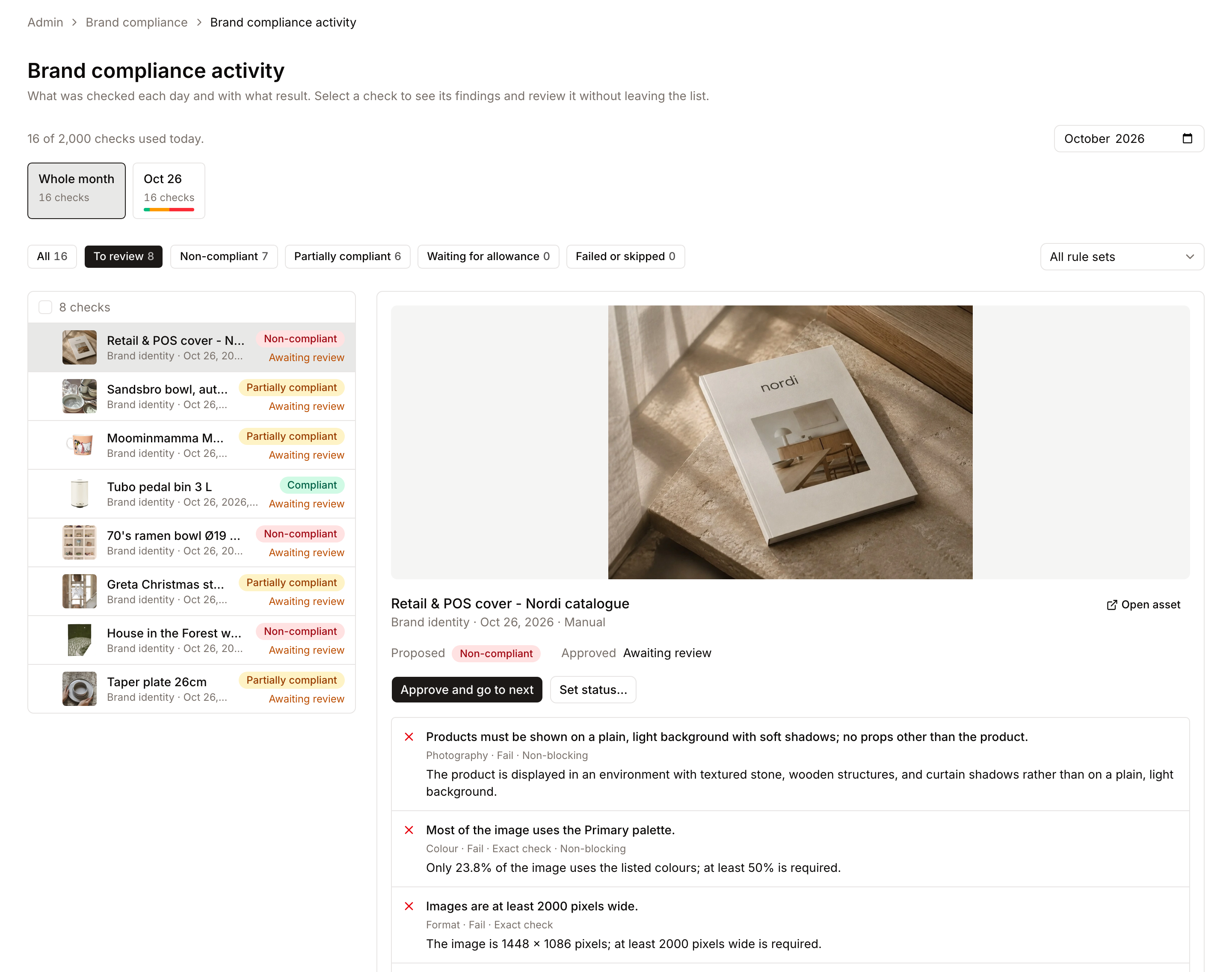
- Review > Brand checks: every check waiting for a reviewer, of any date. Select a check in the list, read its findings next to it, approve it, and the next check opens.
- Activity > Brand checks (or Activity on the allowance card): every check, by day, with the quick filters below.
Both show:
- Days (Activity only): one button per day of the chosen month with checks, with the number of checks and a bar showing how they ended (green compliant, amber partially compliant, red non-compliant, grey waiting, failed or skipped). Hover a day to see the counts and the allowance it used; these counts cover the whole workspace. Select a day to list its checks, or Whole month to go back.
- Quick filters: All, To review (the latest completed check of each asset and rule set that no one has approved yet), Non-compliant, Partially compliant, Waiting for allowance, and Failed or skipped, each with its number of checks, plus a rule set filter. A reviewed check counts with the status the reviewer set.
- The list: each check with the asset's thumbnail and title, the rule set, the date and the result. The arrow keys move through it. The list shows only assets you can view.
- The selected check, next to the list: the image, the proposed and approved status, and the findings rule by rule. Approve and go to next approves the proposed status and opens the next check; Set status… sets another status with a note. Open asset opens the asset on its Brand compliance tab. A check that a later check of the same asset and rule set replaced is marked Replaced and can no longer be approved.
- Retry queues failed or waiting checks again, the selected one or those ticked in the list. A retried check uses the allowance like any other; when none is left, it waits. Cancel waiting drops waiting checks.
A check fails when the AI service could not be reached or its answer could not be read; a check is skipped when the file type cannot be checked yet or the rule set no longer applies to the asset. A non-compliant asset is not a failure: it is a completed check with that result.
Settings
Quality > Settings holds what applies to every check in the workspace.
- Instructions for every check: up to 10,000 characters sent with every check, for guidance that holds for all rule sets: the language variant you write in, your markets, words you never use.
In Quality rules
The approved status is also a condition of Quality metadata rules: Brand compliance status, Brand compliance review pending and Brand compliance reviewed. A new rule offers two of them ready-made, Assets are on brand and Brand checks are reviewed. When a reviewer approves or overrides a check, Quality checks the asset again. See Quality.
What gets checked
Images, EPS files and single-page PDFs that have a preview. Other files (videos, audio, multi-page documents, presentations) are skipped with a reason, unless the set holds only exact checks.
The AI sees the image at 1024 pixels, the text Freedam read from it, its dominant colours with their share of the image, its original size and file type, the Brand Guide colours and the workspace instructions.
Permissions
| Permission | Allows |
|---|---|
| Manage quality rules | Brand rule sets, their versions, and Quality settings. |
| Review quality results | Approving the proposed status of a check, or setting another one, on the asset page; Review > Brand checks and Activity > Brand checks, with Retry and Cancel waiting. |
| Run quality checks | Check again on the asset page. Each check that needs the AI uses one check of the daily allowance. |
Anyone who can view an asset can see its Brand compliance tab. The three permissions are given to the Administrator role; give them to other roles in Administration > Roles.
Limits
- One asset at a time. Assets are checked when their upload finishes (with Check new uploads and new files automatically on) or when someone selects Check again on the asset page. A selection of assets in the gallery cannot be checked in one action.
- One approval at a time. Reviewers approve checks one by one, on the asset page or with Approve and go to next in Review > Brand checks.
- Every status needs a reviewer. A proposed status is never applied on its own: until a reviewer approves it or sets another one, the asset has no compliance status.
- No test run. A Draft set never runs, so a rule set cannot be tried on an asset before it is active. To try new rules on a few assets first, save the set as Active with automatic checks off and conditions that match only those assets, then select Check again on each of them.
- Versions are read-only. The Versions list shows who saved each version and when; it does not compare two versions or restore an earlier one. To go back to earlier rules, edit the set and save them again.
See Brand compliance on assets for the review on the asset page.