
Two-factor authentication
Two-factor authentication asks for a second proof when you sign in, in addition to your password or single sign-on: a code from an authenticator app on your phone, or a passkey (your fingerprint, face or device PIN). Someone who learns your password still cannot sign in without it.
You set it up yourself in Profile & Settings, on the Security tab. Your workspace may also require it; in that case Freedam tells you by when you must set it up.
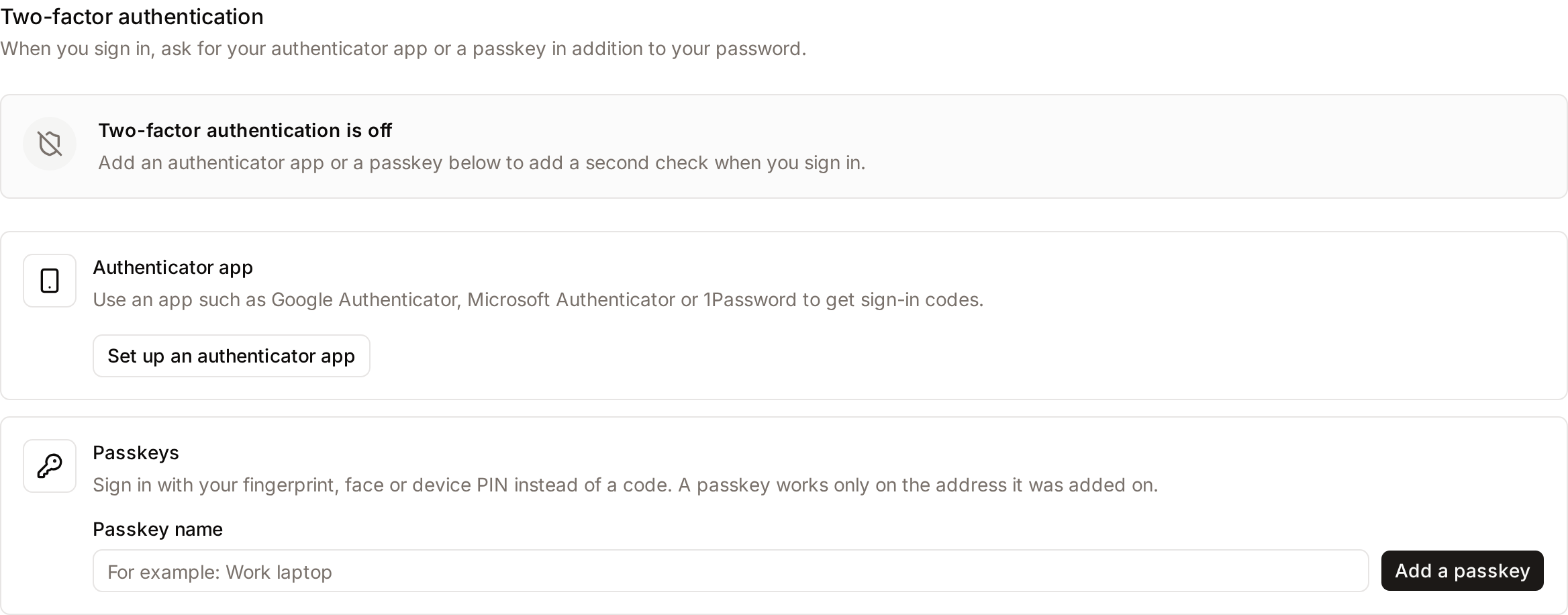
Page Overview
- Purpose: To add a second step to your sign-in and manage the methods you use for it.
- When to use it: When you want to protect your account, when your workspace requires it, or when you change phone or computer.
- What you can do here:
- Set up an authenticator app.
- Add, rename and remove passkeys.
- Save recovery codes and create new ones.
- Forget browsers you trusted.
Where to find it
Open your user menu, top right, choose Profile & Settings, then the Security tab. The Two-factor authentication section is a list. Its first row says whether two-factor authentication is on, with a shield icon:
- Grey shield, Two-factor authentication is off: you have not set up a method.
- Green shield, Two-factor authentication is on, followed by the methods you sign in with (for example "authenticator app and passkeys").
- Amber shield, Set up two-factor authentication, with "Required by your workspace. Set it up before {date}.": your workspace requires it and you have not set it up yet.
Below it, each method has its own row: Authenticator app, Passkeys, then Recovery codes and Trusted browsers once you have some. A method you have set up shows an Active badge next to its name.
Confirm it is you
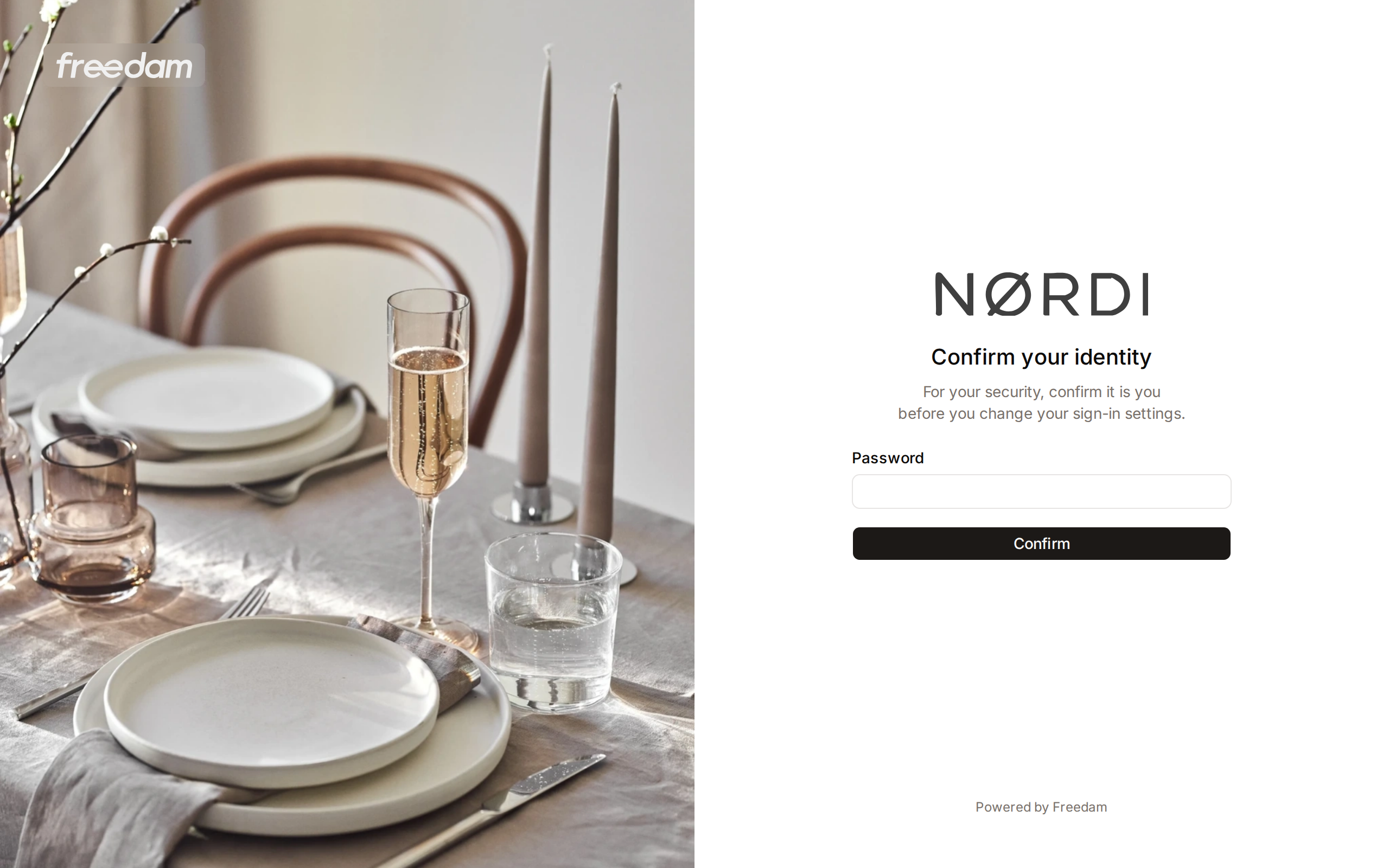
Changing your sign-in methods asks you to confirm your identity first, unless you signed in within the last few minutes. A Confirm your identity dialog opens with the ways available to you:
- Before you have set up two-factor authentication: your Password, or Single sign-on if you sign in with Microsoft. You can skip this step within 15 minutes of signing in.
- Once it is set up: your Authenticator app or a Passkey. A password alone is not enough. You can skip this step within 5 minutes of signing in with your authenticator app or a passkey.
After you confirm, Freedam carries on with the change you asked for. With single sign-on, you sign in again with your provider and come back to the page you were on; repeat the change from there.
Set up an authenticator app
An authenticator app shows a new 6-digit code every 30 seconds. Google Authenticator, Microsoft Authenticator and 1Password all work.
- In Authenticator app, click Set up an authenticator app.
- Scan the QR code with your app. If you cannot scan it, type the Setup key shown below the code into the app instead.
- Type the 6-digit code the app shows in Code from the app and click Confirm.
- If this is your first method, Freedam shows your recovery codes. Save them (see Recovery codes) and click I saved these codes.
The Authenticator app row shows Active and reads "On since {date}". To stop using the app, click Remove. The button is hidden when your workspace requires two-factor authentication and the app is your only method: add a passkey first.
The QR code shows the workspace name ("Freedam (workspace name)"), so you can tell entries apart if you belong to several workspaces.
Add a passkey
A passkey signs you in with your fingerprint, your face, your device PIN or a security key, instead of a code. It is stored on your device or in your password manager, never on Freedam's servers.
- In Passkeys, type a name you will recognise in Passkey name, for example "Work laptop".
- Click Add a passkey.
- Follow your browser's prompt: touch the fingerprint sensor, look at the camera, enter your device PIN, or insert your security key.
The Passkeys row shows Active and the number of passkeys you have. The passkey appears in the list with the date it was added and when it was last used. Use Rename to change its name and Remove to delete it. Remove is hidden when your workspace requires two-factor authentication and this is your last method.
Good to know:
- A passkey works only on the address it was added on. If your workspace is reached at two addresses, add a passkey on each one. The section tells you how many passkeys you have for other addresses; they are not listed, because they cannot be used here.
- If your browser cannot use passkeys, the section says "This browser cannot use passkeys." Use another browser or the authenticator app.
- When your workspace allows it, the sign-in page offers Sign in with a passkey: one step, with no password.
Recovery codes
Recovery codes get you in when you cannot use your authenticator app or passkeys, for example after losing your phone. Freedam creates 8 codes when you set up your first method and shows them once.
On the Save your recovery codes page, click Copy or Download, keep them somewhere safe (a password manager, a printed sheet in a drawer), then click I saved these codes. Freedam does not show them again.
Each code works once. The Recovery codes section shows how many are left. When 2 or fewer are left, a banner at the top of the app reminds you. Click Create new codes to replace them: the old codes stop working at once and the new ones are shown once, as above.
Sign in with two-factor authentication
After your password or single sign-on, Freedam asks for your second step:
- If you have a passkey, Use a passkey comes first. Click it and follow your browser's prompt.
- Otherwise, type the 6-digit code from your authenticator app under Authentication code and click Continue.
- Use your authenticator app, Use a passkey and Use a recovery code, below the form, switch to another method.
- Cancel and go back to sign-in ends the attempt.
A sign-in left waiting for its second step expires after 10 minutes, and after 10 wrong answers you start again from the sign-in page.
Trusted browsers
When your workspace allows it, the second step shows Trust this browser for {days} days. Tick it before you answer, and signing in from this browser does not ask for a code during that time. Do not tick it on a shared or public computer.
The Trusted browsers section of the Security tab lists the browsers you trusted, with the date and when each was last used. Forget removes one and Forget all removes every one of them; the next sign-in from that browser asks for a code again. Adding or removing an authenticator app or a passkey, and a reset by an administrator, forget every trusted browser.
Changing your methods or forgetting browsers asks you to confirm it is you with your authenticator app or a passkey: a trusted browser does not count as that confirmation.
If your workspace requires it
When your workspace requires two-factor authentication:
- A banner says "Your workspace requires two-factor authentication. Set it up before {date}." Until that date you can keep working; click Set it up to go to the Security tab.
- After the date, signing in leads to the Set up two-factor authentication page. Only setting it up, signing out and changing the interface language are possible until you do.
- Connecting an app such as Canva or an AI assistant waits until you have set it up, even before the date.
If your administrator switches off a method you use, a banner gives the date until which it keeps working. Add another method before then. After that date, sign in with a recovery code: you then go to the setup page to set up a method the workspace allows.
Lost your phone or device
- On the second step, click Use a recovery code and type one of your saved codes.
- Once signed in, go to the Security tab. Remove the authenticator app or the passkey you lost, set up a new one, and click Create new codes if few codes are left.
Signing in with a recovery code counts as confirming it is you for the next 5 minutes, so you can replace your method straight away.
If you have no recovery codes left, ask an administrator to reset your two-factor authentication. You then sign in with your password or single sign-on and set it up again.
Emails you receive
Freedam emails you when two-factor authentication is turned on, when an authenticator app or a passkey is added or removed, when new recovery codes are created, when a recovery code is used (with the number left), when a browser is trusted, and when an administrator resets your two-factor authentication. If you did not make the change, tell your administrator.
Troubleshooting
"This code is not valid or was already used."
- Cause: The clock of your phone is off by more than a minute, or the code was already used. A code works once.
- Fix: Turn on automatic time on your phone and wait for the next code.
The passkey prompt does not appear
- Cause: The passkey was added on another address of your workspace, or the browser does not support passkeys.
- Fix: Sign in on the address where you added the passkey, or use your authenticator app or a recovery code, then add a passkey on this address.
The Remove button is missing
- Cause: Your workspace requires two-factor authentication and this is your only method.
- Fix: Add another method first, then remove the old one.
Related pages
- User Settings: the rest of the Security tab.
- Signing In: passwords, single sign-on and account recovery.
- Access Settings: for administrators, requiring two-factor authentication.