
User Activity Analytics
The User activity tab of the Analytics Dashboard shows what one person did in the library during the selected period. Use it to answer a question about a specific colleague or partner: whether they found the assets they were sent, which files they downloaded, or why they cannot find something.
You need the Open the analytics dashboard permission and the Analytics feature of your plan.
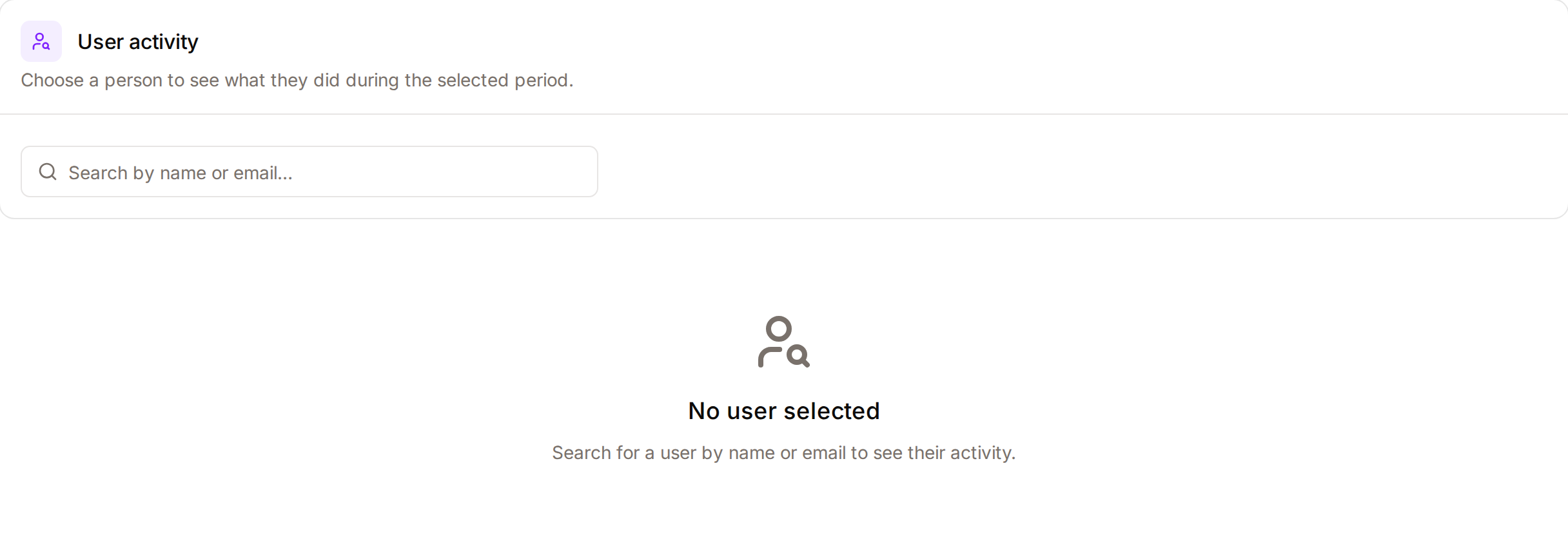
Choose a person
There are two ways to open the activity of a person:
- On the User activity tab, type at least two letters of their name or email address in the search field and pick them from the list.
- On the Audience tab, click View activity on their row of Most Active Users.
The address bar then records the person (for example /admin/analytics#users=12), so a link or a reload opens the same person. The Select period (dropdown) at the top of the page applies to this tab too.
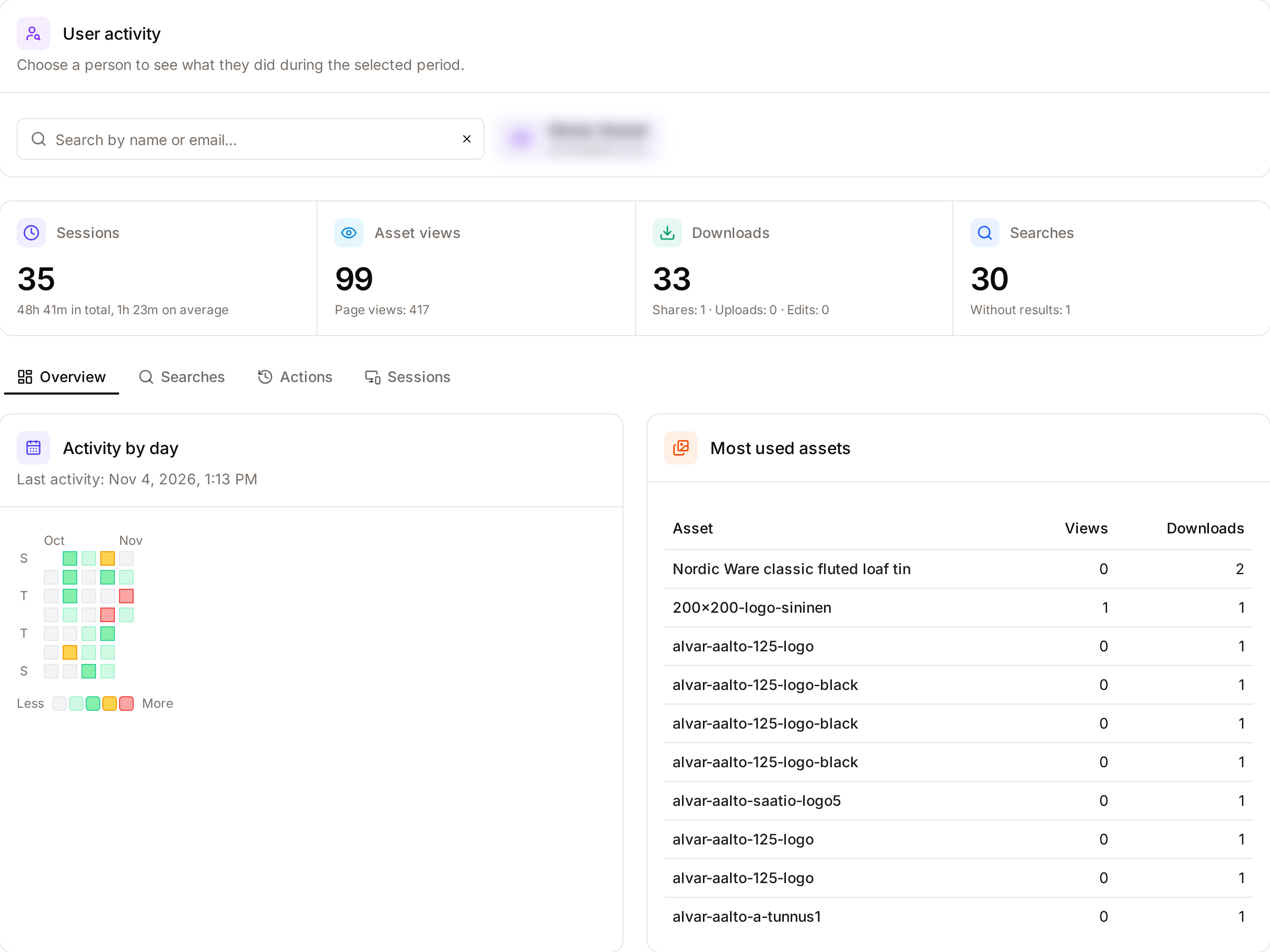
The figures
| Figure | What it counts |
|---|---|
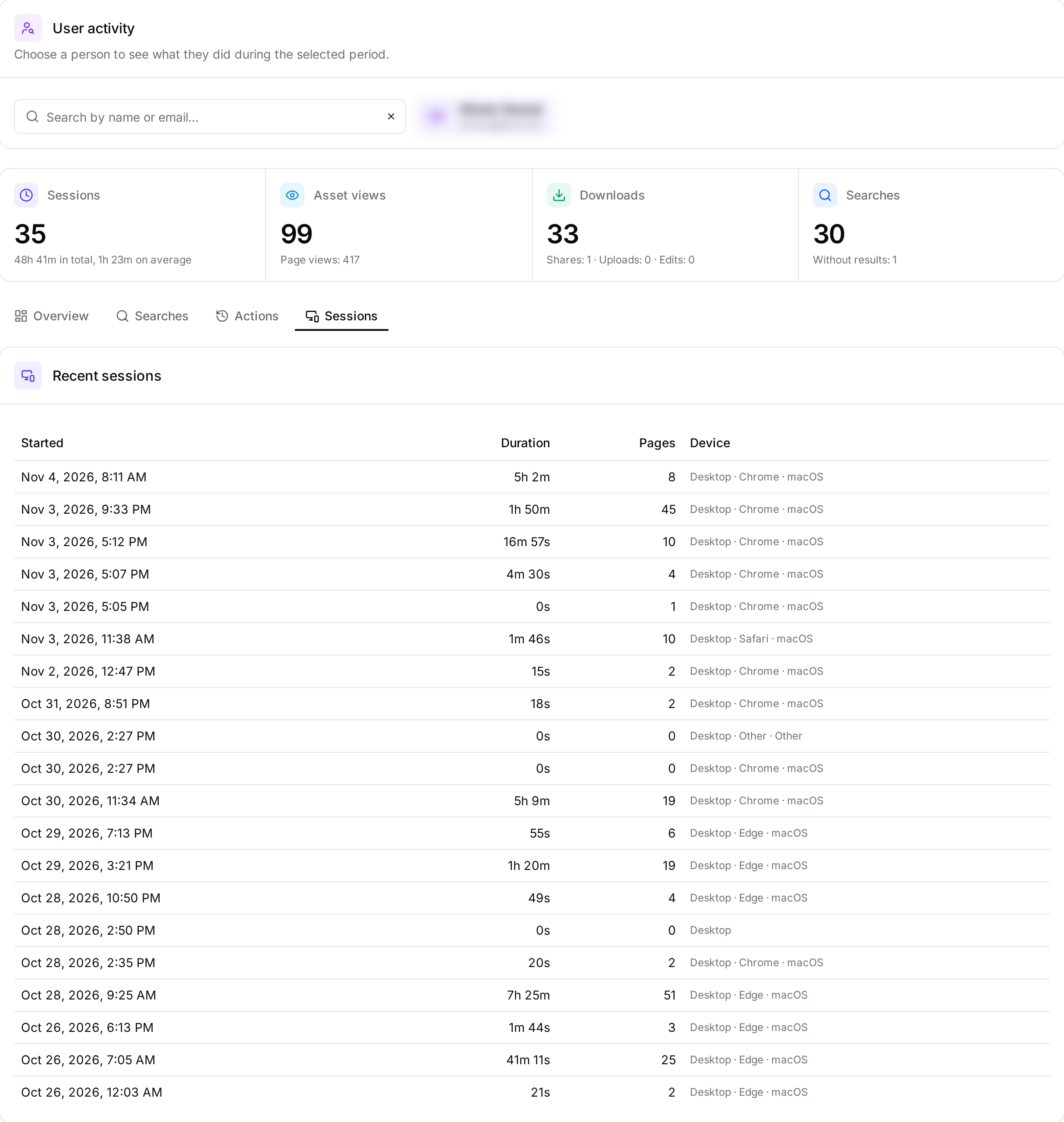
| Sessions | Visits the person started in the period. Under it, their total and average visit time. |
| Asset views | Asset pages they opened. Under it, the number of pages they loaded. |
| Downloads | Files they downloaded. Under it, the number of shares, uploads and metadata edits. |
| Searches | Searches they ran. Under it, the number of searches that found nothing. |
Activity by day, on the Overview sub-tab, shows one square per day of the period, darker when the person did more that day, and the date of their last recorded activity.
The sub-tabs
The totals stay at the top. Below them, four sub-tabs split the details:
- Overview: Activity by day and Most used assets, the 10 assets the person downloaded and viewed most, with the number of views and downloads of each. Click a title to open the asset.
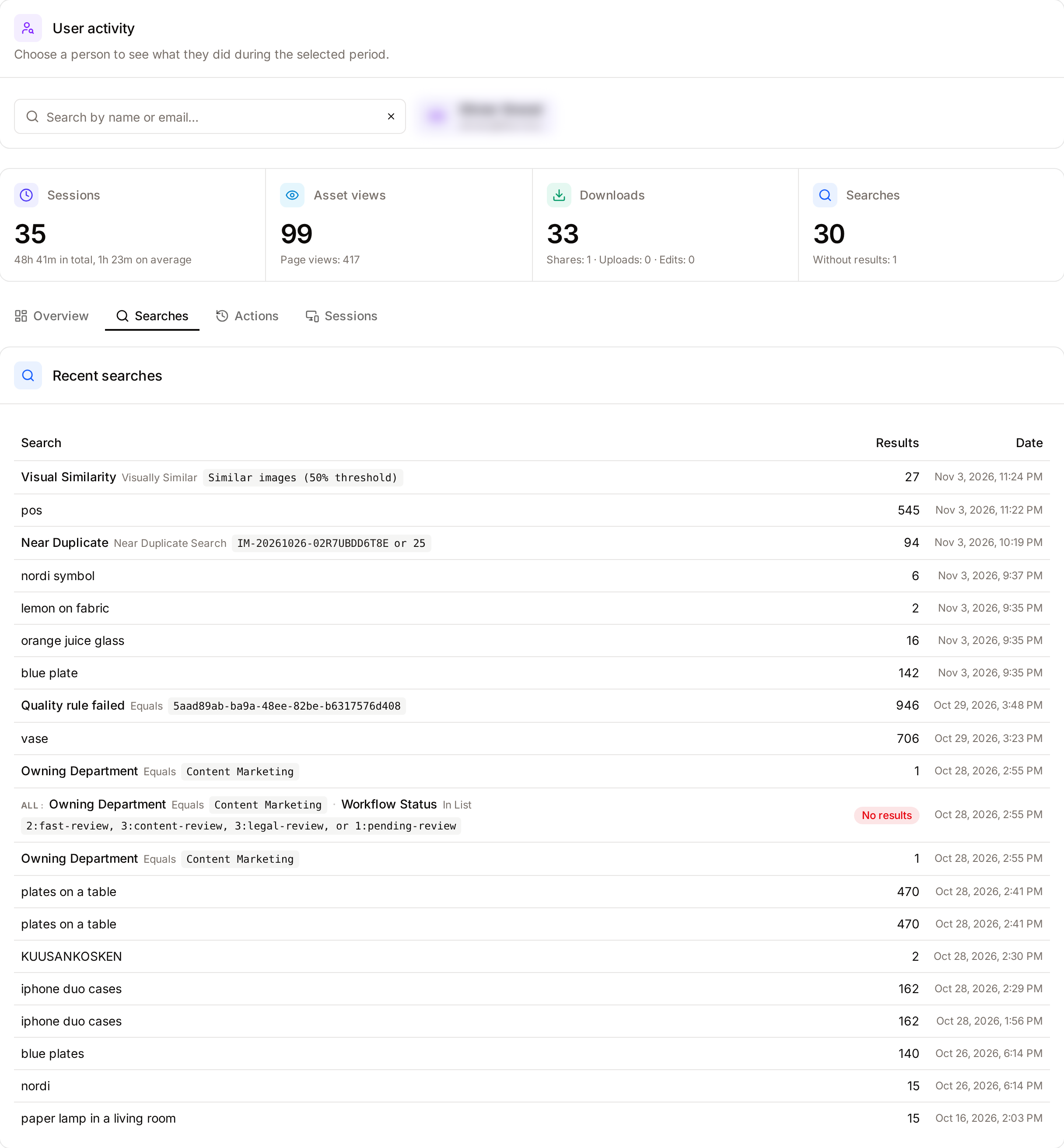
- Searches: their last 20 searches, with the number of results. A search that found nothing is marked No results; a search made with filters shows the filters.
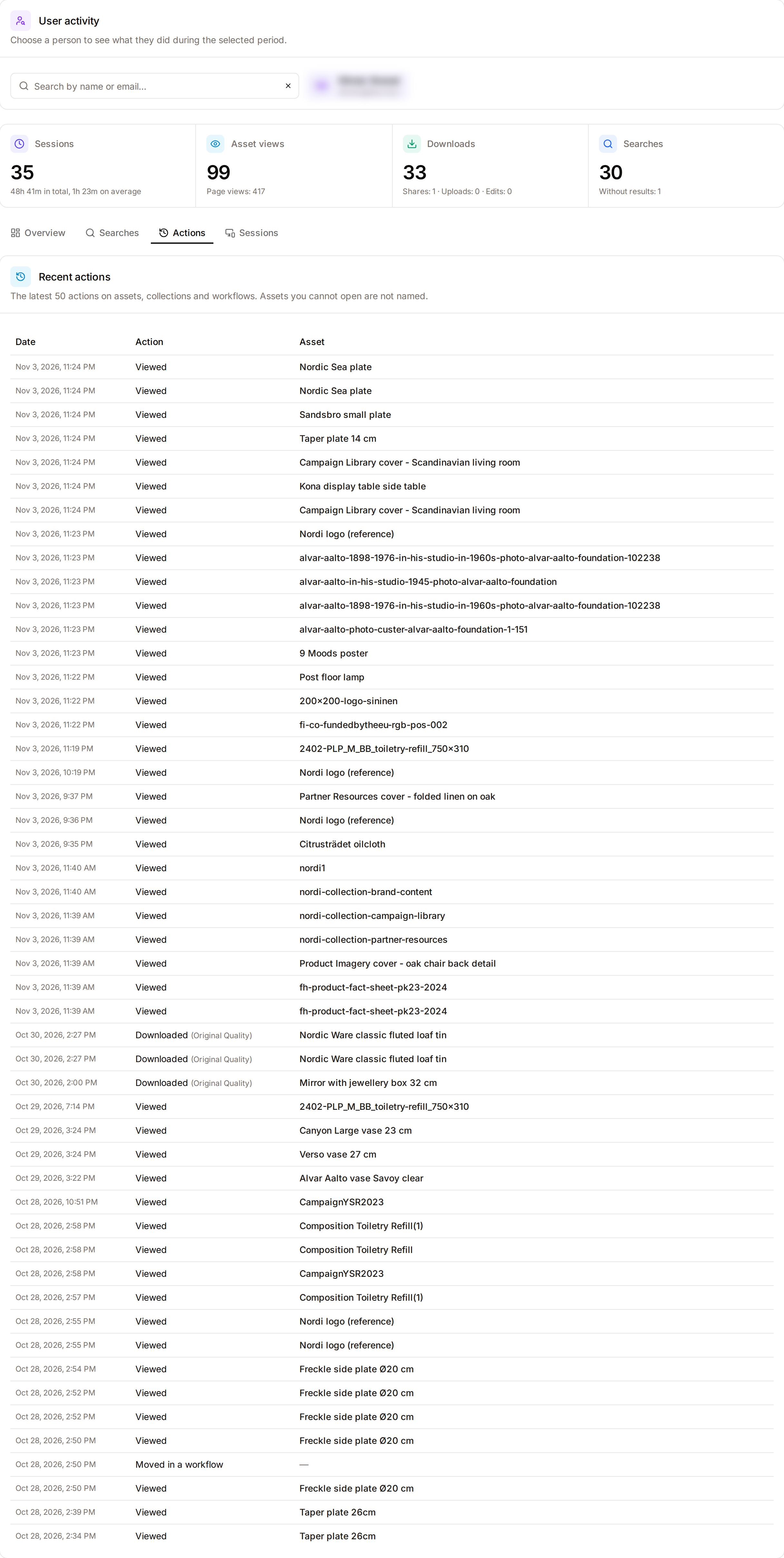
- Actions: their last 50 views, downloads, shares, uploads, edits and deletions of assets, collections they created and workflow steps. A download shows the resolution that was delivered. Page loads and searches are not repeated here.
- Sessions: their last 20 visits, with the start time, duration, number of pages and device.
What you can see
- The totals count every action of the person. The lists name only the assets you may view yourself: an action on an asset hidden from you by Asset Access Rules is counted and listed, without the asset's name.
- Freedam's support staff cannot be searched for.
- The data follows the retention of the dashboard: actions and searches are kept for 1 year, visits for 90 days. See Admin Analytics.
This tab names what one person did. Use it to help people and to answer questions about the use of your library, not to measure performance.