
Freedam Picker
The Freedam Picker lets you choose assets from your Freedam workspace without leaving another application: a website's CMS, an e-commerce back office or an internal tool. The application shows a button such as Insert from Freedam. A click opens the picker, you choose one or more assets, and the application receives them with links that display them on its pages.
The picker shows the assets you may view in Freedam, within what the application offers: a workspace administrator decides, for each application, which assets it offers, which image formats it accepts and which information it receives. The links belong to a publication channel of the workspace, so the application displays the assets without copying the files.
Open the picker
Click the button the application shows. Depending on how the application was built, the picker opens:
- in a separate window;
- in a new tab of the browser;
- over the application's page;
- inside the application's page, for example in a side panel.
The picker works the same way in all these cases.
Sign in
If you are not signed in to Freedam in this browser, the picker asks you to sign in. Sign in opens a small window on your workspace, with the sign-in methods you usually use: password, passkey, two-factor authentication, or single sign-on with Google or Microsoft. Once you are signed in, the small window closes and the picker shows the assets.
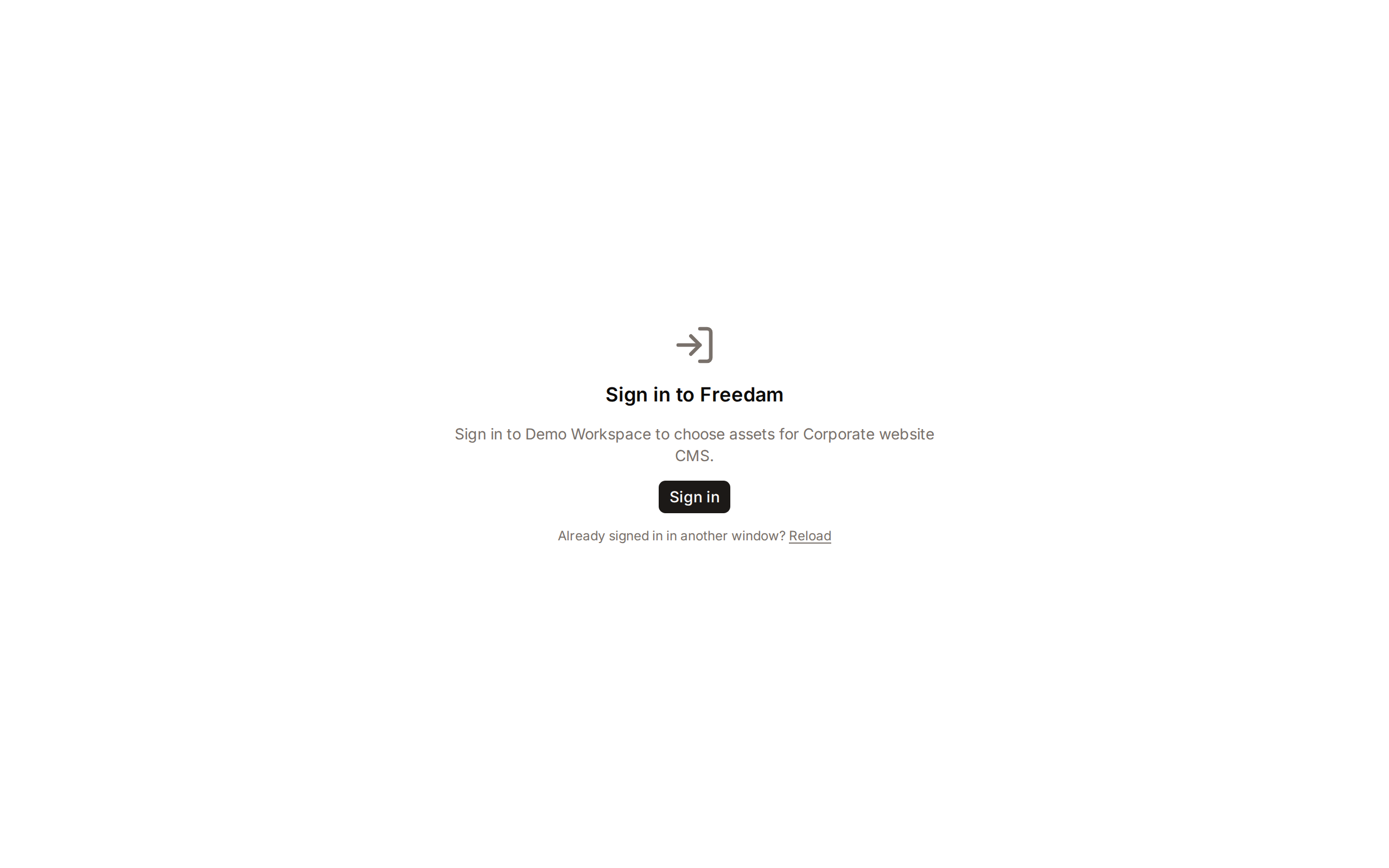
- If your browser blocks the sign-in window, allow pop-ups for the application's site, then click Sign in again.
- If you signed in in another window in the meantime, click Reload.
- When the picker is shown inside the application's page and the browser does not let it sign in there, the picker offers Open in a window: it continues in a separate window, with the same choices.
Some applications let visitors choose assets without a Freedam account. The sign-in screen then also shows Continue without an account. Without an account, you see the assets the workspace shows to visitors without an account, and you cannot import files.
Find assets
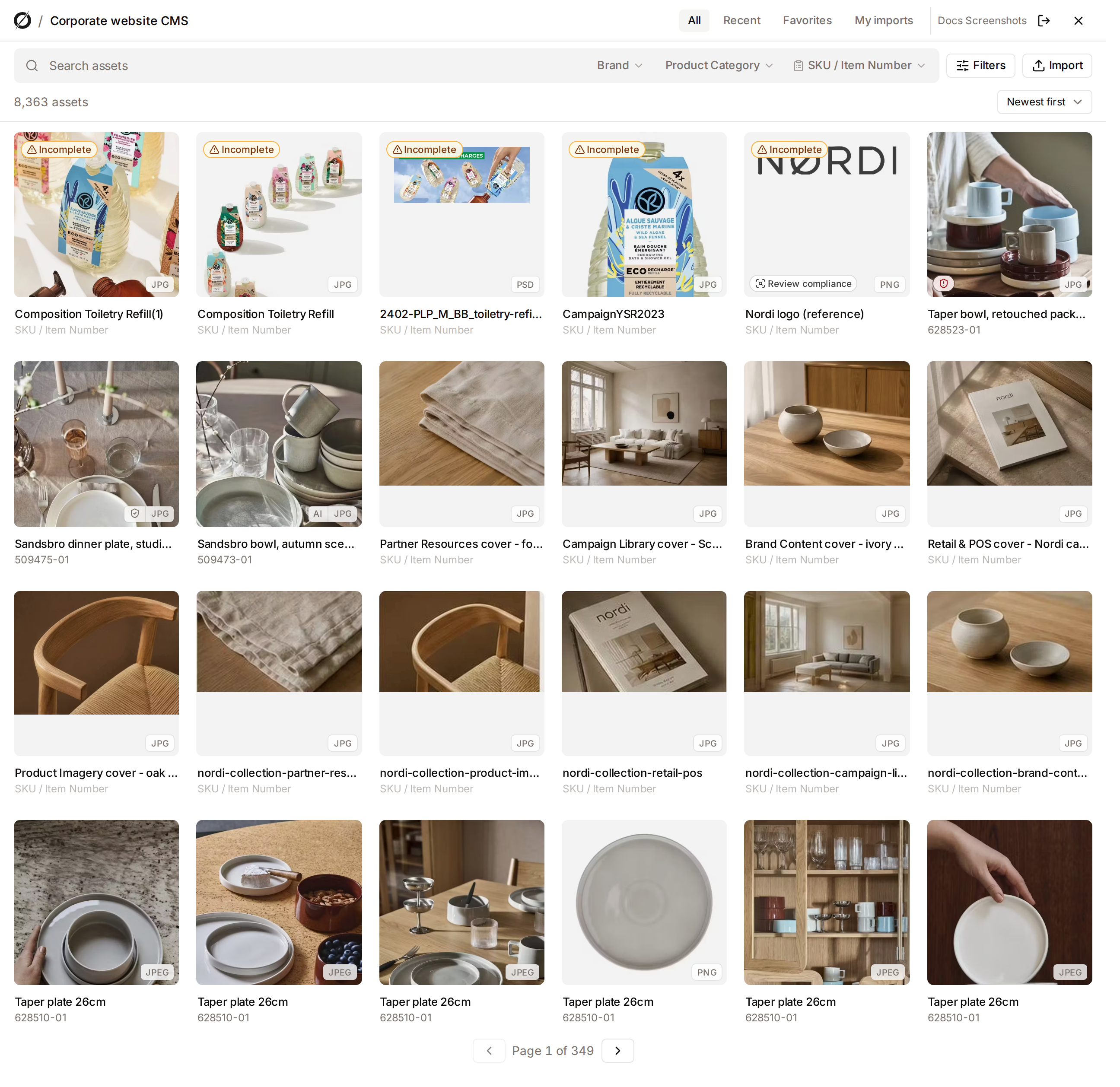
The top of the picker shows the name of the application you are choosing for, your name and Sign out. The close button cancels and closes the picker.
The tabs choose what the grid shows:
- All: every asset the application offers to you.
- Recent: the assets you inserted from Freedam into any application, if this application offers them.
- Favorites: the assets in your Freedam favorites, if this application offers them.
- My imports: the files you imported from the picker (see Import files).
In the All tab, search as you do in the Gallery: type words, pick a suggestion, use the quick filters next to the search box, or open Filters to add conditions on any field. Sort orders the results by relevance, date, title, file name or size.
The application can open the picker on a search of its own, for example the products of one brand. The toolbar then shows Application filter: the picker shows only part of the assets, and your own search and filters apply within it.
Preview on a card opens the asset's details: dimensions, size, type and, when they have an end date, the date its usage rights end. You can select the asset from there.
Select assets
Click a card to select it, and click it again to remove it. Depending on the application, you choose one asset or several; when the application sets a maximum, the selection bar shows it, for example "3 of 5 selected".
Some cards cannot be selected. Their label says why:
- the asset's usage rights do not allow publishing it in this application, or require a condition the application cannot meet;
- the asset is still being processed;
- the application does not accept this type of file.
When you edit content you inserted earlier, the application can open the picker with those assets already selected. An asset that can no longer be inserted is left out, and the picker says how many were left out.
Choose how assets are inserted
When the selection contains assets with settings, the settings open above the selection bar. Hide options folds them and Options shows them again. The settings apply to every selected asset of the same type.
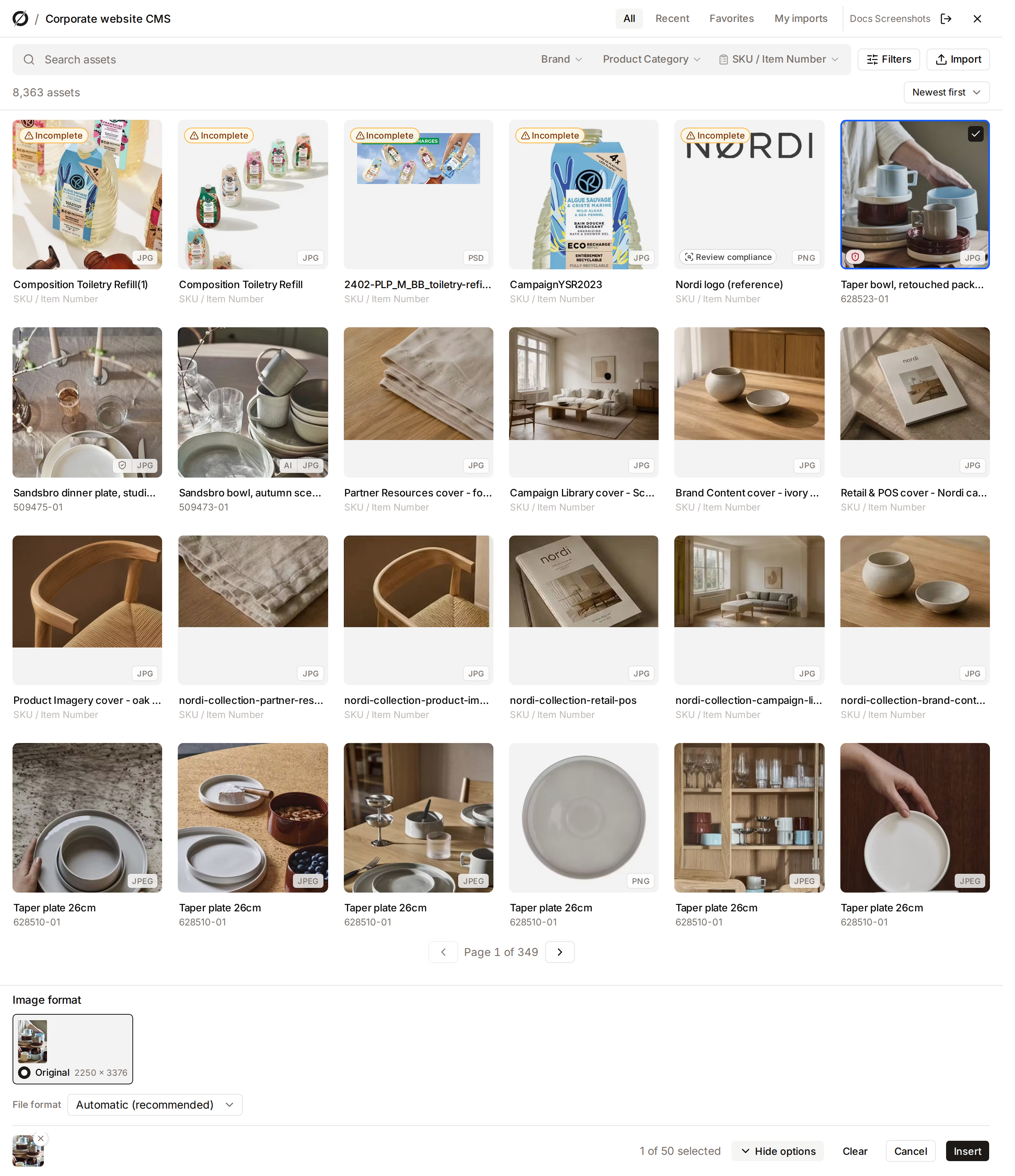
Images
- Image format: one of the formats the application accepts, such as a banner or a square card. The image is cropped to that format around its focus point. Original keeps the image's own proportions, when the application accepts it.
- File format: Automatic (recommended) lets each visitor's browser receive the best format it supports. Choose AVIF, WebP or JPEG only when the application needs one.
Videos
- Autoplay starts the video when the page loads. Browsers only allow it muted, so Muted stays on while Autoplay is on.
- Muted, Loop and Show controls set the player.
- Start at starts the video at a time, in minutes and seconds (
1:30). - Subtitles shown by default: each video's default track, none, or a language that every selected video has.
Documents
- Insert as: a Download link, a Clickable thumbnail of the first page, or an Embedded viewer that shows the pages.
- File delivered: the Original file or its PDF version.
The viewer and the PDF are available for documents that have a PDF version. The picker says so when a selected document has none.
Insert
Click Insert. Freedam publishes the selected assets on the application's publication channel, records where they are used, and sends them to the application. The picker then closes, and the application shows the assets.
- If the insertion fails, the picker says why for each asset and stays open: change the selection or try again.
- If you closed the application's page while the picker was open, the picker says that nothing was inserted. Open it again from the application.
- Cancel closes the picker without inserting anything.
Inserted assets appear in the Recent tab the next time you open the picker. On the asset's page in Freedam, the insertion is listed among the places the asset is used, so the people who manage the asset know which pages show it before they change or delete it.
Import files
When the application allows it, Import adds files from your computer without leaving the picker: up to 20 files at a time. They go to the collection the workspace administrator chose for this application.
- The import panel lists the files with their progress: Sending, Processing, Ready, Awaiting approval or Failed.
- Give each file a Title, a Credit and an Alt text: the application can receive them with the asset.
- Imported files are added to your selection. Insert waits until they are ready.
- A file Awaiting approval can be inserted once it is approved, unless the administrator lets the person who imported a file insert it at once.
- If processing takes longer, you find your files later in the My imports tab.
When the picker cannot open
The picker shows a message instead of the assets when:
- the page that opened it is not allowed to use the application's integration;
- the integration is suspended, or its settings are incomplete;
- your workspace does not include the Freedam Picker;
- your account cannot view assets.
Each message says whom to ask. Workspace administrators set up integrations on the Picker integrations page.