
Freedam Picker
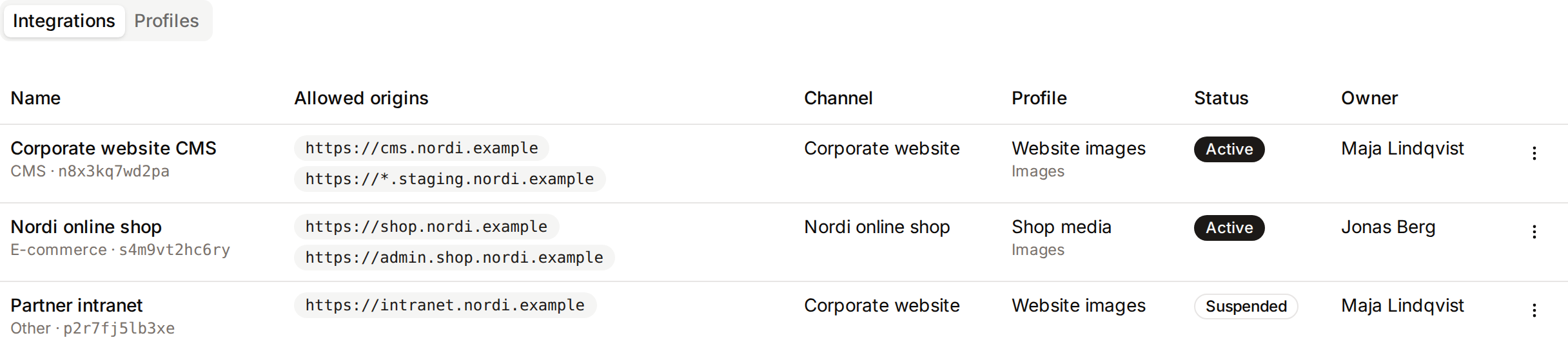
The Freedam Picker lets a web application, such as a website, a CMS or an e-commerce back office, insert assets from its own pages. People choose among the assets the picker offers, within their own access rights.
Three pages set it up, in this order:
- Publication channels: a website channel publishes what the picker inserts. See Publishing.
- Picker profiles: a profile decides which assets the picker offers and what it sends to the web application.
- Picker integrations: an integration names the web application and the addresses allowed to open the picker, and uses one channel and one profile.
You find these pages under Administration → Publishing, together with Picker statistics. The tabs at the top of the three pages follow the same order and show how many channels, profiles and integrations exist. You need the Manage Freedam Picker integrations permission, and Manage publishing to create channels. The Freedam Picker comes with the Business and Tailored plans, together with Publishing.
Profiles
A profile decides which assets the picker offers and what it sends to the web application. Several integrations can share a profile. To vary a profile for one integration, duplicate it and change the copy.
Click New profile on the Picker profiles page and fill in the form. The page lists each profile with the number of assets it offers you, the number of fields it sends and the integrations that use it.
Assets the picker offers
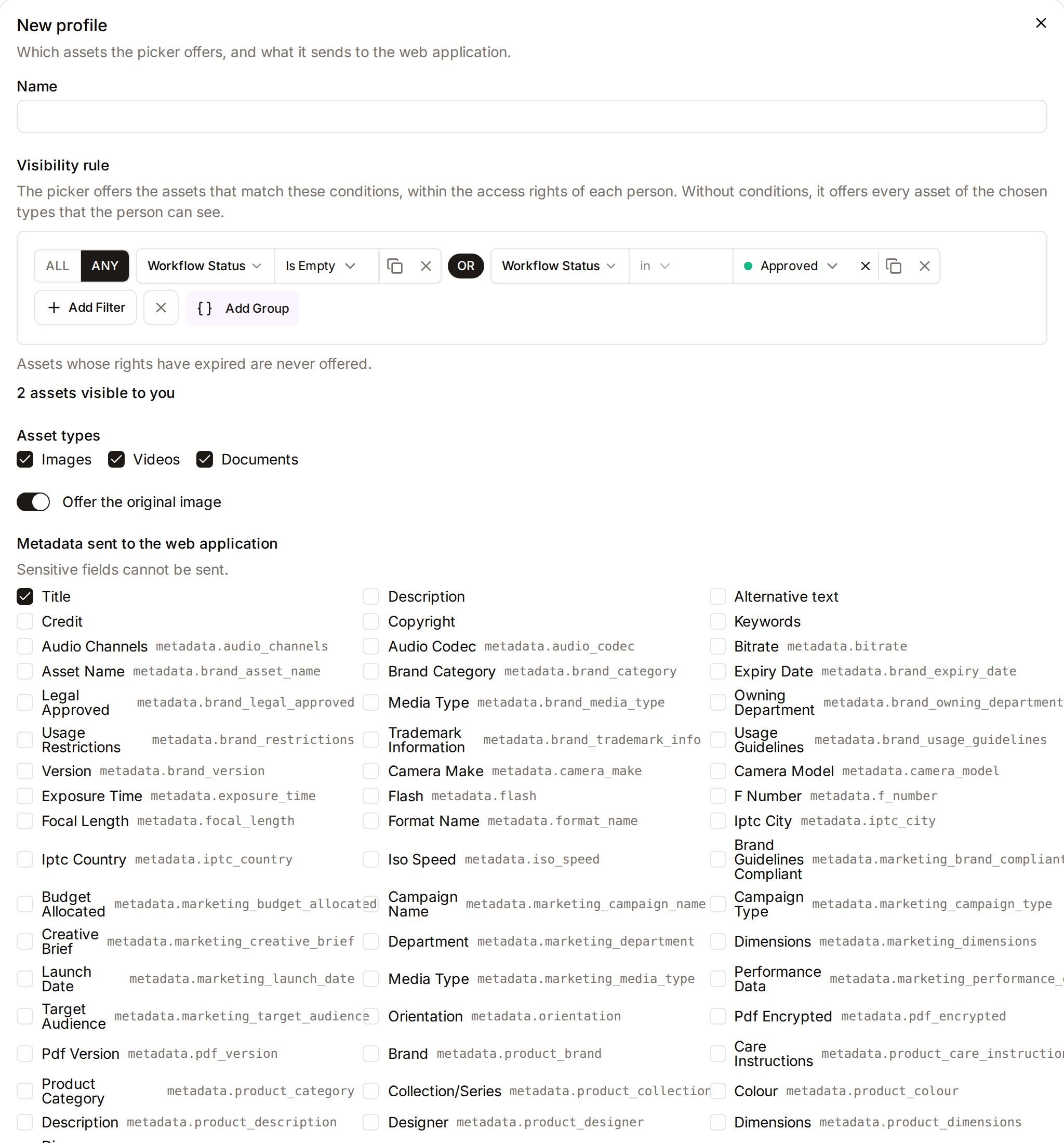
These conditions, the profile's visibility rule, select the assets the picker offers, with the same conditions as the gallery filters. A new profile starts with approved assets: assets in a workflow status named approved or published, and assets outside any workflow. Change the rule to fit the integration, for example a collection or a brand.
The rule never widens what a person can see: the picker shows the assets that match the rule and that the person may view. The count under the rule says how many assets you would see; people with fewer access rights see fewer.
Some assets are never offered, whatever the rule says:
- assets whose rights have expired, since their published links would stop working;
- assets still being processed;
- archived assets and assets in the trash.
A rule cannot contain a text search or a visual search: people search in the picker itself.
A metadata field used in a visibility rule cannot be deleted, and merging tags updates the rule.
Asset types and original
- Asset types: the kinds of asset the picker offers. The picker offers only the types that the integration's channel also publishes.
- Offer the original image: when it is off, the picker offers only the channel's sizes and formats.
Upload and language
- Allow uploading from the picker lets people add a file without leaving the web application. Choose the collection uploaded files go to. The person who uploaded a file can insert it before it is approved lets them use it straight away.
- Picker language: the language of the picker, or the language of each person.
Metadata sent to the web application
Choose the fields sent with each inserted asset, such as the title or the credit. The list starts with the asset fields, then shows the custom fields of each asset class by form section, as in the asset metadata form. Search a field by its name, or select a whole section at once. Sensitive fields cannot be sent. When a field is deleted, the profile's row says so and the field is no longer sent.
A profile used by an integration cannot be deleted. Choose another profile for that integration first.
Create an integration
Click New integration on the Picker integrations page and fill in the form.
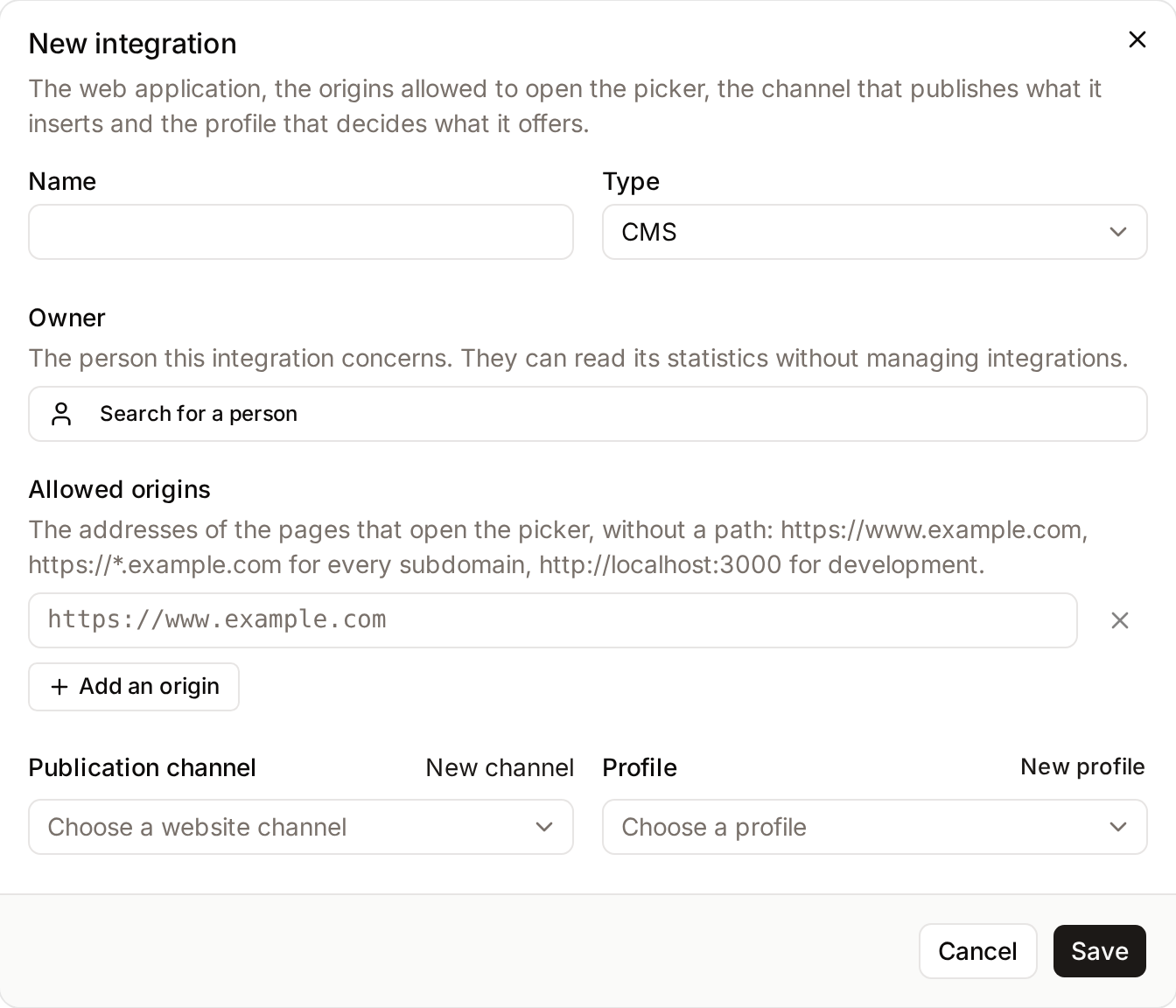
- Name and Type (CMS, e-commerce or other) tell integrations apart.
- Owner: the person the integration concerns. They can read its statistics without managing integrations.
- Allowed origins: the addresses of the pages that open the picker.
- Publication channel: the website channel that publishes the inserted assets. Its usage rights, sizes and watermark apply. If you can manage publishing, New channel opens the Publication channels page.
- Profile: what the picker offers. New profile opens the Picker profiles page.
Allowed origins
An origin is a scheme, a host and an optional port, without a path:
| Entry | Allows |
|---|---|
https://www.example.com |
that address only |
https://*.example.com |
every subdomain, such as https://shop.example.com or https://eu.shop.example.com, but not https://example.com |
https://www.example.com:8443 |
that address on port 8443 only |
http://localhost:3000 |
a developer's computer |
Origins use https. http is accepted for localhost, names ending in .localhost, 127.0.0.1 and [::1] only. A wildcard needs at least two labels after *.: *.example.com is accepted, *.com is not. Internationalized domain names are entered in their xn-- form.
The picker never opens from an origin missing from the list.
Availability
The list shows a warning when an integration cannot open the picker:
- its channel is disabled, is missing, or publishes none of the profile's asset types;
- its profile is missing.
When the channel publishes only some of the profile's types, the picker offers the common ones.
Add the picker to the web application
Snippet and test in the row menu shows the code that adds the picker to the web application. Copy it into a page served from one of the allowed origins. It loads the picker script from your workspace, adds an Insert from Freedam button, and calls Freedam.picker.open() with the workspace address and the integration key. The page receives the inserted assets as the result of that call; the developer replaces console.log(assets) with the code that uses them.
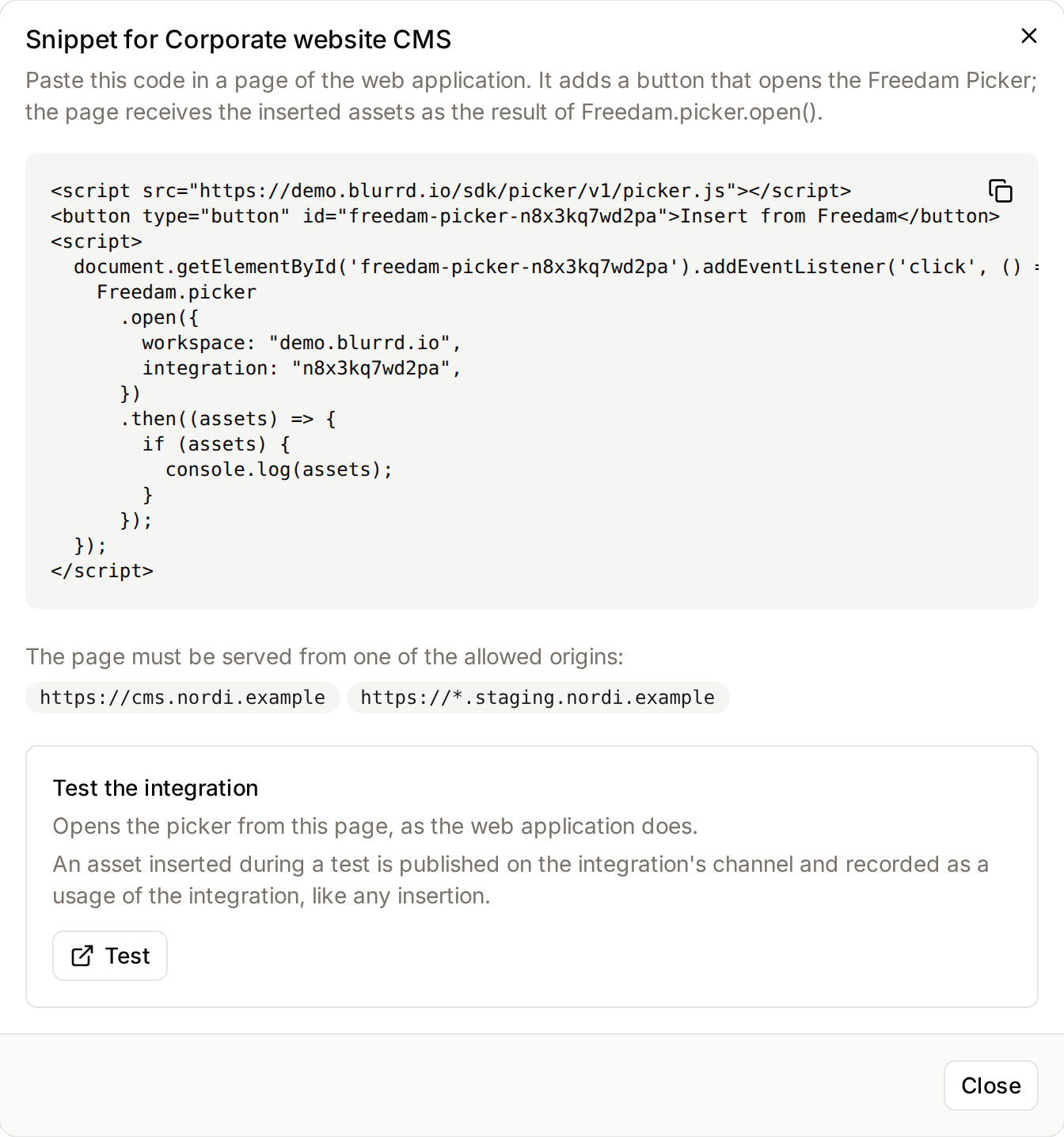
The script address ends in /v1/picker.js: the page receives every update of version 1 of the picker without changing the code.
Test opens the picker from the Picker integrations page, as the web application would, so you can check the profile and the channel before the developer adds the code. The dialog then shows the data the picker sent. An asset inserted during a test is a real insertion: it is published on the integration's channel and recorded as a usage of the integration. Test is unavailable while the integration is suspended or cannot open the picker.
What people see in the picker is described in Freedam Picker. The developer documentation is in the Freedam Picker quickstart and the Freedam Picker reference.
A WordPress site does not need this code: install the WordPress plugin, which adds a Freedam tab to the media library.
A Shopify shop does not need it either: Connect Shopify, above the list of integrations, creates the channel, the profile and the integration, and the integration's Shopify app window requests the Freedam app for Shopify from the Freedam team.
Access without an account
By default, people sign in to Freedam before they choose assets in the picker. Access without an account in the row menu lets the visitors of the web application open the picker without a Freedam account, for example on a public website where visitors choose a picture for their profile or an order.
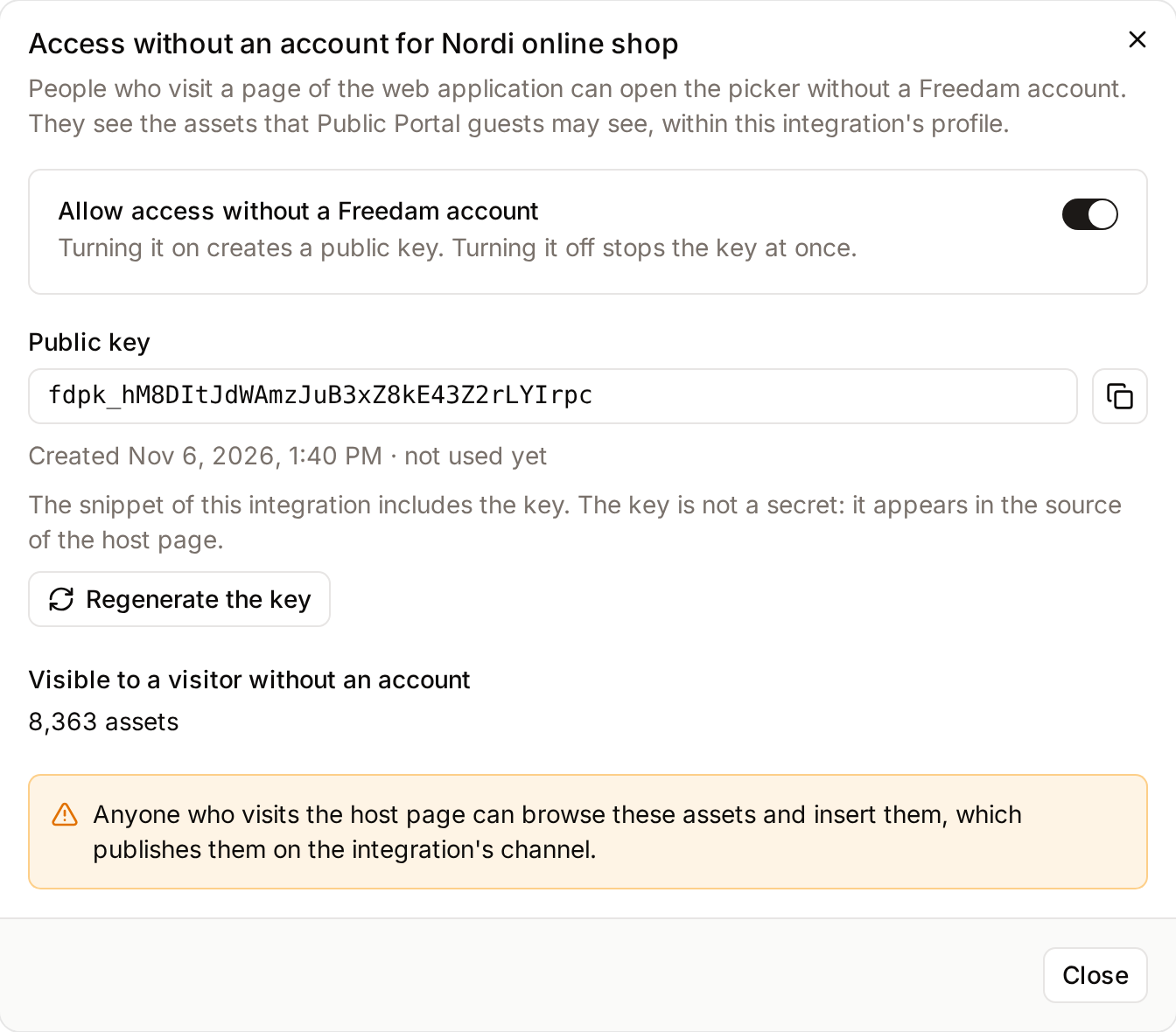
- Allow access without a Freedam account turns the access on and creates a public key. The integration's snippet then includes the key, so copy the snippet again into the web application after you turn the access on.
- Visitors without an account see the assets that guests of the Public Portal may see, within the integration's profile. The dialog shows how many assets that is. The Public Portal must be on: while it is off, the access cannot be turned on, an access already on stops working, and the dialog links to the Public Portal settings.
- Visitors without an account cannot import files, and the picker has no Recent or Favorites tab for them. What they insert is published on the integration's channel and recorded as a usage of the integration, like any insertion.
- The public key is not a secret: it appears in the source of the web application's pages. Anyone who visits those pages can browse the assets the dialog counts and insert them.
- Regenerate the key replaces the key. Pages that still use the old key can no longer open the picker without an account until the developer updates the snippet. Turning the access off stops the key at once.
People who have a Freedam account can still sign in from the picker and see what their own access rights allow.
Picker statistics
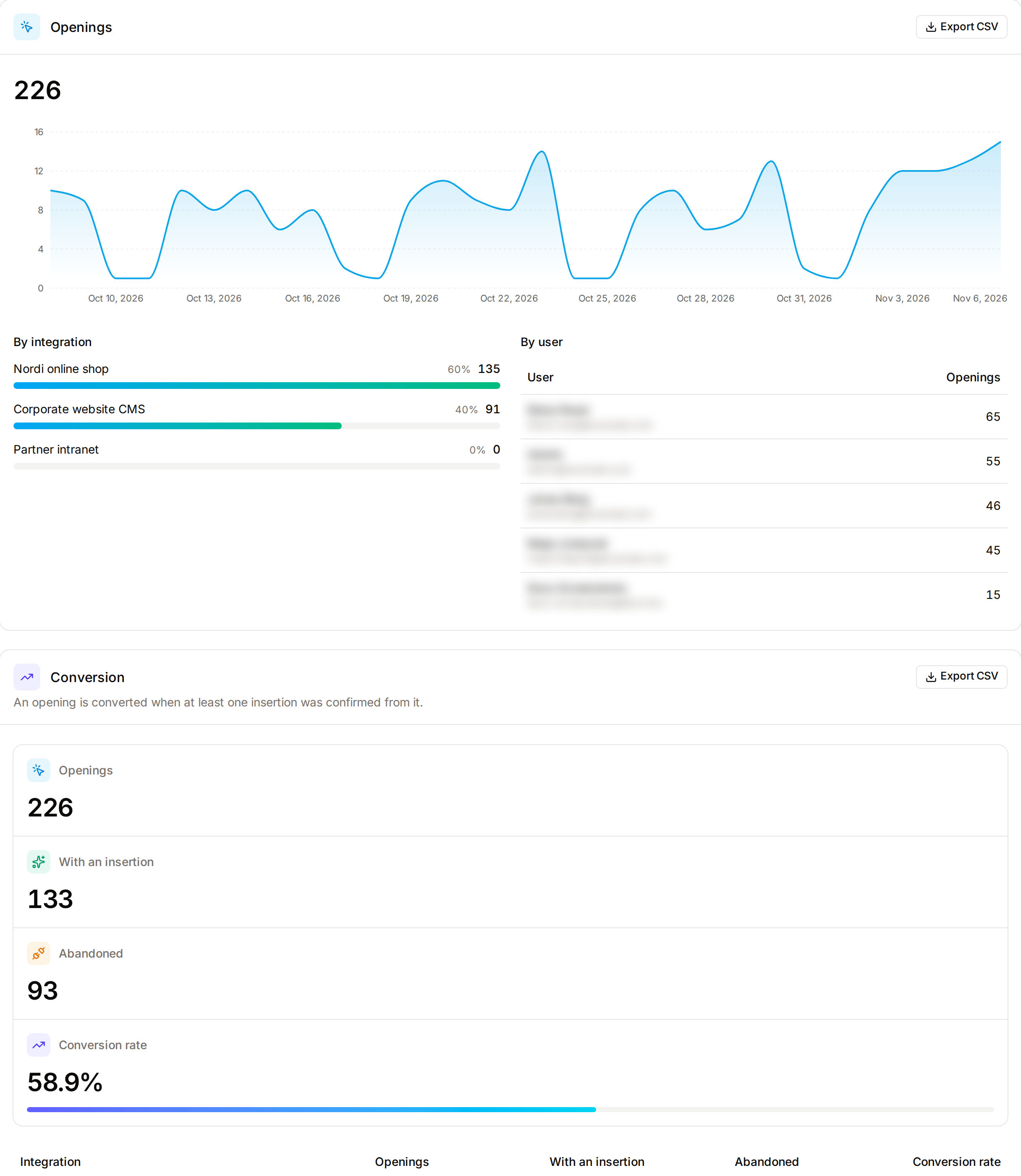
Administration → Publishing → Picker statistics shows how each integration uses the picker. At the top of the page, choose one integration or all of them, and the last 7, 30, 90 or 365 days (calendar days in UTC, the last 30 by default), as on the analytics dashboard. Statistics in an integration's row menu opens the page for that integration. The page has six cards:
- Openings: openings of the picker per day, by integration and by user (the 50 most active).
- Openings and insertions: the openings that ended with at least one insertion, those closed without inserting, and the share that ended with an insertion. Closing the picker without inserting is not an error: people also open it only to look.
- Most inserted assets: the 20 assets inserted most often in the period, including usages removed since.
- Searches without results: the 50 picker search terms that found nothing most often. Gallery searches are not counted.
- Active usages: the usages active today and their distinct assets by integration, then, for each channel of the integrations, how many of its published assets an integration inserted from it. The other assets of a channel may still be used through links copied from the asset page.
- Compliance alerts: active usages of assets whose rights have expired, with the integration and the page that declared them.
Export CSV on each card downloads that card for the chosen period and integration, with every row of the asset lists.
The page is open to people with the Manage Freedam Picker integrations permission, who see every integration, and to the owner of an integration, who sees the integrations they own. An owner without the permission opens the page from its address, /admin/integrations/statistics. The cards that list assets show only the assets you can view; the counts cover every insertion.
Suspend or delete an integration
Suspend in the row menu stops the picker from opening for the integration; Resume turns it back on. Its settings are kept.
Delete removes the integration. The assets it already inserted stay online: their links belong to the publication channel, so deleting an integration stops no image. To take assets offline, unpublish them from the channel or disable the channel on the Publication channels page. A channel that an integration uses cannot be deleted until the integration uses another channel.
Every change to integrations and profiles is recorded in the audit log.