
Shopify app
The Freedam app for Shopify adds Freedam images to the media of your products. From a product page in the Shopify admin, people open the Freedam Picker in a new browser tab, choose images, and the app adds them to the product.
Shopify shows only images that it hosts itself. The app therefore downloads the finished image from your Freedam publication channel, checks it, and uploads a copy to Shopify. It then keeps that copy in line with Freedam:
- it tells Freedam on which products each image is used;
- it removes an image from the products when its usage rights no longer allow the channel, and puts it back when they do again;
- it offers each new version of an image, and updates its alt text from Freedam.
Each shop has its own Freedam app, which the Freedam team creates for you. This page follows the whole process in order. Steps 1 and 2 are for a Freedam administrator; the steps after them are for the shop's staff.
What you need
- In Freedam: the Freedam Picker, which comes with the Business and Tailored plans together with Publishing, and the Manage Freedam Picker integrations and Manage publishing permissions.
- In Shopify: the shop's address that ends in
.myshopify.com(Shopify shows it under Settings > Domains), and an account allowed to install apps. The app works with every Shopify plan. - For each person who adds images: a Freedam account. The picker opened from Shopify always asks people to sign in to Freedam.
Step 1: connect Shopify in Freedam
Open Connect Shopify
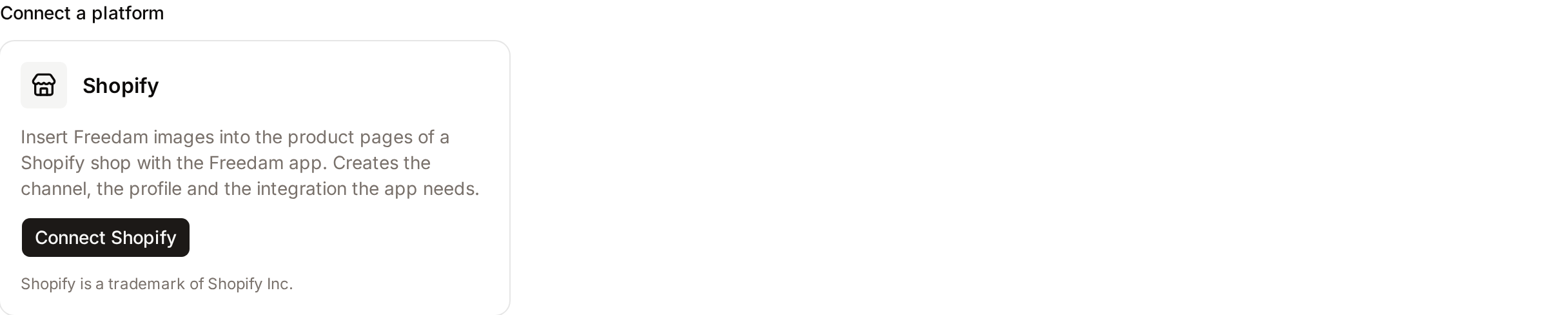
Open Administration → Publishing → Picker integrations. Above the list, Connect a platform shows a Shopify card. Click Connect Shopify.
Describe the shop and its images
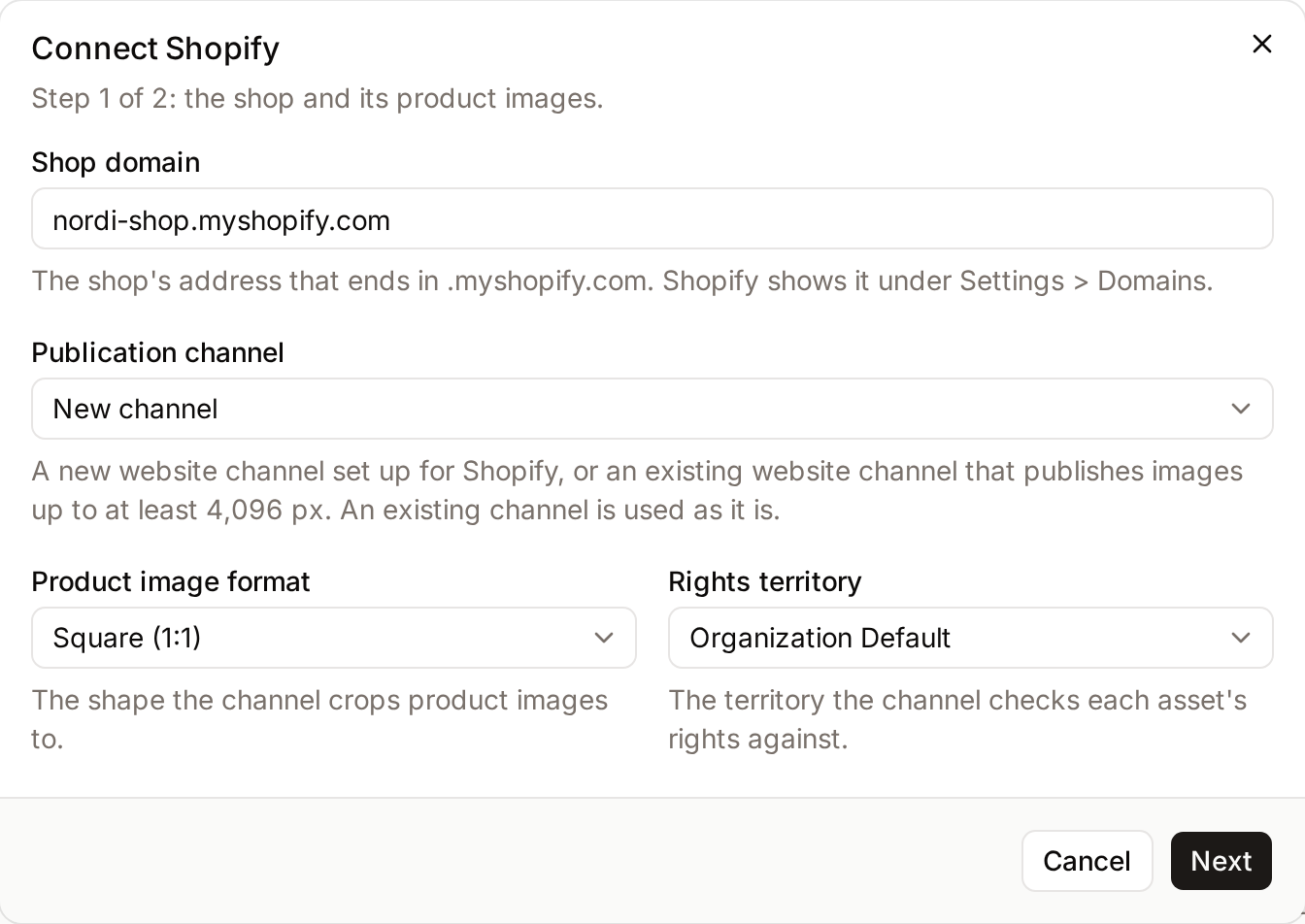
The first step of the window asks for:
- Shop domain: the shop's address that ends in
.myshopify.com, for examplenordi-shop.myshopify.com. - Publication channel: New channel (the default), or an existing website channel that publishes images up to at least 4096 px. An existing channel is used as it is.
- Product image format: the shape the channel crops product images to: Square (1:1) (the default), Portrait (4:5) or Original ratio.
- Rights territory: the territory the channel checks each asset's rights against.
Click Next.
Check what will be created
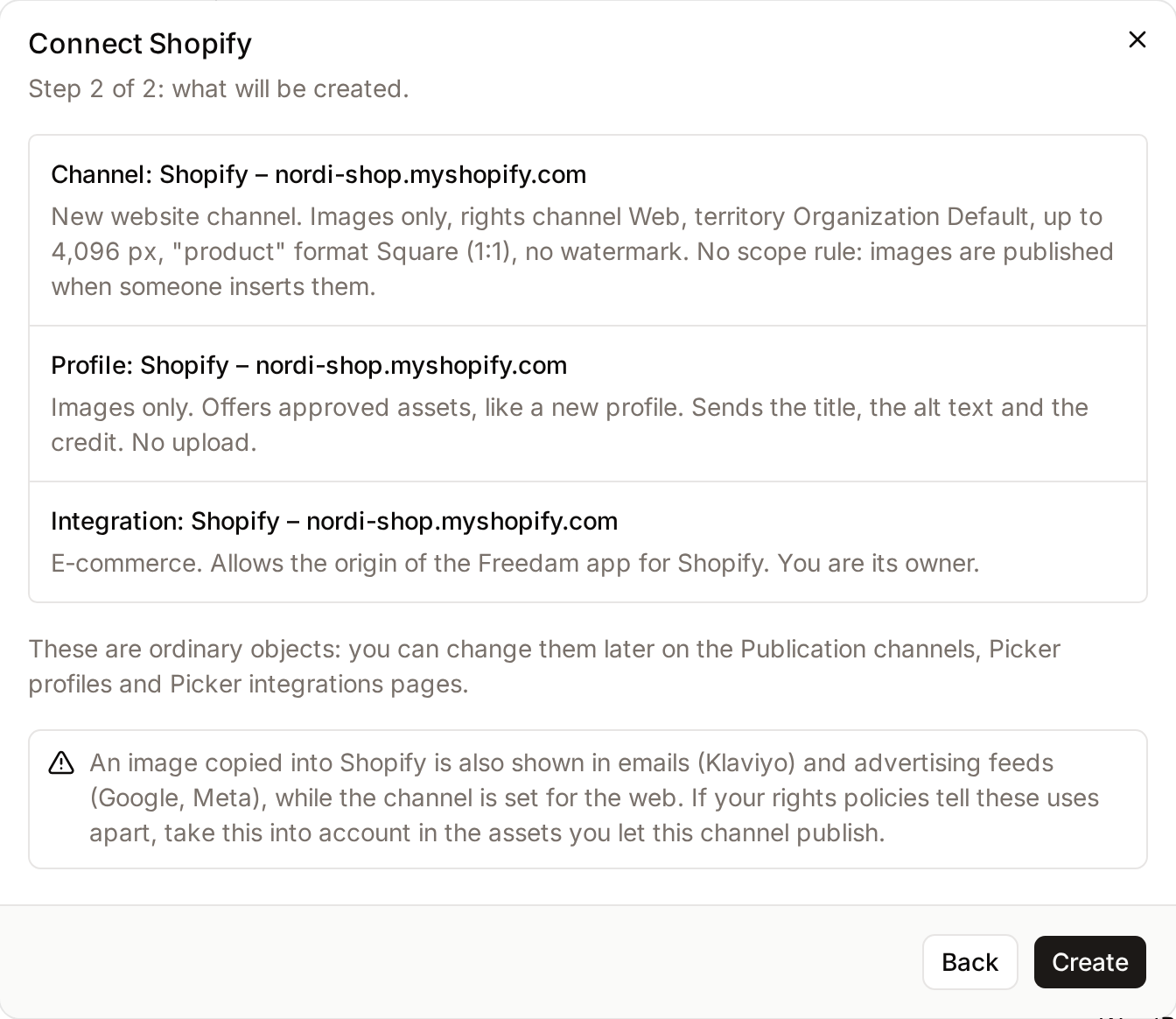
The second step lists the three objects that Create adds, with a reminder about usage rights (see Usage rights of the copies). Click Create.
| Object | What Freedam creates |
|---|---|
| Publication channel | Shopify – {shop}, a website channel for images only, rights channel Web, in the territory you chose, up to 4096 px, with a product format in the shape you chose (none for Original ratio), without watermark. It has no scope rule: an image is published on it when someone inserts it. |
| Picker profile | Shopify – {shop}, images only, offering approved assets like a new profile, and sending the title, the alt text and the credit. No upload. |
| Picker integration | Shopify – {shop}, of type E-commerce, which allows the origin of the Freedam app for Shopify. You are its owner. |
These are ordinary objects: you can change them later on the Publication channels, Picker profiles and Picker integrations pages, as described in Freedam Picker.
Usage rights of the copies
A copy in Shopify is shown wherever Shopify sends product images: the online store, checkout, product feeds for Google and Meta, and email tools such as Klaviyo. The channel created by Connect Shopify is set for the web. Freedam checks that each asset's rights allow the channel; it does not check that they cover everything Shopify does with the copy. If your rights policies tell email or advertising apart from the web, take this into account in the assets you let this channel publish, for example with the assets the profile offers.
Step 2: request the app
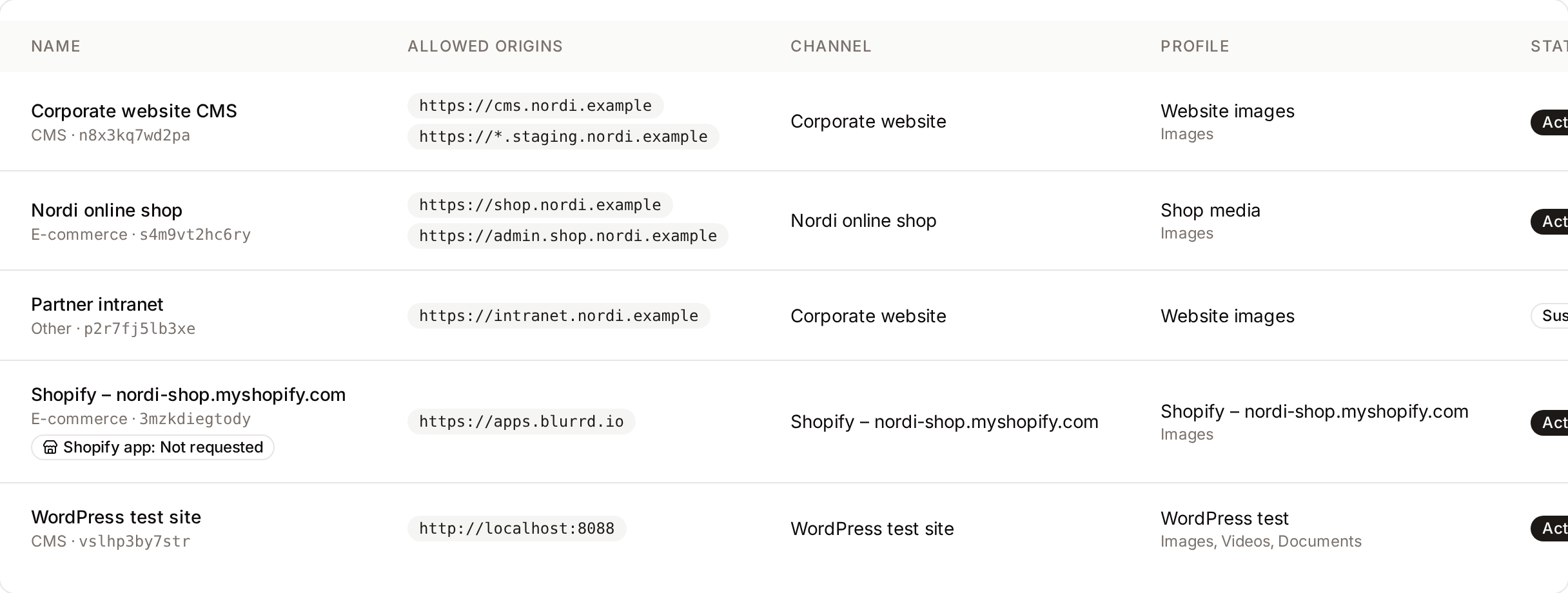
The new integration appears in the list with a Shopify app: Not requested badge under its name. Open its menu and choose Shopify app.
The Shopify app window shows the shop's address, taken from the name of the integration. Check it, then click Request the Shopify app. The Freedam team receives the request with your workspace, the shop and the integration, creates the app for your shop and adds its installation link to the window.
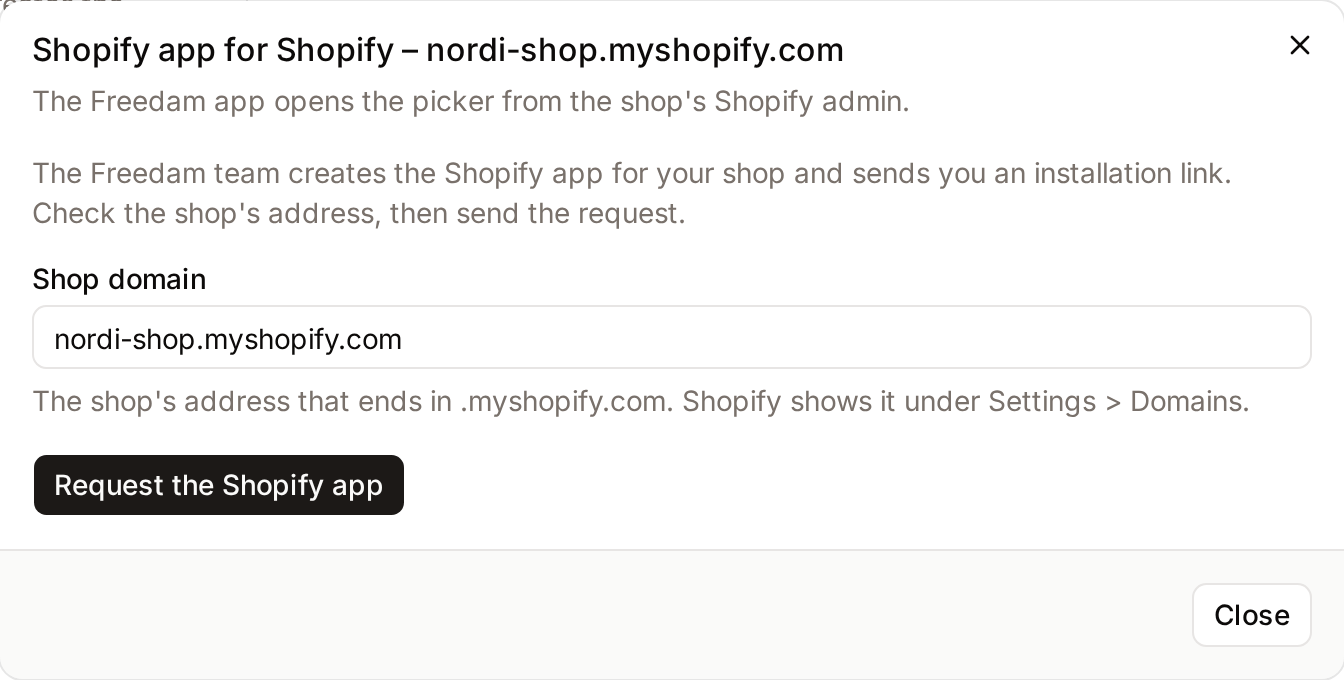
The badge and the window follow the app through these states:
| State | What the window shows |
|---|---|
| Not requested | The shop's address and Request the Shopify app. |
| Requested | The date of the request. The Freedam team sends an installation link. |
| Ready to install | The installation link, with Copy link. |
| Installed | The shop and the date of installation, with Open in Shopify, which opens the app in the shop's admin. |
| Uninstalled | The date the app was uninstalled, and a reminder that the images already copied to Shopify stay in the shop. |
An integration has one request, and a shop one request in progress per workspace.
Step 3: install the app in Shopify
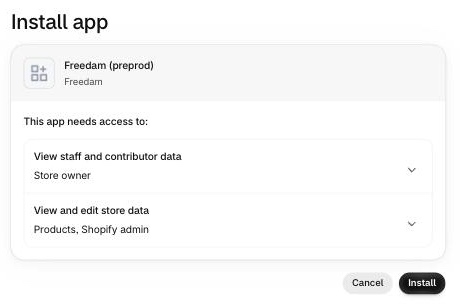
Open the installation link while signed in to the shop's Shopify admin. Shopify shows the Install app screen with the name of the app and the access it needs:
- View staff and contributor data: Store owner;
- View and edit store data: Products, Shopify admin.
The app has no access to customers, orders or themes. Click Install; Cancel leaves the shop unchanged.
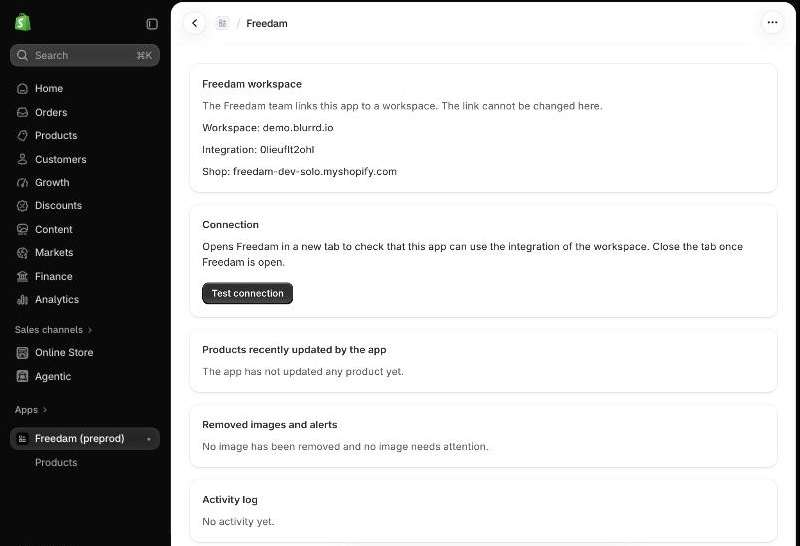
The app then opens in the Shopify admin, under Apps, with a Products page under its name. Its home page shows:
- Freedam workspace: the workspace, the integration and the shop. The Freedam team links the app to your workspace; the link cannot be changed in Shopify.
- Connection: Test connection opens Freedam in a new tab. Sign in to Freedam if asked; when Freedam is open, the app says Connected. Close the tab to go back to Shopify. If you insert images during the test, the app removes the usages Freedam recorded for them and adds nothing to the shop.
- Products recently updated by the app, Removed images and alerts and the Activity log, which lists every addition, change and failure with its reason. Right after the installation, these three sections are empty.
In Freedam, the Shopify app window of the integration now says Installed on {shop} on {date}.
When Freedam cannot open, the app says why:
| Message | What to do |
|---|---|
| Your browser blocked the Freedam tab. Allow pop-ups for admin.shopify.com. | Allow pop-ups for admin.shopify.com in the browser, then try again. |
| This app is not allowed to open Freedam. | A Freedam administrator adds the origin given in the message to the integration's allowed origins. |
| The Freedam Picker is not available on this workspace. | The workspace's plan does not include the Freedam Picker. |
| The Freedam integration of this app is suspended. | A Freedam administrator resumes the integration on the Picker integrations page. |
| The Freedam integration of this app cannot be used. | The integration's profile or publication channel is missing or disabled. A Freedam administrator checks them. |
Step 4: add the Freedam block to the product page
The app adds a Freedam images block to the product page of the Shopify admin. Shopify shows an app block only after someone adds it:
- In the Shopify admin, open a product.
- At the bottom of the product page, in the Blocks section, click + Block and choose Freedam images.
- Click the pin icon at the top right of the block. A pinned block stays on every product page.
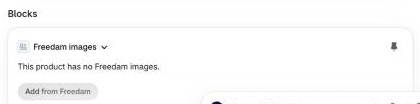
The block lists the Freedam images of the product with their state, and has an Add from Freedam button, which opens the product in the app (Step 5).
| State in the block | Meaning |
|---|---|
| Available | The image is on the product, and Freedam allows it on the channel. |
| Being added | The app is adding the image to the product. |
| Rights expire on {date} | The asset's rights end within 14 days. |
| Removed: rights expired | The app removed the image because the asset's rights expired. |
| Removed: no longer cleared for this channel | The app removed the image because the asset's rights no longer allow the channel. |
| Being restored | The app is putting the image back. |
| Not available in Freedam | The asset is excluded from the channel, unpublished, archived or in the trash, or its channel is stopped. The image stays on the product. |
A product without Freedam images shows This product has no Freedam images.
When the block says Open the Freedam app once to reconnect it to this store., open the app from Apps: Shopify renews its authorization, and the app resumes its work in the background.
Step 5: add images to a product
Open the product in the app
Add from Freedam in the block opens the product's page in the app. You can also open the app's Products page and search by title or SKU.
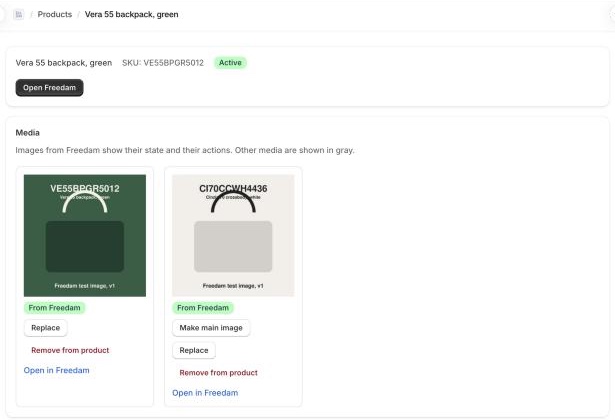
The product's page shows its title, its SKU and its media. Images from Freedam are marked From Freedam and show their state and their actions; other media are shown in gray, marked Not from Freedam.
Choose images in Freedam
Click Open Freedam. The picker opens in a new browser tab, with:
- the search filled in with the product's SKU, or its handle when it has no SKU;
- images only, up to 50 at a time;
- the images already on the product selected.
Sign in to Freedam if the picker asks you to. Each person sees the assets their own Freedam access allows, within the integration's profile. Choose the images and the product format, then click Insert. The picker's tab closes and the browser shows the Shopify admin again.
Follow the images being added
The product's page lists the Images being added with their state: Waiting, Being added, Added, Already on the product, Failed or Needs you. For each image, the app:
- checks with Freedam that the image comes from this app's integration; otherwise it sends nothing to Shopify;
- waits until Freedam has finished rendering the image, for a new asset up to 30 minutes;
- downloads the largest size that fits Shopify's limits: up to 4096 px wide, 20 megapixels and 20 MB, in WebP;
- uploads it to Shopify's Content > Files, with the asset's alt text from Freedam (its title when it has none);
- adds it at the end of the product's images.
Shopify then makes the sizes that the theme displays. An image already on the product, in the same format, is not added a second time. The same image, in the same format and version, added to another product uses the same file in Shopify, without a new upload: the products share it.
When an image fails, the list and the activity log give the reason, and Try again starts it again. Needs you means your Shopify session ended before the image was added: click Try again.
The app acts with your own Shopify permissions. A staff account that may not edit products cannot add images: the app says Your Shopify account may not change this product.
Work with the product's media
| Action | Where | What it does |
|---|---|---|
| Make main image | Freedam image | Moves the image to the first position. |
| Replace | Freedam image | Opens the picker for one image. The new image takes the place of the old one. Choosing the same image again takes its current crop from Freedam, see New versions. |
| Remove from product | Freedam image | Removes the image from the product, after a confirmation. Freedam no longer counts it as used there. The app deletes its file from Shopify once no product uses it. |
| Open in Freedam | Freedam image | Opens the asset in your workspace. |
| Replace with Freedam | Other media | Opens the picker for one image, which takes the place of the media. The shop's own file stays in Content > Files: the app never deletes a file it did not import. |
| Update, Update all products | Image with a new version | See New versions. |
| Use a separate copy for this product | Image shared by several products | See Alt text. |
| Don't restore | Image removed by the app | See Removal and putting back. |
Changes made in Shopify itself are followed too. Removing a Freedam image from a product in the Shopify admin removes its usage in Freedam, and putting it back declares it again. A product duplicated in Shopify with its media gets its own usages, without anyone opening the app. Deleting a product removes its usages.
Step 6: follow the usages in Freedam
Freedam records where each image is used. Open the asset in Freedam, then the Publishing and usages tab: under Usages, the Shopify integration lists one line per product.
- The label is the product's title, followed by its state when it is not online: (draft), (archived), (unlisted) or (not published).
- The address is the product's page on the shop's primary domain, for example
https://www.example.com/products/sandsbro-plate, when the product is active and published on the online store. Otherwise the line has no address. - An image the app removed is listed with (removed from Shopify: rights expired) or (removed from Shopify: no longer cleared for this channel), without address.
The app sends these changes in the background. A series of changes to a product in Shopify gives one update, about 10 seconds after the last change. When Freedam cannot be reached, the app tries again later. The Picker statistics page sums up the insertions and active usages of the integration.
New versions
When an asset gets a new version in Freedam, the block shows New version available, and the app's product page shows, for example, New version available (version 2). Products that use this file: 2. The app never updates an image by itself: a new version can change the crop of a product image, and the shop's staff decide.
- Update adds the new version to this product as a new file, at the same position, and removes the old file from this product only. The other products keep the old version and still show New version available. When another product is then updated, it uses the file of the new version already in Shopify.
- Update all products, shown when several products use the file, lists these products, then does the same for each of them.
The app deletes the old file from Shopify once no product uses it.
The version in Shopify is the version that was uploaded. A change of crop or focus point in Freedam that does not create a new version of the asset does not reach Shopify by itself: the copy keeps the crop it had when it was imported. To take the new crop on a product, use Replace on the image and choose the same image in the same format. The app downloads the image from Freedam again; if it changed, the app adds it to this product as a new file, at the same position, and the other products keep the former crop. If it did not change, nothing is uploaded. Adding the image to another product with Open Freedam uses the copy already in Shopify. A new version of the asset reaches Shopify with Update.
Alt text
In Shopify, the alt text belongs to the file, and products that use the same file share it. The app copies the alt text of the asset from Freedam when it creates the file. When the alt text changes in Freedam, the app updates the file within a day, on every product that uses it, unless someone changed the text in Shopify: a text changed in Shopify is never overwritten.
For an alt text that belongs to one product only, use Use a separate copy for this product: the app adds a file of its own to this product, whose alt text you can change in Shopify without changing the other products.
Removal and putting back
Every day, the app reads in Freedam the state of each image it added. What it does depends on that state:
| State in Freedam | What the app does |
|---|---|
| The asset's rights expired | Removes the image from every product of the shop that shows it. |
| The asset's rights no longer allow the channel | Removes the image from every product of the shop that shows it. |
| The asset's rights end within 14 days | Shows Rights expire on {date} in the block and on the app's home page. The image stays. |
| Excluded from the channel, unpublished, archived, in the trash, or channel stopped | Shows an alert with the reason, for example Not available in Freedam: in the trash or Not available in Freedam: excluded from the channel. The image stays on the product; the shop's staff can remove it with Remove from product. |
| The usage no longer exists in Freedam (asset deleted for good, or integration deleted) | Shows Freedam no longer knows this usage and stops following the image. |
When the app removes an image, it keeps its position, deletes its file from Shopify once no product uses it, and records the removal in Freedam (see Step 6). If the image was the main image, the next one becomes the main image. The app's product page lists the image under Removed by the app.
The home page lists, under Removed images and alerts, each product with a removed image or an alert, and the reason: Rights expire on {date}, Removed: rights expired, Removed: no longer cleared for this channel, or Not available in Freedam followed by the asset's state.
When the asset may be shown again, for example after its rights are renewed, the app puts the image back at its position, and its usage in Freedam gets the product's address again. Don't restore, on the app's product page, keeps the image off the product. After the confirmation Keep this image off the product? The app will not put it back, and Freedam no longer counts it as used here., the app says The image will not be put back. It no longer puts the image back on this product, and Freedam removes the usage. The other products that showed the image are not affected.
What the removal does not cover
The app removes the images from the products and deletes the files it imported. It does not control what happens to a copy outside the shop's products:
- Delay: the app aims to remove an image within a day of the change in Freedam, without a guarantee. The delay depends on the daily check, on errors and retries of Shopify's services, on the app's authorization in the shop, and on the availability of the app.
- Shopify's CDN: when the app removes an image, the image leaves the products and the app deletes its file from Shopify at once. Deleting the file does not clear it from Shopify's CDN: a full
cdn.shopify.comaddress of the image, copied elsewhere before the removal, can still show the image. In Freedam's test, such an address was served at every check for the 2 hours 50 minutes the test lasted after the deletion, and Shopify sends these files with a cache lifetime of one year. Shopify does not say when its CDN stops serving a deleted file. - Copies taken elsewhere: product feeds (Google, Meta), Klaviyo and emails already sent keep the copy they took.
- Images not added by the app: the images that were in the shop before the app, or that people upload to Shopify directly, are not followed. The app does not declare them in Freedam and never removes them.
Images only
The picker opened from Shopify offers images only. Product videos stay managed in Shopify.
Languages
The app and the block follow the language of each staff member's Shopify admin: English, French, German, Spanish, Brazilian Portuguese or Simplified Chinese, and English for the other languages. The picker opens in the matching language. The labels of usages in Freedam are in English.
Uninstall the app
To uninstall the app, in the Shopify admin:
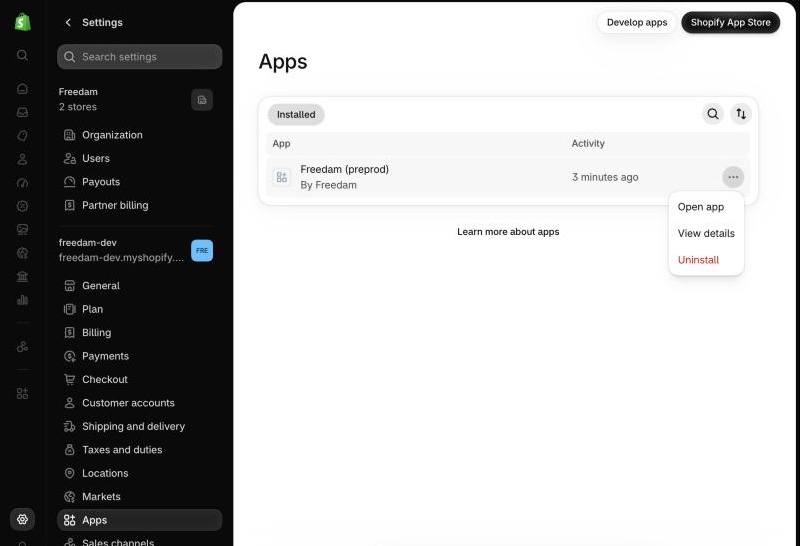
- Open Settings > Apps. The Installed tab lists the app.
- Click … on the app's line, then Uninstall.
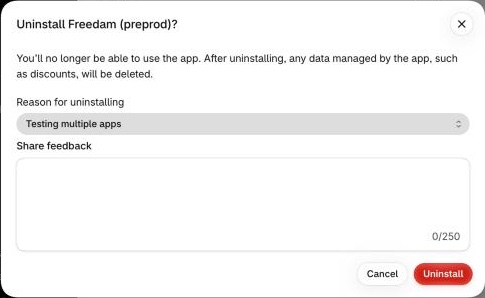
- Shopify asks for a Reason for uninstalling. Choose one: the Uninstall button becomes active only once a reason is chosen. Share feedback is optional.
- Click Uninstall. Shopify confirms that the app was uninstalled.
Uninstalling the app stops its work in the shop. The images already copied stay on the products, and their usages stay in Freedam with (Shopify app uninstalled) after the label: Freedam keeps knowing where the images are shown. In Freedam, the Shopify app window of the integration shows Uninstalled.
About 48 hours later, Shopify asks the app to erase the shop's data. The app then deletes what it stored about the shop; the usages stay in Freedam.
To remove the images from the shop, remove them from the products, with Remove from product in the app, before uninstalling it. The installation link that the Freedam team sent installs the app again.