
Audit Log
The Audit Log lists every change to access and configuration in your workspace: roles and their permissions, user groups and their members, user accounts and their roles, asset access rules, metadata fields, vocabularies and the other settings an administrator manages, and every sign-in and refused sign-in. Each entry says who made the change, when, from which IP address, and what the values were before and after.
Use it for periodic access reviews, to investigate an incident, or to hand an auditor a record of what changed.
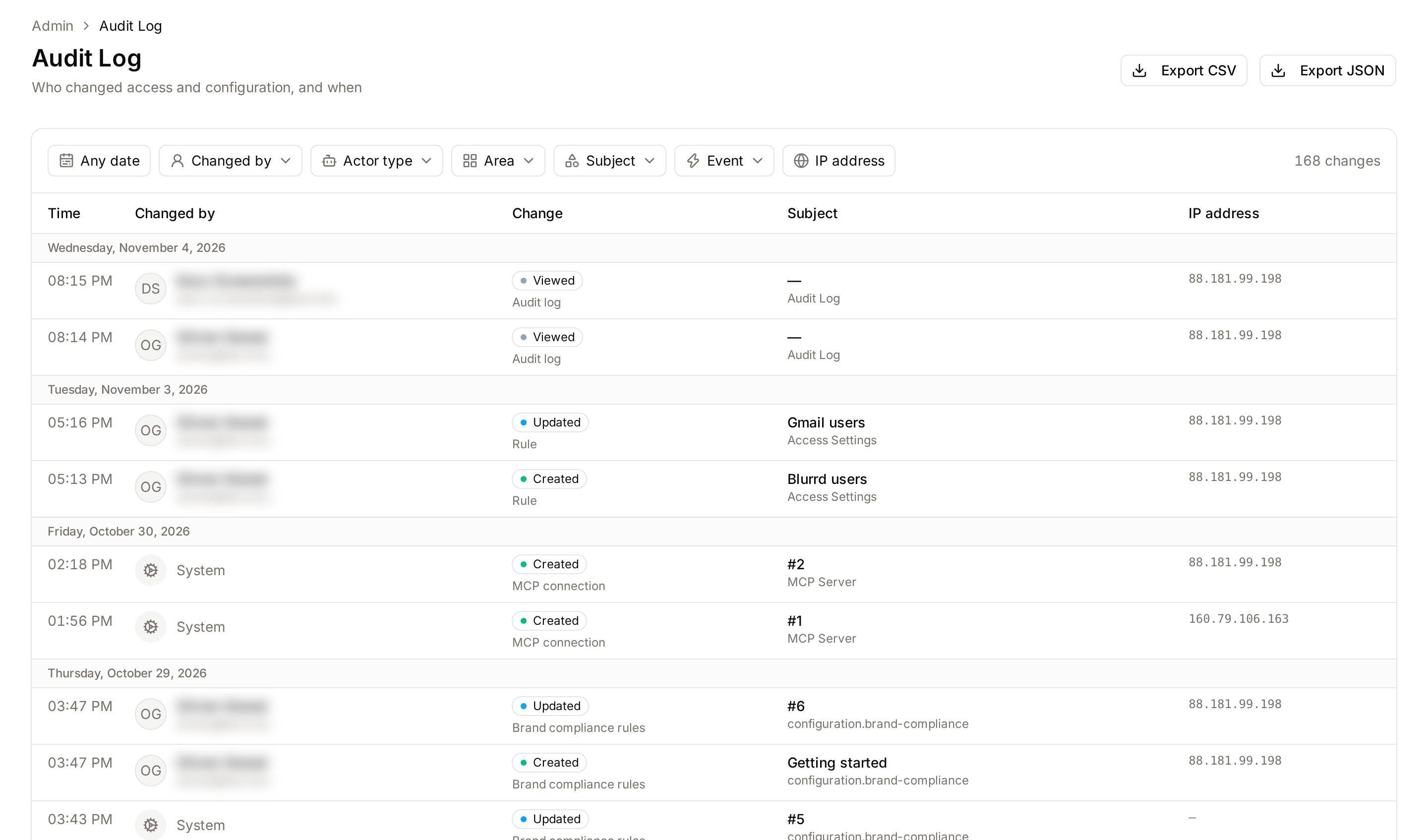
Page Overview
- Purpose: A read-only record of configuration and access changes.
- Where to find it: Administration → Audit Log, under Identity & Access.
- Who can open it: users whose role has the View audit logs permission.
- What you can do here:
- Filter changes by date, person, actor type, admin area, subject, event or IP address.
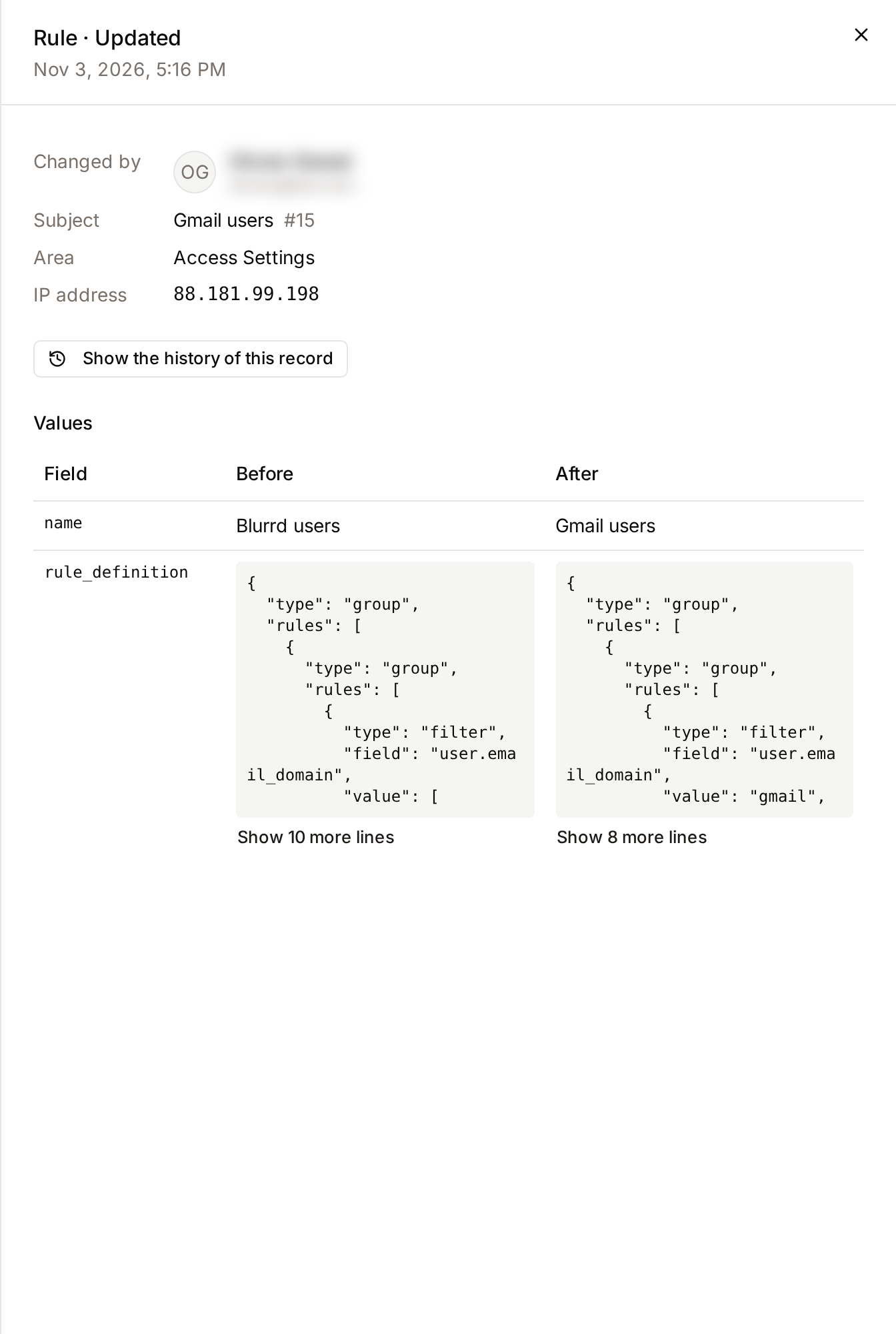
- Open a change to see every value before and after it.
- List the full history of one record.
- Export the filtered changes as CSV or JSON.
What is recorded
- Configuration: creating, changing and deleting roles, role permissions, user groups, asset access rules, terms of use, announcements, workflows, asset classes, metadata fields, vocabularies, collection types, automation rules, export naming rules, filename parsing rules, import sources, branding, languages, watermarks, brand compliance rules and publication channels.
- Access: user accounts created or deleted, status changes (for example deactivation), roles assigned or removed, users added to or removed from groups, invitations, two-factor resets and MCP connections.
- Sign-ins: each sign-in with how it was made (password, passkey, SSO or platform support) and the second factor used, refused sign-ins with the reason (wrong email or password, inactive account, SSO required, invalid passkey), lockouts after too many attempts, failed two-factor checks and sign-outs. Each records the IP address and the browser.
- The audit log itself: each export, the first time each person opens the page on a given day, and each deletion of entries older than 12 months.
Each entry also records whether the change was made by a person, by a person through the setup assistant, by platform support, by someone not signed in (a refused sign-in), or by the system (for example an import job). Changes the assistant made show the assistant run they belong to, and whether you confirmed a sensitive change before it was applied.
Secrets such as passwords, codes, tokens and keys are never stored. Where a secret field changed, the value shows as [redacted].
Administrators cannot edit or delete entries. Entries are kept for 12 months: each night, entries older than that are deleted, and an Audit log · Deleted entry records how many were deleted and the date before which they were recorded. To list these entries, choose the Subject Audit log and the Event Deleted. To keep older entries, export them before they reach 12 months.
Sign-in limits
- A refused sign-in for an email that matches no account is recorded with the email that was typed and no account.
- To stop a flood of attempts from filling the log, at most 20 refused sign-ins per IP address and 500 for the whole workspace are recorded each hour. Attempts past that are still refused, but not recorded.
- A lockout is recorded once, however many attempts are made while it lasts.
- Returning with a remembered browser session is not a sign-in and is not recorded.
To review sign-ins, choose Sign-ins: all events in the Event filter, or one event such as Sign-in failed. The Actor type Not signed in lists every refused attempt.
Not recorded here
- Asset activity such as views, downloads and shares. See Analytics → User activity for one person's activity, and the Rights Usage Logs for rights decisions.
- API calls, which have their own log under API Management.
Plans
Every plan has the Audit Log. Without the Audit Logs plan feature, the page shows the last 30 days and cannot export. With the feature, it shows the last 12 months and the export buttons work. Upgrading shows the entries older than 30 days, up to 12 months.
Filtering changes
The filters sit in one row above the list. Each applies as soon as you choose it, and the number of matching changes shows at the end of the row. Active filters are listed below the row; click the × on one to remove it, or Clear filters to remove them all. All filters are kept in the page address, so you can bookmark a filtered view or send it to a colleague who can open the Audit Log.
- Click the date button (Any date at first) and choose Today, Last 7 days, Last 30 days, Last 90 days or This year, or set a Custom range.
- Choose a person in Changed by, or an Actor type such as System or User via assistant.
- Choose an Area (for example Role Management) or a Subject and an Event (for example User and Role assigned). The Event list is grouped into configuration changes, access changes, sign-ins and the audit log itself; the first entry of each group selects all of its events.
- Click IP address, type an address or range such as
203.0.113.7or10.0.0.0/8, and click Apply.
The list shows 50 changes per page, grouped by day, newest first. Use the page numbers below it to move through the results.

Reading a change
Click a row to open it. The panel shows who made the change, the record it concerns, the admin area, the IP address and, for assistant changes, the run. The Values table lists every recorded field with its value before and after. A creation shows only the after values and a deletion only the before values. For a group membership change, the panel lists the users added or removed.
Click Show the history of this record to list every change to the same record. A role's history includes its permission changes, and a user group's history includes its membership changes. The History button in the role, user group, asset access rule and user dialogs opens the same view.
Exporting
Click Export CSV or Export JSON in the page header. The file contains the changes that match the current filters, newest first, up to 100,000 changes; above that, narrow the date range.
- CSV has one row per change with these columns:
id,created_at(UTC),actor_user_id,actor_name,actor_email,actor_kind,action_name,area,subject_type,subject_id,subject_label,ip_address,run_id,acknowledged_at,changed_fields,beforeandafter(the last two as JSON). - JSON has a
metaobject (export time, who exported, filters, number of changes) and arowslist with the same fields.
The file is streamed to your browser and is not stored by Freedam. Each export is itself recorded in the Audit Log with its filters, its number of changes and the file's SHA-256 fingerprint. To check that a file you were given is the one exported, compute its SHA-256 (for example shasum -a 256 audit-log.csv) and compare it with the fingerprint on the matching Audit log · Exported entry.
Exports contain names, email addresses and IP addresses. Store them as you would other personal data.
Platform support
When the platform support team signs in to your workspace, its changes are listed with the actor type Platform support, without a name or email address.
Complete Workflows
Workflow: Quarterly access review
- Set a Custom range covering the quarter.
- Choose the Area Role Management, review the changes, then repeat with User Groups and Asset Access Rules.
- Choose the Subject User and the Event Role assigned to see who was given a role, and by whom.
- Clear the area and subject, and export the quarter as CSV for the review record.
Workflow: What did one administrator change?
- Choose the person in Changed by.
- Set the date range of interest.
- Open each change to see its values, or export the list.